Zoom hands you an .mp4 file and a decent auto-transcript that no client will accept as-is. Speaker labels are generic, subtitle timing drifts after cuts, and line lengths blow past any style guide you're delivering to. This is the zoom recording to transcript workflow that fixes that: pull the raw recording out of Zoom, run it through Videotext for transcription and diarization, clean up timing and CPL/CPS in the subtitle QA editor, then export to whatever format the client specified — instead of manually rewriting Zoom's transcript line by line.
TL;DR
- The zoom recording to transcript workflow uploads the raw Zoom MP4 or M4A to Videotext for ASR transcription and automatic speaker diarization.
- Zoom's built-in transcript skips CPL/CPS checks entirely; Videotext's subtitle QA editor flags overlaps, gaps, and timing drift in one pass.
- Export goes straight to SRT, VTT, DOCX, PDF, TXT, JSON, or CSV with speaker names and timecodes intact for 2026 delivery.
- Zapier connects Zoom's recording-completed trigger to Videotext so every new call transcribes without a manual upload.
Why this matters
Zoom's native transcript is a rough first pass, not a deliverable. It has no CPL (characters per line) or CPS (reading speed) enforcement, so cues run long, break mid-word, and drift out of sync the moment a recording gets trimmed or a scene cut lands.
For a freelance transcriptionist or a media agency billing by the job, that gap is unpaid QA time. Manually renaming speakers, resplitting overlong lines, and re-timing cues after a trim can eat as much time as the original transcription. The fix is running Zoom output through a pipeline built for subtitle QA, not through Zoom's own export.
Before you start
- A Zoom cloud recording (or a locally saved MP4/M4A) — Videotext transcribes the media file, not Zoom's own transcript export.
- A Videotext account with upload access and, if the deliverable needs it, the client's style guide (Rev, GoTranscript, Scribie, or a custom spec).
- The gotcha: don't upload Zoom's auto-generated .vtt caption file by mistake. It carries no speaker metadata and its cue timing doesn't match what diarization expects — upload the raw audio or video file every time.
Get the Zoom recording ready
- In Zoom, open Recordings, find the meeting, and download Audio Only (M4A) or Video (MP4) — skip the Transcript file entirely.
- If the recording includes waiting-room time or dead air, run it through Videotext's Trim tool before processing to cut the start/end.
Expected result: one clean MP4 or M4A file, no Zoom transcript artifacts, ready to upload.
Transcribe the recording in Videotext
- Open Videotext and click Upload, then select the Zoom file.
- Choose the Video/Audio → Transcript pipeline.
- Let ASR processing run. Timed segments populate with generic speaker tags (Speaker 1, Speaker 2) from automatic diarization.
- Click a speaker tag and select Rename to swap in the real name — speaker labels can be edited any time after detection, not just on first pass.
Expected result: a segmented transcript with real speaker names, not a single undifferentiated block of text.
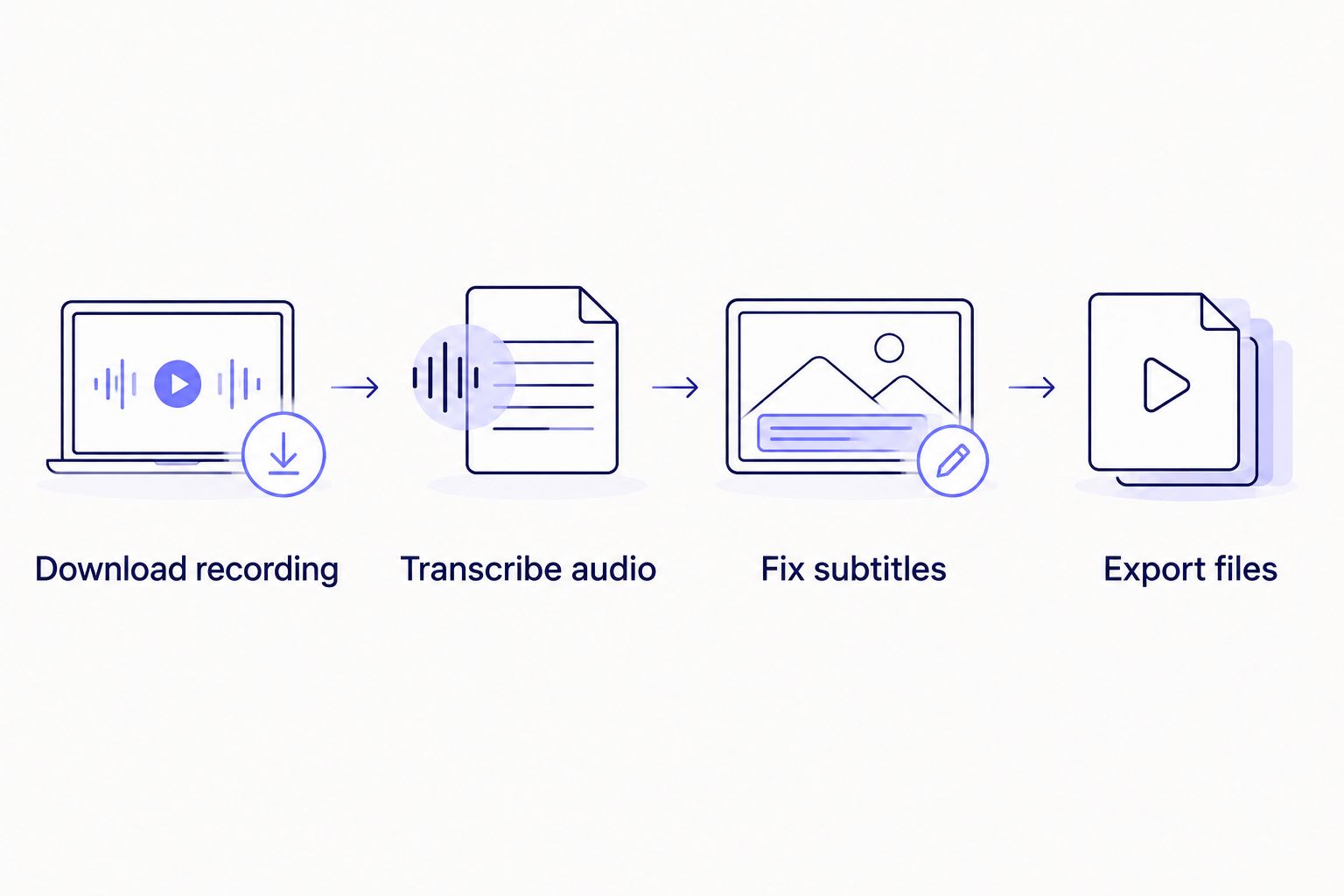
Each stage in the zoom recording to transcript workflow maps to one action inside Videotext.
Fix subtitle timing and formatting
- Switch output to SRT/VTT and open the Subtitle QA review editor — it syncs cues to the video in-browser.
- Run issue detection. It flags overlaps, gaps, scene-cut spans, and any CPL/CPS violations against Netflix's timed text guidance (42 characters per line, 17 characters per second for adult-content English).
- Click Fix subtitles to clear overlaps and drift in bulk, then hand-check whatever's still flagged.
- For delivery to spec, select Guideline formatting and choose Rev, GoTranscript, Scribie, or a custom guideline — full CPL and CPS benchmarks by style guide breaks down what each one actually requires.
Expected result: zero flagged overlaps and every cue inside the CPL/CPS limits for the target style guide.
Subtitle drift compounds every time a Zoom recording gets trimmed and re-cut without reprocessing timing.
“A two-frame lag becomes a half-second lag by the fifth scene cut if nobody reprocesses subtitle timing.”
Export client-ready files
- Click Export and pick the format: SRT, VTT, DOCX, PDF, TXT, JSON, or CSV.
- For deliverables that need both timing and speaker attribution, choose the timecode/speaker export layout.
- Generate a share link instead if the client wants to review the transcript in-browser before you send final files.
Expected result: the file lands in the client's requested format on the first export, no second pass.
Run your first Zoom transcript
Upload one recording and see diarization and CPL checks in action.
Try Videotext
Automate transcripts for every new Zoom cloud recording
Instead of manually uploading each call after it finishes, connect Zoom's recording-completed event to Videotext through Zapier. Every new cloud recording triggers transcription without you touching the upload button.
- Set the Zapier trigger to Zoom — Recording Completed.
- Set the action to Videotext's transcription pipeline — the Zapier connect guide covers the exact field mapping.
- Test with one real recording before turning it on for every call.
Expected result: transcripts and subtitle drafts appear in Videotext within minutes of a Zoom call ending, with zero manual uploads for recurring weekly calls.
Troubleshooting
- Diarization mislabels two similar-sounding speakers — rename and merge the affected segments manually in the cue editor; this happens more on calls with three or more overlapping voices.
- Subtitle drift reappears after a scene cut in an edited Zoom recording — re-run Fix subtitles' scene-cut span detection after any trim, not just once at upload.
- CPL violations show up after translation — longer languages don't automatically reweigh line breaks; recheck CPL right after the Translate step, before export.
- Zoom's own auto-caption VTT got uploaded by mistake — re-upload the source MP4 or M4A; the VTT lacks the speaker metadata diarization needs.
- A batch of recordings stalls in the queue — confirm the account's batch processing tier supports the queue size; batch and ZIP export are Pro+ features.
Customize your workflow
Once the core zoom recording to transcript workflow is running, three extensions cover most agency and freelance edge cases in 2026:
- Translate for international clients — subtitles and transcripts translate into 70+ languages with cue timing preserved, so a translated SRT doesn't need re-syncing.
- Burn subtitles into the video — useful for platforms that don't accept a separate caption file.
- Search the finished transcript by keyword — jump straight to a term instead of scrubbing the timeline, which matters most on hour-long depositions or lecture recordings.
For teams handling QA volume across multiple editors, reducing subtitle QA time before client delivery is worth reading before you scale this workflow past one person.
FAQ
What's the best way to turn a Zoom recording into a transcript in 2026?
Download the raw Zoom MP4 or M4A file (not the Zoom transcript export) and run it through an ASR pipeline with speaker diarization, like Videotext, then fix CPL/CPS in a subtitle QA editor before delivery.
Is Zoom's built-in transcript accurate enough for client delivery?
Zoom's transcript is a rough draft with no CPL/CPS enforcement or diarization QA, so it needs cleanup before it's client-ready. Treat it as a first pass, not a deliverable.
How do you fix subtitle timing drift after editing a Zoom recording?
Reprocess the file's scene-cut spans in a subtitle QA tool after any trim or cut; drift compounds with each unprocessed edit point.
Can speaker labels be edited after automatic detection?
Yes — diarization assigns generic tags like Speaker 1, and most tools including Videotext let you rename or merge those labels at any point after detection.
What CPL and CPS limits should Zoom recording subtitles follow?
Common industry benchmarks cap English subtitles around 42 characters per line and 17 characters per second for adult content, though exact limits vary by client style guide.
How much does it cost to transcribe a Zoom recording professionally?
Cost depends on the provider's plan and recording length; check current pricing directly with the transcription tool you're using rather than relying on a flat rate.
Can Zoom recordings be transcribed automatically without manual uploads?
Yes — connecting Zoom's recording-completed event to a transcription tool through Zapier triggers transcription automatically on every new cloud recording.
Does translating Zoom subtitles keep the original timing?
It should, if the tool preserves cue timing during translation. Videotext keeps cue timing intact across 70+ languages, but always spot-check line length after translation since word count changes per language.
One last thing
Zoom's own transcript export doesn't run any CPL check at all — it wraps lines by character count with no reading-speed logic, which is why a Zoom transcript that reads fine on screen fails a 42-character style guide the moment it's converted to SRT. Check CPL after conversion, not before.
Related guides