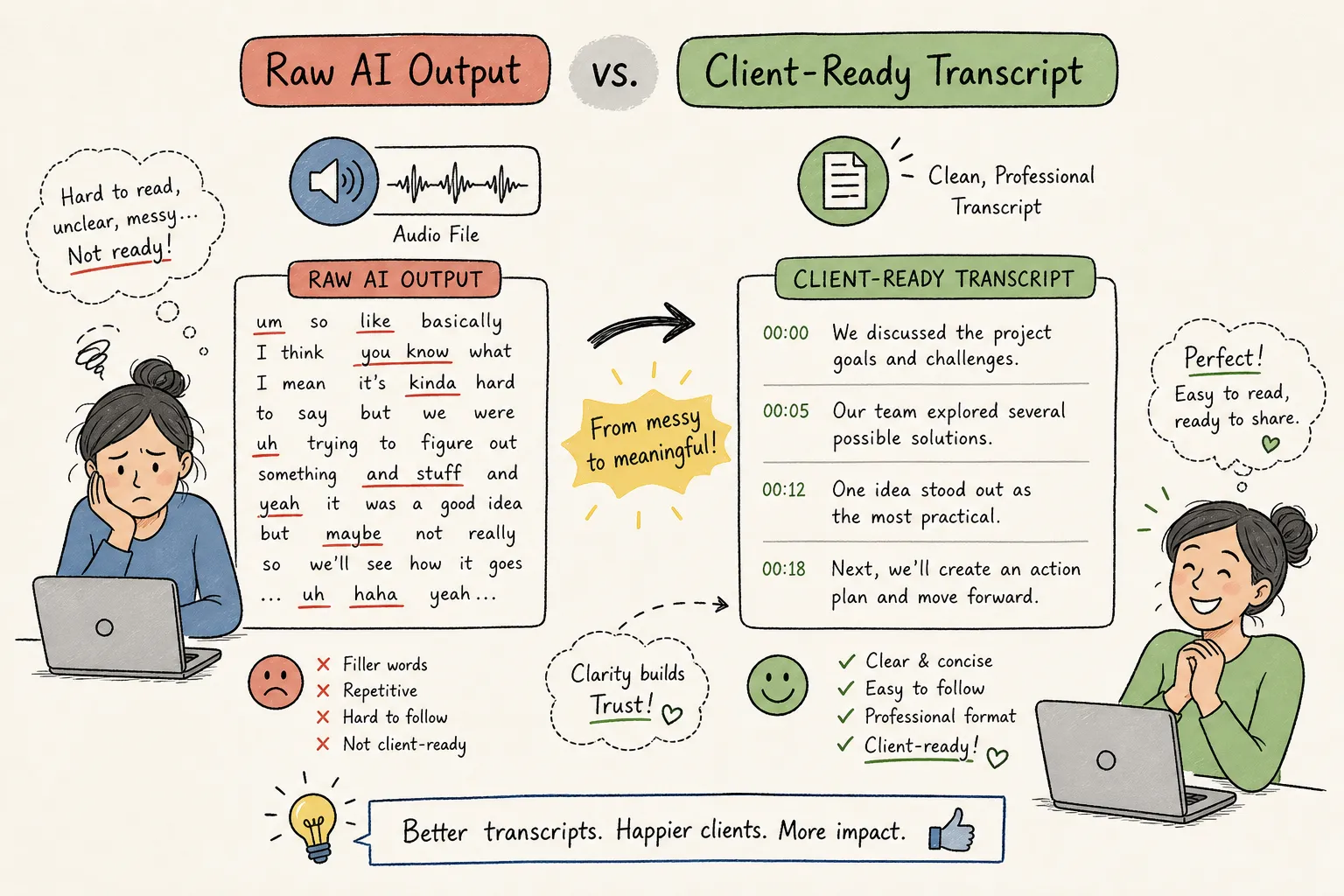
Here's a practical transcription audio to text example that shows what raw AI output actually looks like, and what it takes to turn it into a file a client can use. Raw AI transcription and a client-ready transcript are not the same document. The difference is visible in two lines. Here's the same spoken moment, before and after:
Raw output: SPEAKER_01 [00:00:07]: yeah so i looked at the numbers and uh i think we we might need more time like maybe 2 more weeks
Client-ready: SARAH: I looked at the numbers and I think we might need two more weeks.
The raw version has a generic label, unfiltered fillers, inconsistent capitalization, and a numeral where the style guide calls for a spelled-out word. The finished version has a named speaker labeled to spec, clean prose, and a format the client can publish or use directly. This article walks through one sample project from start to finish: a side-by-side before/after comparison, how style-guide rules get applied, what a QA report flags, and a subtitle repair example showing end-to-end delivery. For transcriptionists and subtitle editors who need to close the gap between automatic output and professional delivery, the whole process is here in one place.
Key takeaways
- Raw output is a draft: AI engines produce generic labels, scattered fillers, and inconsistent formatting that no client style guide would accept.
- Know the style before you start: Verbatim and intelligent/edited transcription serve different clients; confusing them causes the most common revision loop.
- Style guides define everything: Speaker label format, filler-word handling, and number conventions are all specified by the client.
- QA reports focus your review: Per-rule reports surface exactly what needs attention instead of sending you back through the whole document.
- Subtitle files have their own structure: Broken SRT and VTT files fail platform QA; repair is a distinct workflow from transcript formatting.
- Export format determines usability: SRT for video editors, VTT for web players, TXT for documents.
Transcription audio to text example: what raw AI output actually looks like
Take a 60-second fictional interview between two speakers discussing a project timeline. Here's the automatic output exactly as an AI engine would produce it:
SPEAKER_00 [00:00:01]
okay um thanks everyone for joining today i wanted to talk about the new project timeline

SPEAKER_01 [00:00:07]
yeah so i looked at the numbers and uh i think we we might need more time like maybe 2 more weeks

SPEAKER_00 [00:00:13]
right right because the deadline is friday or is it thursday actually i can never remember
This speech-to-text sample transcript shows what most AI engines commonly produce before any cleaning: generic labels, unfiltered fillers, missing capitalization, and inconsistent number formatting. Notice "2 more weeks" uses a numeral while "friday" and "thursday" are lowercase. Diarization identifies speaker turns but doesn't know anyone's real name. Punctuation is added from syntax and pauses, which means it's frequently wrong or absent entirely.
These aren't edge cases. Filler words, false starts, misheard proper nouns, and inconsistent formatting appear across raw audio-to-text output because many engines prioritize general recognition and readability rather than client-specific style compliance. Raw output is a working draft, not a deliverable. Submitting it as a finished file is a common reason transcripts get returned for revision.
Side-by-side: raw output vs. client-ready transcript
Reading the audio-to-text example line by line
The table below uses the same four lines from the sample clip. The left column is the raw AI output; the right column reflects a client style guide that specifies named speaker labels in all caps, clean verbatim (fillers removed), numbers below 10 spelled out, and standard sentence capitalization.
| Raw AI output |
Client-ready transcript |
| SPEAKER_00 [00:00:01]: okay um thanks everyone for joining today i wanted to talk about the new project timeline |
MARCUS: Thanks everyone for joining today. I wanted to talk about the new project timeline. |
| SPEAKER_01 [00:00:07]: yeah so i looked at the numbers and uh i think we we might need more time like maybe 2 more weeks |
SARAH: I looked at the numbers and I think we might need two more weeks. |
| SPEAKER_00 [00:00:13]: right right because the deadline is friday or is it thursday actually i can never remember |
MARCUS: Right, because the deadline is Friday. Or is it Thursday? I can never remember. |
The gap is striking even at four lines. Scale that to a 60-minute interview and you can see why manually applying a style guide takes the time it does, and why having a consistent, rule-based process matters.
Verbatim vs. intelligent transcription: choosing the right style
Knowing which transcript style the client actually wants prevents the most common revision loop before it starts. Verbatim preserves fillers, repetitions, false starts, and audible events like "[laughs]." Intelligent/edited removes those elements and may restructure ideas for readability while keeping the speaker's meaning intact. Legal and compliance clients typically require verbatim; research and publication clients typically want an edited version. A client style guide specifies which one applies, along with the exact conventions for speaker labels, number formatting, and inaudible notation.
How style-guide rules get applied to a rough draft
Our Guideline Format tool accepts style guides in PDF, DOCX, TXT, or Markdown format. Upload the guide alongside the existing transcript, and the platform reads the guide, identifies supported rules, and applies them automatically. This replaces the manual process of reading the guide, switching back to the transcript, applying each rule by hand, and checking the result across the entire document.
On the sample transcript, here's what the tool handles in a single pass: speaker labels are reformatted from generic labels to the client's exact convention, filler words are removed or flagged based on the client's specific filler-word handling instructions, and number formatting is standardized throughout.
The formatted output reads as a professionally structured document that reflects the client's specific preferences rather than a generic cleaned-up draft. That mechanical formatting layer is handled automatically, freeing the transcriptionist to focus on the parts of the job that actually require judgment: checking proper names, technical terms, speaker attribution in complex exchanges, and anything else a rule can't resolve on its own.
What a QA report reveals about remaining issues
After Guideline Format runs, VideoText generates a per-rule QA report. The report covers three categories: rules that were successfully applied, rules that require manual review because the tool flagged ambiguous cases, and rules that could not be applied because the transcript didn't contain the relevant content or the rule requires human judgment.
For the sample transcript, a simplified report might show: speaker labels reformatted to all-caps convention (applied), fillers removed per style guide (applied), numbers below 10 spelled out (applied), one speaker label flagged where attribution is ambiguous mid-sentence (requires review), and an inaudible notation rule skipped because no inaudible sections were detected. Each flag points to a specific location and rule, so the review pass is targeted rather than exhaustive. This can reduce the scope of manual QA on longer files by directing reviewers to flagged items rather than requiring a full document re-read.
The skipped rules deserve direct attention too. Some client requirements, like handling a speaker's name that appears only once in a context-dependent way, need a human decision. The QA report surfaces these explicitly rather than silently skipping them, so the transcriptionist knows exactly what still needs attention before the file goes out. No surprises at delivery.
Subtitle repair: a transcription audio to text example for video projects
Common SRT errors in auto-generated files
A broken auto-generated SRT file typically looks like this before any correction:
1
00:00:01,200 --> 00:00:03,900
Welcome to our anual
report everybody

3
00:00:03,700 --> 00:00:05,100
Today we're going to discussthe
results from last year
The problems are immediately visible: "anual" is misspelled, cue numbers skip from 1 to 3, cues overlap in timing (the second starts before the first ends), "discussthe" lacks a space, and line breaks split phrases at awkward points. These issues affect viewer comprehension, fail platform QA on streaming services, and get returned by video editors who need a clean, structurally valid file.
Export formats: SRT, VTT, TXT
Our Fix Subtitles tool reviews the file and highlights structural issues so the editor can correct text, adjust line breaks, and clean formatting before delivery. The corrected SRT for the same passage looks like this:
1
00:00:01,200 --> 00:00:03,600
Welcome to our annual report,
everybody.

2
00:00:03,600 --> 00:00:05,400
Today we're going to discuss
the results from last year.
Sequential cues, non-overlapping timestamps, accurate text, and natural line breaks, the structure a video editor can actually use. The export format determines where the file can be used. SRT is the standard for most video editing platforms and broadcasting workflows. VTT is the right format for HTML5 web players and online video platforms, using a decimal point before milliseconds rather than a comma. TXT is the choice when the client needs an untimed transcript for reading, editing, or document integration. VideoText supports export in all three formats so you can deliver exactly what the platform or client requires without converting files manually afterward.
The gap between raw output and delivery is where the work happens
A walkthrough that stops at the automatic output only tells half the story. The real workflow is everything that happens between the raw file and a client-ready deliverable: identifying the right transcript style, applying style-guide rules consistently, running a QA check against those rules, and preparing subtitle files in the correct export format. That's the full picture every transcription audio to text example should show.
That process used to be entirely manual, which made it slow and inconsistent. Our formatting, QA, and subtitle tools handle the mechanical layer of that work automatically, so transcriptionists and subtitle editors spend their time on decisions that actually require judgment rather than repetitive formatting passes.
VideoText offers free access to selected tools. You can run your own transcript or subtitle file through the platform to see the before/after directly, a useful check before anything reaches the client.
Before you deliver your own file, run the Client-ready transcript checklist: 10 mistakes that get transcripts rejected, or compare the Best transcript formatting software.
Frequently Asked Questions
Which export format should we choose for web players?
Choose VTT for web players and online video platforms. VTT uses a decimal point before milliseconds and is the recommended format for HTML5 web players, while SRT is standard for most video editors and broadcasting and TXT is for untimed transcripts.
How does the QA report reduce the amount of manual review needed?
The QA report lists rules that were applied, rules that need review, and rules that were skipped, with flags pointing to specific locations and rules. That directs reviewers to the exact items that need attention so they can focus on flagged issues instead of re-reading the entire document.