CapCut's auto-captions drift out of sync after a trim, break lines by silence instead of character count, and never check CPL or CPS against any client guideline — the CapCut to captions workflow below replaces that manual cleanup with a repeatable pipeline: export clean, transcribe, fix subtitle QA issues, format to guideline, then burn or translate for delivery.
TL;DR
- Export CapCut projects without burned-in captions, then run subtitle QA in VideoText before delivery.
- VideoText fixes CPL, CPS, overlaps, and timing drift that CapCut's auto-captions leave behind.
- Guideline formatting reformats CapCut SRT exports to Rev, GoTranscript, Scribie, or a custom client spec.
- Translate subtitles to 70+ languages with timing preserved, then burn captions back into the CapCut export.
- Batch process multiple CapCut exports through the API or Zapier instead of fixing each file by hand.
Caption benchmarks most clients check
42 characters
Max line length (CPL)
Netflix Timed Text Style Guide
20 CPS
Max reading speed, adult content
Netflix Timed Text Style Guide
Why this matters
CapCut's built-in caption tool is fast but not built for client delivery. It generates one continuous transcript, breaks it into lines with its own algorithm, and doesn't check characters-per-line (CPL) or characters-per-second (CPS) against any style guide. Editors who export straight from CapCut and send the SRT as-is end up doing manual QA in a text editor, or worse, get the file bounced back by the client.
The fix isn't a different auto-caption tool — it's a second pass that treats the CapCut export as raw material, not a finished caption file. Cutting subtitle QA time before delivery comes down to catching the same handful of issues — overlaps, drift, CPL violations — before a client ever sees the file, not after a rejection.
In 2026, most agencies running CapCut-to-client pipelines add exactly this second step: transcribe cleanly, fix the technical issues CapCut's export leaves behind, format to spec, then deliver.
Before you start
- A CapCut export: either the raw MP4 with no captions burned in, or the MP4 plus a separately exported SRT (right-click the caption track on the timeline and choose Export captions).
- The client's caption guideline, if one exists — Netflix, BBC, or a custom in-house spec. Without one, formatting defaults to a general clean style.
- The gotcha: if CapCut already burned captions into the video before export, you can't un-burn them. Fixing wording or timing after that means going back into CapCut, disabling the caption layer, and re-exporting the video clean — do this once at the start, not after QA flags a problem.
Export your CapCut project
- In CapCut, open the Export panel from the top-right corner.
- Before exporting, hide or delete the auto-caption layer on the timeline so the rendered MP4 carries no burned-in text.
- Separately, right-click the caption track and choose Export captions to save an SRT. This preserves CapCut's original timestamps, useful as a reference even though VideoText will regenerate the transcript.
- Save both files — the clean MP4 and the SRT — into the same project folder before moving to the next step.
Expected result: a clean MP4 with no caption text baked in, plus a standalone SRT from CapCut's auto-captions.
Generate a transcript in VideoText
- Upload the MP4 to VideoText.
- ASR transcription returns a transcript with timed segments — use this as your working source instead of CapCut's caption text, since ASR output is generally more consistent on punctuation and speaker changes than CapCut's on-device captioning.
- If the recording has more than one speaker, turn on speaker diarization. Detected speakers appear as Speaker 1, Speaker 2, and so on — rename them in the UI to match the client's naming convention.
- Check that segment timing roughly matches the CapCut SRT. A large mismatch usually means the MP4 was trimmed after the SRT export — re-export the caption track from the final cut.
Expected result: a full transcript with timed segments and labeled speakers, ready for subtitle formatting.
Fix subtitle QA issues
- Open the transcript in the Fix subtitles tool.
- Run the automatic check for overlaps, gaps, and scene-cut spans. CapCut's auto-captions commonly leave one- or two-frame overlaps at cut points, which is exactly what a client's QA pass flags first.
- Check CPL and CPS against the target guideline. Subtitle CPL and CPS benchmarks by style guide breaks down the equivalent limits for BBC, Ofcom, and custom specs beyond the Netflix numbers above.
- Use the in-browser cue editor, synced to video playback, to manually adjust any cue the automatic pass flags.
Expected result: a cue list with no overlaps, no CPL violations, and reading speed inside the target guideline.
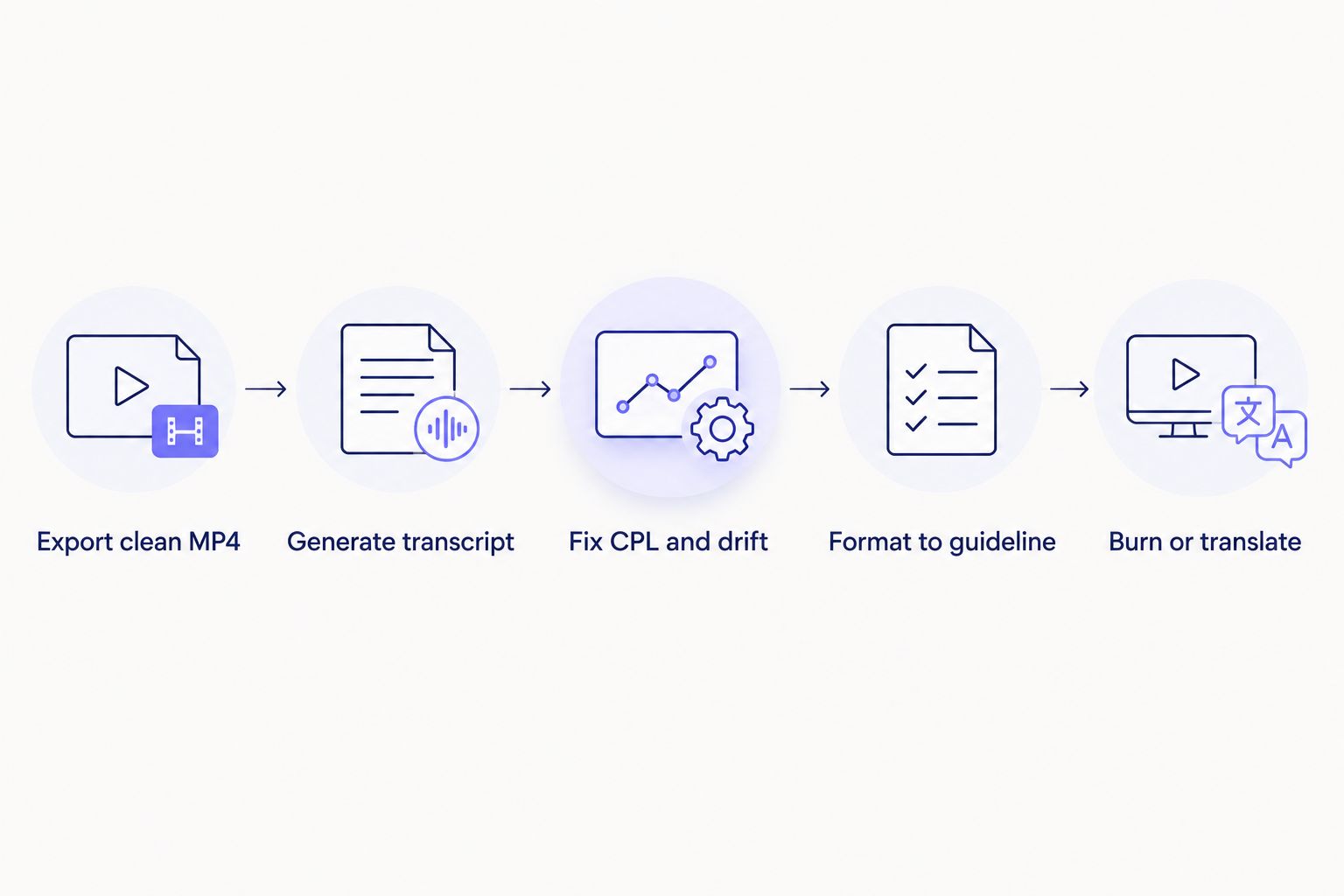
Each step catches a different failure mode before it reaches the client.
Format to client guidelines
- Select the client's guideline from the format list — Rev, GoTranscript, Scribie, or a custom profile if one was supplied.
- Line breaks, punctuation conventions, and speaker-label placement reformat to match automatically. This step turns a technically correct SRT into a file that passes a client's QA checklist without touching every cue by hand.
- Export as SRT or VTT, or as PDF/DOCX/TXT if the client wants a paper transcript alongside captions.
Expected result: a caption file matching the client's format spec, ready for review or delivery.
Translate and burn for multi-language delivery
Second variant, for when the same CapCut project needs captions in more than one language:
- Starting from the QA'd English subtitles, open the translate tool and select the target language. Timing stays fixed on each translated cue across the supported 70+ languages.
- Review the translated cues for CPL — some languages (German, Finnish) run longer per word and need a second CPL pass even after a clean English source.
- If delivery calls for open captions rather than a sidecar file, use the burn tool to hardcode subtitles into the CapCut export. Best subtitle burning software in 2026 compares quality presets for platforms that don't support sidecar SRT/VTT files.
Expected result: a translated, timing-synced SRT per language, or a burned MP4 per language for open-caption delivery.
Troubleshooting
- SRT timing doesn't match the MP4. The video was trimmed or re-encoded after the SRT export — re-export the caption track from the final CapCut timeline before uploading.
- CPL still flags after formatting. The guideline profile may not match the platform — vertical short-form delivery often needs a tighter line limit than a horizontal broadcast spec.
- Speaker labels swap mid-file. Diarization can misattribute overlapping speech in multicam edits — check and rename labels manually in the cue editor rather than trusting auto-detection on crosstalk.
- Burned captions look soft after compression. Compress the video before burning captions, not after — a lower bitrate applied after burn-in blurs the caption text along with the footage.
- Client rejects a batch for inconsistent formatting. If files were fixed individually across separate sessions, run them all through the same guideline profile in one batch pass instead of reformatting file by file.
Customize your workflow
Editors handling recurring CapCut deliveries — a weekly show, a client retainer — don't need to repeat every step by hand. Batch processing queues multiple exports at once and returns a ZIP of finished files, and an API or automation connection can trigger transcription and formatting the moment a new export lands in a shared folder. That turns a five-step manual pipeline into a drop-and-collect one for repeat clients.
Automate the CapCut handoff
Upload a CapCut export and get client-ready captions back.
Try VideoText
FAQ
Can you export SRT directly from CapCut?
Yes, CapCut lets you export the caption track as SRT from the timeline's caption layer, but the file reflects CapCut's own line-break and timing choices, not any external style guide.
Is CapCut's auto-caption accurate enough for client delivery?
CapCut's auto-captions handle clear single-speaker audio reasonably well, but multi-speaker recordings, accents, and background noise commonly need manual correction before delivery.
What CPL and CPS limits should client captions meet in 2026?
Most client guidelines follow variations of the Netflix Timed Text Style Guide: 42 characters per line and around 20 characters per second for adult-content English, tighter for other languages.
Can you fix subtitle timing without redoing the transcript?
Yes, VideoText's fix subtitles tool adjusts overlaps, gaps, and drift on an existing transcript without re-running transcription from scratch.
How do you translate captions without breaking the timing?
Translate the QA'd subtitle file rather than the raw transcript; cue timestamps stay fixed on each translated segment across the supported languages.
Should you burn captions before or after compressing the video?
Compress first, then burn. Compressing after burn-in blurs the caption text along with the footage.
Do speaker labels carry over from CapCut to VideoText?
No, CapCut doesn't label speakers in its caption export, so diarization detects and labels speakers separately from the transcript.
What format should you export for a client using Rev or GoTranscript guidelines?
Select the matching guideline profile before export so line breaks and punctuation match what that client's QA process expects.
One last thing
CapCut's auto-caption line breaks are driven by silence detection, not character count — a line can run well past any CPL guideline with no break if there's no pause in the speech. That's the single most common cause of CPL violations in CapCut exports, and it doesn't show up until the file gets checked against a guideline, which is exactly why the QA pass belongs before delivery in 2026, not after a client flags it.
Related guides