Loom recordings pile up fast — standups, client walkthroughs, async updates — and the moment you need a specific line for documentation or a client asks for captions, the video itself is dead weight. You can't search it, you can't copy from it, and scrubbing a 12-minute timeline for one quote wastes more time than the meeting did. Instead of replaying the whole file, run the Loom recording through an ASR pipeline that outputs a timed transcript and matching subtitles in one pass, so every sentence becomes searchable text linked back to its timestamp.
TL;DR
- Download the Loom recording as MP4, then run it through VideoText for a timed transcript and SRT/VTT subtitles in one pass.
- A loom video to transcript workflow works because ASR segments speech with timestamps you can search and jump to instantly.
- Speaker diarization labels each Loom presenter automatically; rename speakers in the UI before export.
- Zapier automation sends every new Loom recording into the transcript queue without a manual upload.
- Export TXT, SRT, VTT, PDF, DOCX, JSON or CSV depending on whether the deliverable is a transcript, captions, or a searchable archive.
Why this matters
A Loom video with no transcript is a black box: nobody can Ctrl+F a decision made in a standup, and nobody can pull a quote for a doc without rewatching it. Once the recording becomes text, it's searchable, quotable, and translatable — and if the video needs captions for accessibility or a client deliverable, the same transcript generates the SRT or VTT file without a second pass.
This matters more in 2026 than it did two years ago: teams record more async video than ever, and the backlog of unsearchable Loom clips grows faster than anyone reviews it manually. A transcript-first workflow turns that backlog into an archive you can actually query. VideoText runs the Loom file through ASR transcription, diarization, and subtitle generation in one upload, instead of three separate tools.
Before you start
- A Loom recording you can download or share. Use the Loom video's download option to save an MP4, or grab the share link if download access isn't available on your plan.
- An account on videotext.io to run the upload, transcription, and export steps.
- The gotcha: Loom's built-in captions (if you've turned them on) live inside Loom's own player — they don't export as a standalone SRT or VTT file. If you need a caption file for anywhere outside Loom itself (an LMS, a client deliverable, a YouTube re-upload), you still need to run the recording through a separate transcription step. Skipping this is the single most common reason people think they already have captions when they don't.
Get the Loom file ready
- Open the Loom recording and click Download to save the MP4 locally. If download is restricted on your plan, copy the video's Share link instead.
- Trim dead air at the start or end before uploading — Loom recordings often carry a few seconds of blank screen while screen-share loads, and that dead time throws off timestamp precision on short clips.
- Note the source language spoken in the recording; you'll confirm it on upload.
Expected result: an MP4 file on your machine (or a Loom share URL) ready to hand off for transcription.
Upload and transcribe in VideoText
- Sign in to videotext.io and click Upload on the dashboard.
- Drop the Loom MP4 file, confirm the detected source language, and click Transcribe.
- ASR processing returns a full transcript with timed segments — every line of text carries a timestamp back to the exact moment in the Loom video.
Expected result: a timed, searchable transcript of the full Loom recording, with no manual note-taking.
Label speakers and clean up the transcript
- Open the Speakers panel and rename detected speakers with real names or roles (host, guest, client) instead of leaving them as "Speaker 1" and "Speaker 2."
- Decide whether you need full verbatim (every "um," false start, and filler kept) or clean verbatim (fillers and false starts removed). Loom walkthroughs are full of mid-sentence restarts that clutter a doc meant for a client or a wiki.
- Review the transcript in the editor and correct any missed proper nouns, product names, or acronyms — the most common miss in any ASR output, Loom included.
Expected result: a named-speaker transcript, cleaned to the verbatim style your deliverable actually needs.
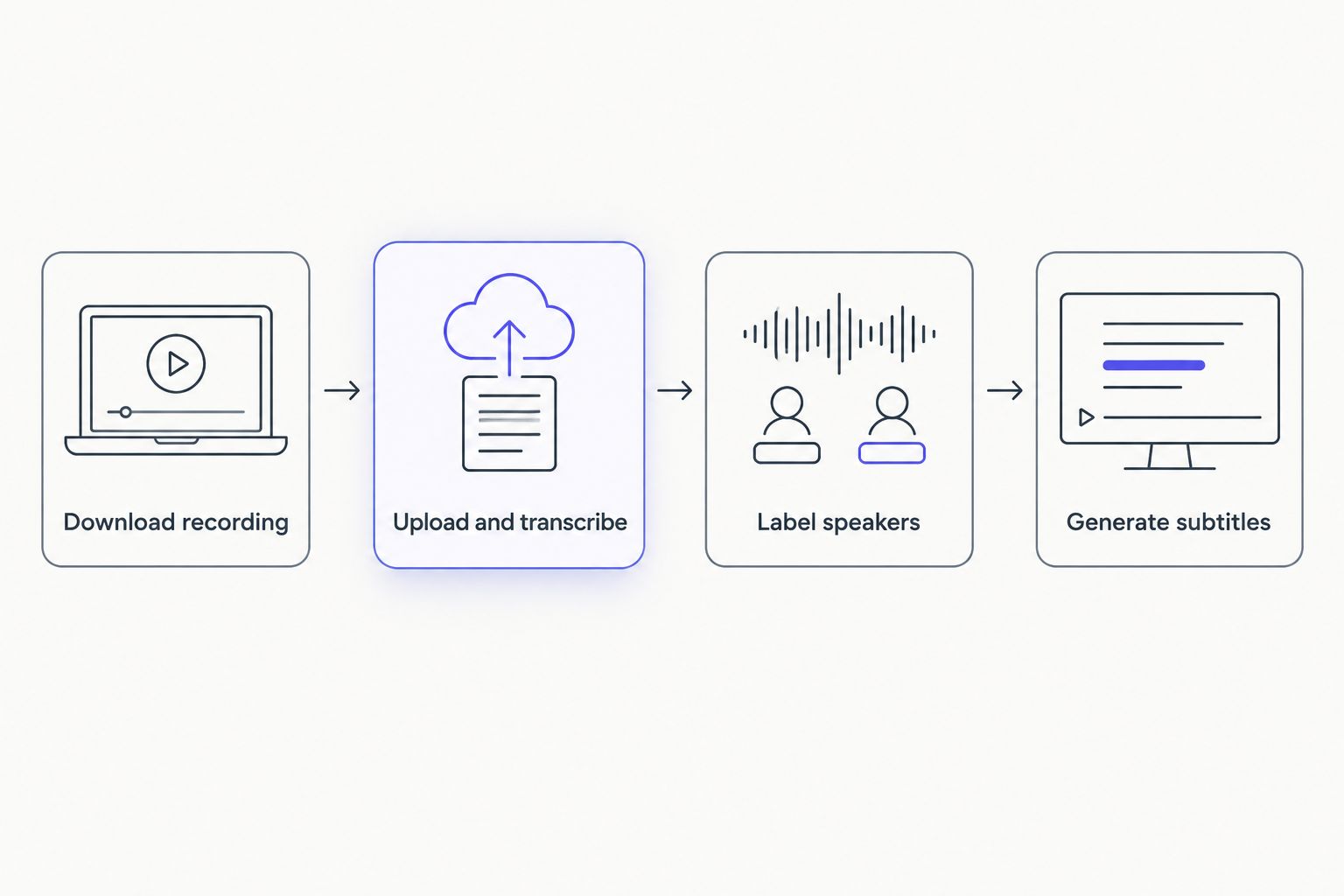
Each step produces one deliverable: transcript first, subtitles second.
Generate subtitles and check CPL/timing
- Switch to the Subtitles tab and generate an SRT or VTT file from the same transcript — no separate upload needed.
- Run Fix Subtitles to catch overlapping cues, timing drift, and lines that exceed standard characters-per-line (CPL) or reading-speed (CPS) limits.
- Use the in-browser subtitle QA review to confirm cue timing still matches the Loom video before you export the caption file.
Expected result: an SRT/VTT file synced to the Loom recording and QA-checked, not eyeballed.
A transcript that isn't searchable is just a document nobody opens again.
“A transcript that isn't searchable is just a document nobody opens again.”
Once the transcript exists, jump-to-term search turns a 40-minute client call into something you can query in seconds instead of replaying.
Automate it: transcribe every new Loom recording automatically
Instead of manually uploading each Loom recording, set up a Zapier trigger so new Loom videos transcribe the moment they're recorded — the second workflow variant that saves the most time for teams recording daily standups or repeat client walkthroughs.
- In Zapier, create a Zap with Loom as the trigger app and "New Video" as the trigger event.
- Add VideoText as the action app and select Transcribe as the action.
- Map the Loom video URL field to VideoText's upload field and turn the Zap on.
The full setup, including field mapping and troubleshooting the connection, is in the guide on how to connect VideoText to Zapier for automatic transcription.
Expected result: every new Loom recording lands in the VideoText queue with zero manual uploads.
Troubleshooting
- Speaker diarization mislabels overlapping voices. Two people talking over each other in a Loom call drops diarization accuracy — manually reassign the mislabeled segment in the Speakers panel; the two seconds before and after the overlap usually make it obvious who's speaking.
- Subtitle lines run too long to read comfortably. Rerun Fix Subtitles; it splits lines that exceed CPL/CPS thresholds and reflows timing so captions stay readable at normal talking pace.
- Loom's native captions look different from the exported SRT. Expected — Loom's built-in captions live inside its own player and aren't the same file as a VideoText export. Use the VideoText SRT anywhere outside Loom's player.
- Upload rejected or transcript cuts off partway. Long client calls or multi-hour recordings are the most common cause of a truncated transcript; check the recording length against your plan's limits before uploading.
- Missed technical jargon or product names. ASR models miss proper nouns most often on the first pass — correct them once in the transcript editor rather than rerunning transcription.
Turn your next Loom into a transcript
Upload the recording and get a timed transcript plus subtitles in one pass.
Start transcribing
Customize your workflow
Once the base workflow is running, expand it instead of stopping at a plain transcript:
- Summarize instead of rereading. Run the AI summary and chapters feature on the same transcript to get bullet points, action items, and timestamped chapters from a long client call.
- Translate for non-English clients. Subtitles and transcripts translate into 70+ languages with cue timing preserved, so a Loom walkthrough sent to an international client doesn't need a second recording.
- Burn captions in for social reposting. If the Loom clip is getting repurposed for a platform without native caption support, burn the subtitles into the video as open captions instead of relying on a player that may not display them.
- Format to client guidelines. Agencies delivering transcripts under Rev, GoTranscript, or a custom style guide can reformat the same output to match, instead of manually reformatting every file before delivery.
FAQ
What's the best way to turn a Loom video into a transcript in 2026?
Download the Loom recording as an MP4 and upload it to an ASR transcription tool like VideoText, which returns a timed transcript in one pass. This works faster than transcribing manually and avoids the two-tool workflow of a separate captioning app.
Does Loom have a built-in transcript export?
Loom's native captions display inside its own player but don't export as a standalone transcript or SRT file. You still need a separate transcription step to get a usable text or caption file for anywhere outside Loom.
Can I automate a Loom-to-transcript workflow?
Yes. Connect Loom's "New Video" trigger in Zapier to VideoText's transcribe action so every new recording is transcribed automatically, without a manual upload.
How accurate is AI transcription for Loom recordings with technical jargon?
ASR models handle conversational speech well but commonly miss proper nouns, product names, and acronyms on the first pass. Correcting those terms once in the transcript editor is faster than rerunning transcription.
Can subtitles from a Loom video be translated?
Yes, subtitles and transcripts translate into 70+ languages with cue timing preserved, so the translated captions stay synced to the original video.
Is there a file length limit for transcribing a Loom video?
Limits vary by plan and file length, and long recordings are the most common cause of a truncated transcript. Check the recording length against your plan's limits before uploading.
How do I make a Loom transcript searchable?
Once the transcript is generated with timed segments, use the keyword or jump-to-term search inside the tool to find any word instantly instead of rewatching the video.
Can I edit the transcript before delivering it to a client?
Yes, transcripts are editable in-browser before export, so you can fix names, remove fillers for clean verbatim, or rename speakers before the file goes to a client.
One last thing
Most Loom-to-transcript workflows stop at plain text and skip subtitles entirely — then six months later, that same clip gets repurposed for onboarding or social and someone rebuilds captions from scratch. Generate the SRT alongside the transcript the first time, even if you don't need captions yet in 2026; the file costs nothing extra to export and saves a full second pass later.
Related guides