Google Meet drops every recording into Google Drive as an MP4 with no captions, no speaker labels, and no shareable transcript link — someone still has to turn that file into something a client or teammate can read. Instead of manually transcribing the call or copy-pasting Meet's raw auto-transcript into a doc, run the recording through a transcription and subtitle pipeline once so you get a timed transcript, SRT/VTT captions, and a share link without touching the text by hand.
TL;DR
- Google Meet recording to transcript takes three steps in 2026: export from Drive, run ASR with speaker diarization, export or share the result.
- Videotext turns a Meet MP4 into a timed transcript, SRT/VTT captions, and a public share link in one pass.
- Google Meet's built-in transcript (Workspace Business Standard+) saves a plain Google Doc — it has no timecodes and no caption file.
- Zapier can trigger transcription automatically whenever a new Meet recording lands in a watched Drive folder.
- Speaker labels from automatic diarization are editable after detection, so renaming "Speaker 1" to a real name takes seconds, not a re-transcribe.
Why this matters
Google Meet's native recording transcript is a plain Google Doc with no timecodes, no speaker separation beyond basic labels, and no caption file format. That's fine for a quick internal recap. It's not usable for a client deliverable, a YouTube upload, an accessibility requirement, or a searchable transcript archive.
Getting from "raw Meet recording" to "shareable transcript" in 2026 means adding three things Meet doesn't give you natively: a timed SRT/VTT file, speaker labels you can rename and trust, and a link you can hand off without exporting a Doc and reformatting it. That's the gap this workflow closes.
Before you start
- A downloaded copy of the Meet recording. Google Meet recordings save automatically to the host's Google Drive, in a folder named "Meet Recordings," as an MP4. Download the file locally or grab a shareable Drive link before transcribing.
- A Videotext account with enough processing minutes available for the file length — check your plan's limits before queuing a long call.
- The gotcha: Meet recordings often run 60–90 minutes with multiple speakers talking over each other during Q&A segments. Diarization accuracy drops on heavy overlap, so plan to review and rename speaker labels manually rather than trusting auto-labels blind on long, cross-talk-heavy calls.
Set up the transcript source
- Open Google Drive and locate the recording in the Meet Recordings folder.
- Right-click the file and select Download to save the MP4 locally, or click Share and copy the link if your transcription tool accepts direct uploads from a URL.
- Confirm the file length and rough speaker count before uploading — this tells you whether to expect a five-minute or fifty-minute processing job.
Expected result: you have a local MP4 (or accessible link) ready to upload, and you know how many speakers are on the call.
Configure the transcription pipeline
- In Videotext, click Upload and select the downloaded Meet MP4.
- Confirm the source language — auto-detect works for single-language calls, but set it manually if the meeting mixes languages.
- Enable Speaker diarization so the pipeline detects and labels distinct speakers by voice, not just by pause length.
- Click Transcribe to run ASR transcription with timed segments.
Expected result: a timed transcript with speaker tags ("Speaker 1," "Speaker 2," etc.) and clickable timestamps synced to the video.
Clean up speaker labels and generate captions
- In the transcript editor, click each Speaker tag and rename it to the real participant name — this is editable after automatic detection, so a mislabeled voice takes one click to fix, not a re-run.
- Select Generate subtitles to produce SRT or VTT output from the same timed transcript.
- Run Fix subtitles to catch overlaps, CPL (characters per line) violations, and reading-speed (CPS) issues before export — this is the step that saves manual QA time on a 60-minute call with dense dialogue.
- If the deliverable needs to match a client's style guide, use Guideline formatting to reformat line breaks and cue timing to a Rev, GoTranscript, Scribie, or custom spec.
Expected result: an SRT/VTT file with clean cues, correct speaker names, and CPL/CPS values inside the target style guide's benchmarks.
Export or share the finished transcript
- Click Export and choose the format the recipient needs — TXT for a quick recap, DOCX or PDF for a formatted deliverable, SRT/VTT for captions, or JSON/CSV if the transcript feeds another tool.
- Alternatively, click Share to generate a public link or embed code instead of sending a file — useful when a client just needs to read or search the transcript, not download it.
- If the meeting needs translated captions for an international team, run Translate before exporting — cue timing stays locked to the original video.
Expected result: a client-ready transcript or caption file in the format the recipient actually asked for, or a link they can open without downloading anything.
Automate it: transcribe every new Meet recording without touching it
If your team runs recurring Meet calls — weekly standups, client check-ins, recorded interviews — set up automatic transcription whenever a new recording lands in the watched Drive folder, instead of manually uploading each file.
- Connect Videotext to Zapier following the Zapier automatic transcription setup.
- Set the trigger to New File in Folder on the Google Drive "Meet Recordings" folder.
- Set the action to Transcribe File in Videotext.
- Test with one existing recording before turning the Zap on for new files.
Expected result: every new Meet recording gets a transcript queued automatically, and you only open Videotext to review speaker labels and export the final file.
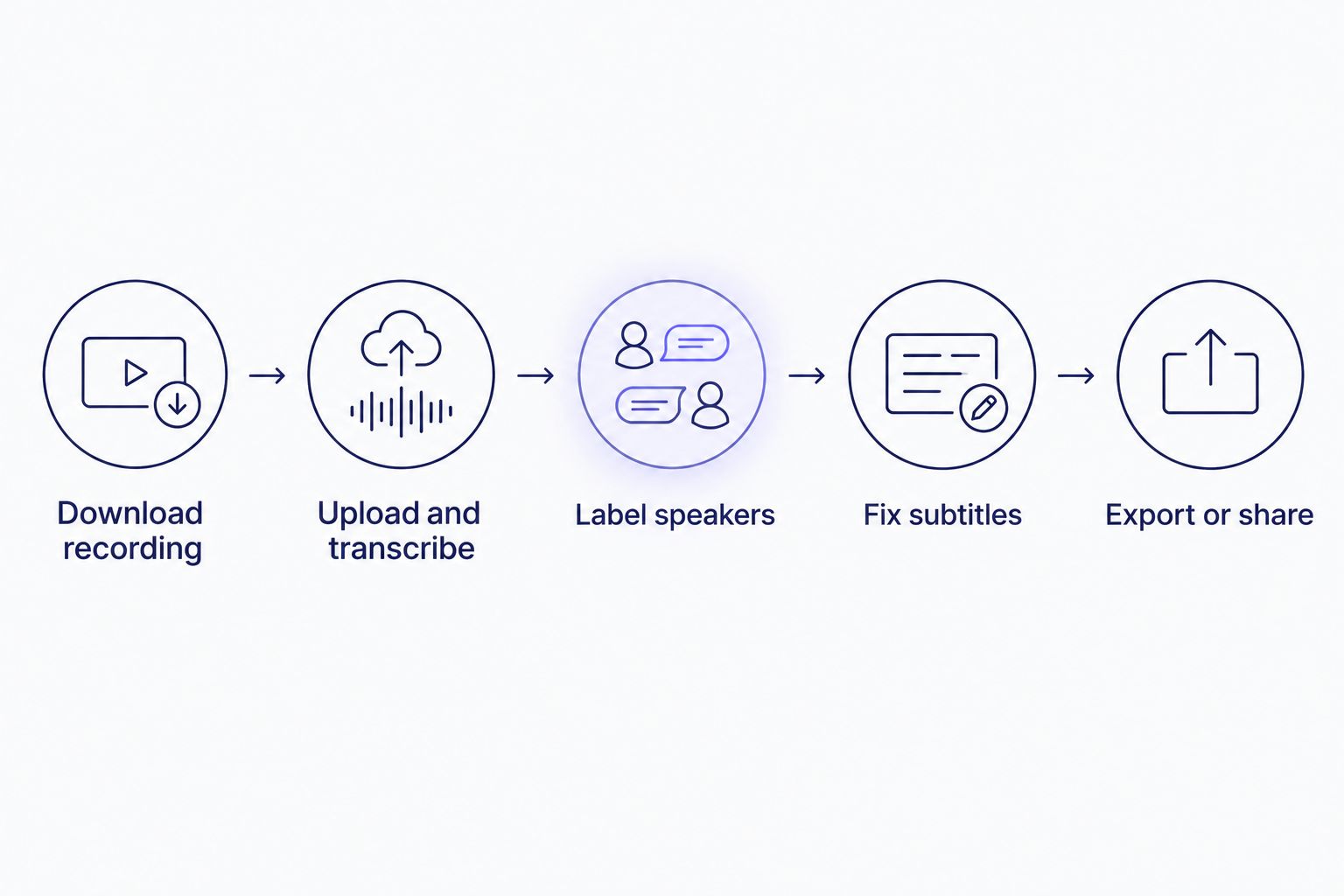
Speaker cleanup and subtitle fixes happen before export, not after a client flags them.
Workflow specs
70+ languages
Supported for translated captions
Cue timing preserved
8+ formats
Export options available
TXT, SRT, VTT, PDF, DOCX, JSON, CSV
Troubleshooting
- Speaker labels are wrong on a call with heavy cross-talk. Diarization struggles when two people talk over each other for more than a few seconds. Rename the affected segments manually in the editor rather than re-running the whole file.
- Subtitle cues run over the CPL limit for your client's style guide. Run Fix subtitles before export — it flags CPL and CPS violations against the guideline you select rather than a generic default. See CPL and CPS benchmarks by style guide if you're unsure which limits apply.
- The Meet recording is longer than your plan's per-file limit. Trim the start and end (pre-meeting waiting room, post-meeting chatter) before uploading to bring the file under the cap.
- Google's native Meet transcript doesn't match what you need to deliver. The built-in Workspace transcript is a plain Doc with no timecodes and no caption format — it's a different output entirely, not a shortcut to SRT/VTT.
- Translated captions drift out of sync with the video. Confirm translation ran on the already-fixed subtitle file, not the raw transcript — translating before timing cleanup carries the original drift into the new language.
Customize your workflow
Once the base pipeline works, expand it: batch-process a week's worth of recorded Meet calls into a ZIP of transcripts, or run Fix subtitles as a standing QA pass before every client delivery. If your team needs to jump to a specific term across a long recording instead of scrolling the full transcript, use the keyword index — see searching a video transcript for a specific word for how that works. And before shipping a transcript as final, run it through a clean-enough check — how do you know an AI transcript is clean enough for delivery covers what to look for beyond a spot-check.
Turn a Meet recording into a transcript now
Upload the MP4, get a timed transcript and SRT/VTT export in one pass.
Start transcribing
FAQ
How do you turn a Google Meet recording into a transcript?
Download the MP4 from the Meet Recordings folder in Google Drive, upload it to a transcription tool with speaker diarization enabled, then export as TXT, DOCX, or PDF. In 2026 this takes minutes for a 30-60 minute call once the pipeline is set up.
Does Google Meet generate its own transcript automatically?
Google Workspace Business Standard and higher plans can auto-generate a transcript saved as a Google Doc. It has no timecodes and no caption file, so it doesn't replace an SRT/VTT export for captioning or client delivery.
Can you get SRT or VTT captions from a Google Meet recording?
Not natively from Meet. Downloading the recording and running it through a transcription tool that outputs SRT/VTT is the standard path in 2026.
How accurate is automatic speaker labeling on Meet recordings?
Diarization is reliable on calls with clear turn-taking but drops in accuracy during heavy cross-talk or overlapping speech. Labels are editable after detection, so renaming a mislabeled speaker is a manual fix, not a re-transcribe.
Can a Meet transcript be translated into another language?
Yes — translating the subtitle file after timing cleanup keeps cues synced to the video across 70+ languages, depending on the tool used.
Can transcription of Meet recordings be automated?
Yes. Connecting a transcription tool to Zapier with a trigger on new files in the Drive Meet Recordings folder queues transcription automatically without manual uploads.
What's the best format to share a Meet transcript with a client?
A public share link or embed works when the client only needs to read or search the transcript. A DOCX or PDF export works when they need a downloadable file formatted to their own style guide.
Is there a length limit for transcribing a Meet recording?
Limits depend on the transcription tool and plan tier. Trimming the recording's start and end before upload keeps long calls under per-file caps.
One last thing
The part of this workflow people skip is the CPL/CPS fix step — and it's the one that actually saves time. A transcript with correct words but cues running over character-per-line limits still fails QA on delivery, which means the whole file gets kicked back and reworked by hand. Running the fix pass once, before export, is faster than fixing it after a client rejects the file.
Related guides