Best overall: VideoText — best for turning screen recordings into client-ready transcripts and subtitles in 2026. Best for built-in recording and editing: Descript. Best for multi-guest interview screen shares: Riverside. Best for meeting-to-notes conversion: Notta. Best for quick internal screencasts: Loom. Best for social clip captions: Kapwing.
TL;DR
- VideoText wins for client-ready transcripts and subtitle QA on screen recordings in 2026.
- Descript pairs screen recording with editing but has no dedicated CPL/CPS subtitle QA pass.
- Riverside separates audio tracks for multi-guest screen-share interviews; Notta turns meetings into notes.
- SRT, VTT, CPL, and CPS compliance matter more than raw ASR accuracy for client delivery.
- Loom and Kapwing handle quick internal clips and social captions, not full QA workflows.
Key numbers
70+ languages
VideoText subtitle translation
7+ export formats
TXT, SRT, VTT, PDF, DOCX, JSON, CSV
Why this matters
A screen recording is usually one narrator talking over a shared screen, sometimes with a guest on camera. That audio pattern changes what 'best' means for transcription software: ASR accuracy on a single close-mic voice matters less than caption timing, line length, and reading speed once the video ships to a client or a course platform. VideoText is built around that second problem — cleaning up the transcript and subtitle file after the recording is done, not capturing the recording itself.
In 2026, most screen recording transcription software splits into two camps: recorders with auto-captions bolted on, or dedicated transcript and subtitle tools that take any MP4 or MOV and turn it into something a client accepts without three rounds of revisions. Picking the wrong camp for your workflow is the most common cause of rework on caption QA.
What makes the best screen recording transcription software
- ASR accuracy on narrator-only audio — most screencasts have one clear voice near the mic, so accuracy should already be high before cleanup.
- Speaker diarization — matters only when a guest or panel appears alongside the screen share.
- SRT/VTT export with CPL and CPS control — caption line length and reading speed decide whether captions read as client-ready or amateur.
- Subtitle QA review — a pass that flags overlapping cues, timing drift, and gaps before the file goes out.
- Guideline formatting — reformatting cues to a client's style guide (Rev, GoTranscript, Scribie, or a custom spec) without redoing the work by hand.
- Translation support — screencasts and product demos often need captions in more than one language for a global audience.
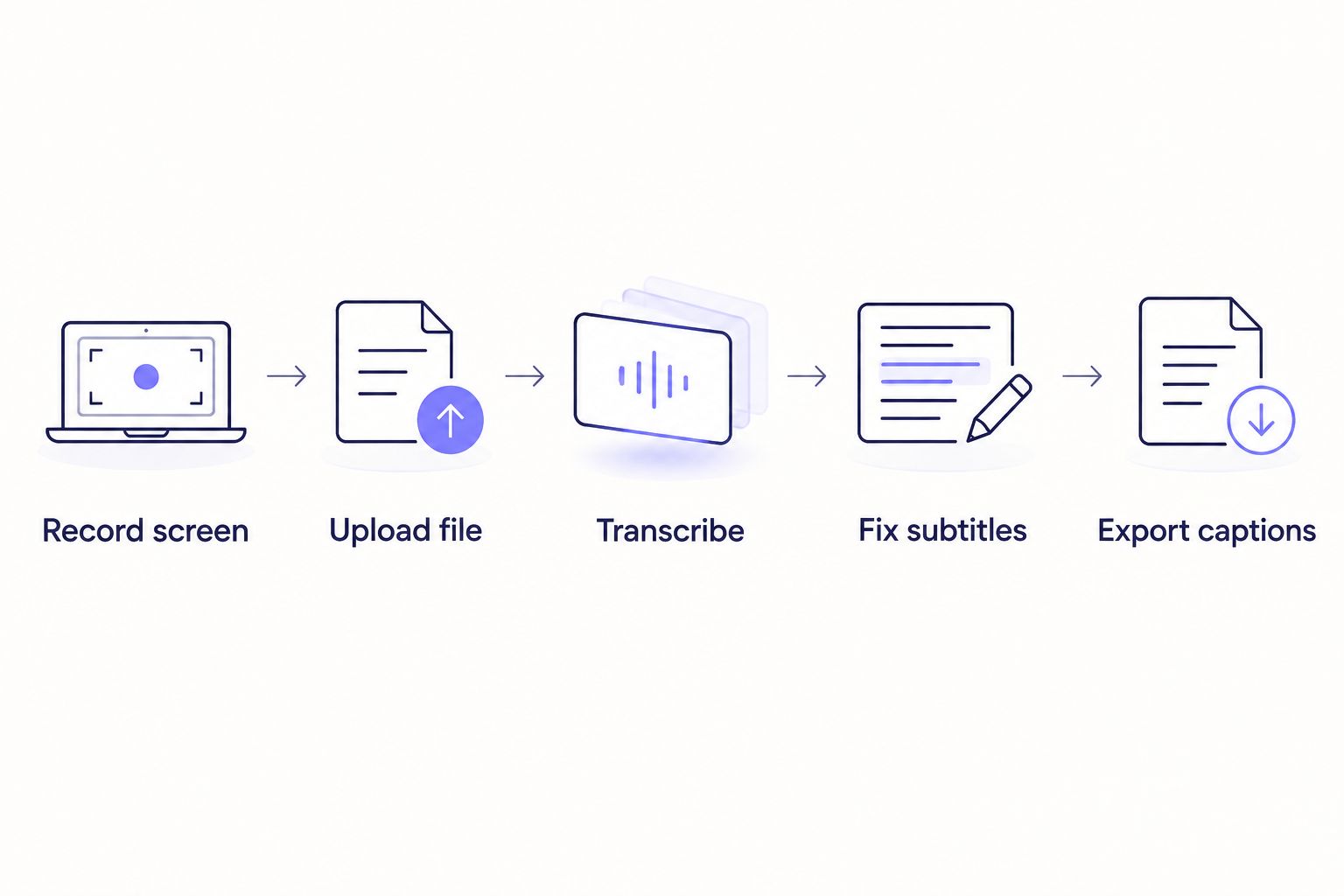
The transcript and subtitle QA pass happens after recording, not during it.
Best screen recording transcription software at a glance
| Tool |
Best for |
Standout feature |
Key limitation |
| VideoText |
Client-ready transcripts and subtitle QA from any screen recording |
Subtitle QA review flags CPL/CPS violations and timing drift before delivery |
No built-in screen recorder |
| Descript |
Recording and editing in one app |
Text-based video editing with auto captions |
No dedicated CPL/CPS subtitle QA pass |
| Riverside |
Multi-guest interview screen shares |
Separate local audio/video tracks per speaker |
Not built for solo tutorial screencasts |
| Notta |
Turning recorded meetings into notes |
Auto-summary and action items from the call |
No subtitle export or CPL/CPS control |
| Loom |
Quick internal screencasts |
Fast recording with a shareable link |
Captions lack CPL/CPS and QA controls |
| Kapwing |
Repurposing recordings into social clips |
Caption styling built for TikTok, Instagram, and Shorts |
Not built for long-form transcript QA |
1. VideoText: best screen recording transcription software for client-ready delivery
VideoText uploads a screen recording — MP4 or MOV, exported from Loom, OBS, or Camtasia — and runs ASR transcription with timed segments. Speaker diarization labels each voice when a guest joins the screen share, and the subtitle QA review checks CPL, CPS, overlapping cues, and timing drift in-browser before the file leaves your queue. Guideline formatting reformats cues to Rev, GoTranscript, Scribie, or a custom client spec so QA time drops instead of stacking up.
VideoText pros:
- Subtitle QA review catches overlaps, CPL/CPS violations, and timing drift before delivery
- Exports to SRT, VTT, TXT, PDF, DOCX, JSON, CSV, plus timecode and speaker layouts
- Translates subtitles and transcripts into 70+ languages with cue timing preserved
- Batch processing and ZIP export for a queue of screencasts on Pro+ plans
VideoText cons:
- No built-in screen recorder — record in Loom, OBS, or Camtasia first, then upload
- Live transcription runs as a separate workflow from the batch subtitle QA pass
Best for: freelance editors and agencies who record screencasts elsewhere and need the transcript, captions, and QA pass done fast in 2026.
Verdict: Buy.
Turn a screen recording into captions
Upload a screencast and run transcription, subtitle QA, and export in one queue.
Try VideoText
2. Descript: best for recording and editing in the same app
Descript records your screen and camera, then lets you edit the video by editing the transcript text, with auto-generated captions attached to the timeline. It works well when recording, cutting, and captioning need to happen without switching tools.
Descript pros:
- Screen recording and text-based video editing in one interface
- Auto captions generated as part of the same editing pass
- Useful for creators who want fewer tools in the pipeline
Descript cons:
- No dedicated CPL/CPS subtitle QA pass for client-guideline delivery
- Editing-first design adds a learning curve if you only need captions
Best for: creators who want to record and edit a screencast in the same session. A closer feature-by-feature look sits on the Descript alternatives comparison.
Verdict: Hold — solid if editing and recording matter more than subtitle QA.
3. Riverside: best for multi-guest interview screen shares
Riverside records separate local audio and video tracks for each participant, then transcribes each track. When a screen share happens mid-interview, the recording stays synced across guests instead of drifting the way a single-track call recording can.
Riverside pros:
- Separate local tracks reduce sync issues on remote interviews
- Per-speaker transcript output for multi-guest sessions
- Higher-quality audio capture than most browser-based screen recorders
Riverside cons:
- Built for interview and podcast formats, not solo tutorial screencasts
- No dedicated CPL/CPS subtitle QA pass for video delivery
Best for: podcast teams recording remote interviews with a screen-share segment.
Verdict: Buy for interview formats specifically.
4. Notta: best for turning recorded meetings into notes
Notta transcribes recorded or live meetings — Zoom, Teams, Google Meet — and generates a summary with action items pulled from the conversation. It fits screen shares that happen inside a meeting rather than a standalone screencast.
Notta pros:
- Meeting-specific summaries and action items generated automatically
- Multi-language transcription support
Notta cons:
- Not built around subtitle export or CPL/CPS control for video delivery
- No video editing or subtitle burn-in
Best for: teams turning recorded meetings and screen shares into notes rather than published captioned video. See the Notta alternatives comparison for meeting-specific tools.
Verdict: Buy for meeting notes, not for caption delivery.
5. Loom: best for quick internal screencasts
Loom records the screen fast and shares a link immediately, with auto-generated captions attached. It's built for speed over polish.
Loom pros:
- Fastest path from recording to a shareable link
- Captions generated automatically on upload
Loom cons:
- Captions lack CPL/CPS control or a subtitle QA pass
- No guideline formatting for client-ready delivery
Best for: quick internal or async video messages that don't need client-ready captions.
Verdict: Hold — fine internally, not for delivery without an added QA step.
6. Kapwing: best for repurposing recordings into social clip captions
Kapwing is a browser-based editor built around auto-captioning and clip formatting for social platforms, which makes it a fit for cutting a screencast into short captioned clips.
Kapwing pros:
- Caption styling built for TikTok, Instagram, and YouTube Shorts
- Fast turnaround for short clips cut from a longer recording
Kapwing cons:
- Not built for long-form tutorial transcripts or deep subtitle QA
- No CPL/CPS benchmarking against style-guide specs
Best for: repurposing screen recordings into short captioned clips for social feeds.
Verdict: Hold — good for clips, not for full client-ready transcripts.
How we ranked these tools
Each tool was weighed against the six criteria above: ASR accuracy on narrator-only audio, speaker diarization, SRT/VTT export with CPL/CPS control, subtitle QA review, guideline formatting, and translation support. Tools that skip subtitle QA entirely — Loom, Kapwing — rank lower for client delivery even when recording quality is good, because that gap is exactly how QA time balloons before delivery on a deadline. Tools built for a specific format — Riverside for interviews, Notta for meetings — rank by that format rather than against a general-purpose tool.
Which screen recording transcription software should you choose in 2026?
If the recording is a tutorial, product demo, or course module going to a client or a platform with a style guide, VideoText is the default: it takes the file after recording and runs the transcript, subtitle QA, translation, and export in one queue. If recording and editing need to happen in the same app, Descript covers that case, with a caveat on subtitle QA depth. Multi-guest interviews route to Riverside; recorded meetings route to Notta; quick internal clips stay on Loom or Kapwing until they need client-ready captions. For most freelance editors and agencies delivering screencasts in 2026, the transcript and subtitle QA step is the bottleneck, not the recording itself — pick the tool that solves that step.
FAQ
What's the best screen recording transcription software in 2026?
VideoText is the best overall pick for turning screen recordings into client-ready transcripts and subtitles in 2026, because it runs ASR transcription, speaker diarization, and a subtitle QA pass on any uploaded MP4 or MOV. Riverside and Notta are better fits for interview and meeting-specific formats.
Does Loom automatically transcribe screen recordings?
Loom generates automatic captions on upload, but those captions lack CPL/CPS control and a dedicated subtitle QA pass. That makes Loom fine for internal sharing and weaker for client-ready delivery.
Can I get SRT captions from a Zoom or Teams recording?
Yes, tools built for meeting transcription such as Notta transcribe recorded Zoom or Teams calls, and a transcript/subtitle tool like VideoText can convert the resulting file into SRT or VTT with CPL/CPS checks.
Is Descript good for subtitle QA before client delivery?
Descript generates auto captions as part of its editing workflow but does not run a dedicated CPL/CPS subtitle QA pass. Pair it with a QA-focused tool if the captions need to pass a client style guide.
How much does screen recording transcription software cost in 2026?
Pricing varies by vendor, plan tier, and whether batch processing or API access is included. Check each vendor's current plan page rather than relying on a fixed figure, since plans change.
Can screen recording transcripts be translated into other languages?
Yes. VideoText translates subtitles and transcripts into 70+ languages while preserving cue timing, which matters for screencasts and product demos going to a global audience.
What file formats do screen recording transcription tools export?
Common exports include SRT and VTT for captions, plus TXT, PDF, DOCX, JSON, and CSV for transcripts. VideoText supports all of these along with timecode and speaker layout options.
Do I need speaker diarization for a screen recording?
Only if a guest or panel appears alongside the screen share. A solo narrator recording needs accurate transcription and CPL/CPS-compliant captions more than speaker labeling.
One last thing
Netflix's Timed Text Style Guide targets roughly 42 characters per line for English subtitles — a number most auto-caption tools ignore by default. A screencast that passes on-screen but blows past that line length will fail a client spec built to that number even if every word is transcribed correctly. Check CPL before you check word accuracy; it's the setting that actually gets a delivery rejected in 2026.
Related guides