Transcript From a Video File You Already Have
VideoText editorial team · Published · Updated · 4 min read
Short answer: if the video is a file on your computer, upload that file. You get a transcript you can edit and, from the same words, an SRT or VTT. This page keeps an older address. The job it describes is the file, not a link.
People reach this URL while looking for a transcript of a video they watched online. The step that works with the tools on this site is the one after you already have a file the rights owner allows you to keep: a download from your own hosting, an export from the editor, a recorder file, a client drive. Upload that. Do not paste an address into VideoText. These pages do not fetch a video from a link.
What you can download from the file
Video to Transcript is the document path.
| Export | When to use it |
|---|---|
| TXT | A simple read |
| DOCX | Comments and track changes |
| PDF, or 3-column PDF | A fixed layout. The 3-column layout separates time, speaker, and text |
| CSV or JSON | Rows or a pipeline |
| SRT or VTT | Captions, not prose |
Video to SRT skips the document and gives you the subtitle file. The cues are the same kind of output. Pick the page that matches the filename you need. MP4 to text and MP4 to SRT walk through each one.
Captions are short timed lines. A transcript keeps sentences together. If you need both, one transcript job can download both shapes. Do not paste the transcript into a subtitle track and expect it to read on screen.
How to run it
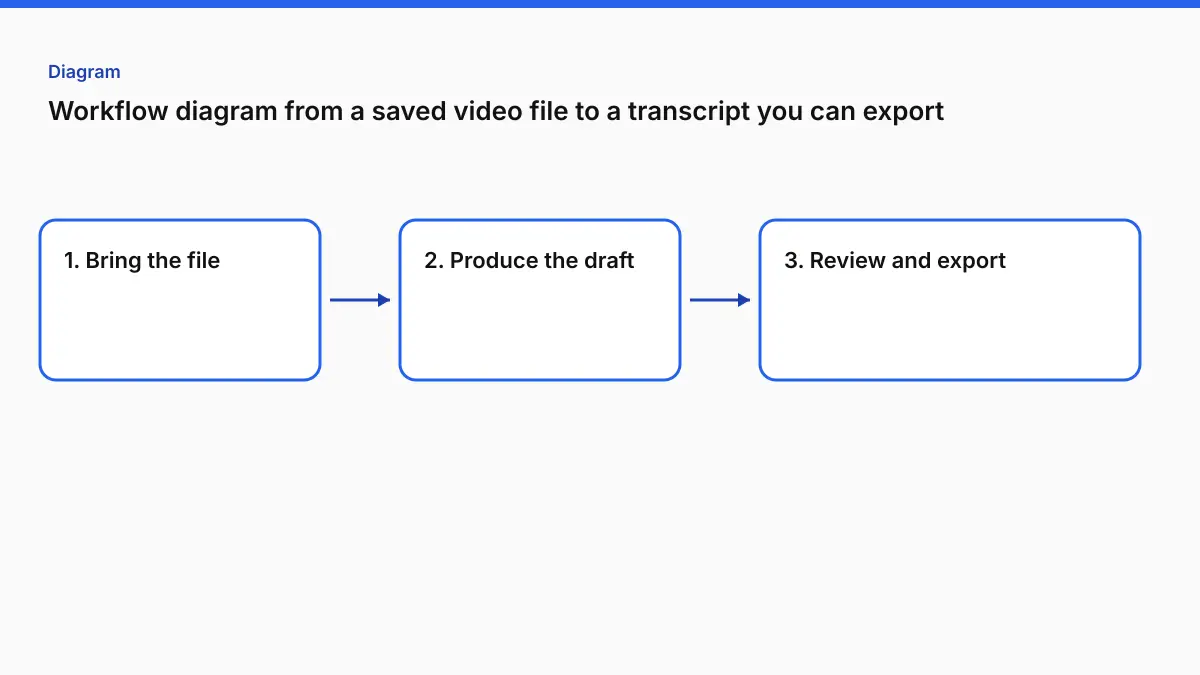
- Upload. MP4, MOV, MKV, AVI, WebM, MP3, WAV, M4A, FLAC.
- Language. Auto-detect, or pick the spoken language when the file opens with music or with a line in another language.
- Names and terms. Optional, under Advanced options, up to 1,500 characters. Put in people, products, and spellings the draft will otherwise guess.
- Speaker labels. Pro only. The checkbox is Speaker labels (who said what), and it has to be on before you generate. Afterward you rename the labels. You still listen to a few handoffs. See speaker labels.
- Generate, review, export. On Pro, edits in the review are what the file contains. Choose timestamps: per interval (about every 30 seconds by default), per segment, per speaker, none, or Calculated SMPTE if the picture has a burned-in clock (that workflow).
| Free | Pro | |
|---|---|---|
| Length | 30 minutes | 4 hours |
| Size | 2 GB | 10 GB |
| Monthly speech | Tool-specific allowance | 30 hours |
| Text watermark | Short notes | None |
| Subtitle watermark | Two short cues | None |
| Price | Free account | $14.99/month or $120/year |
Guests can start. Downloading asks for an account. A file longer than the cap is rejected. Split it, or extract the audio when the picture is what made the file huge.
If the goal was captions
A transcript is the wrong file for a player. For captions:
- Download SRT or VTT.
- Open the Subtitle Validator if a player rejects it. Commas, encoding, and numbering are the usual causes. SRT file not working lists them.
- Run Fix Subtitles, free with an account, for overlaps, 42-character lines, and cues faster than 20 characters per second. The report is QC, not a broadcaster’s certification.
- Translate with Translate Subtitles if you need another language. Pro translates into 104 languages. Cue times stay. Run the line-length check again. Spanish is the worked example.
- Burn the captions into the picture only when the player will not take a sidecar file. Burn Subtitles: Free is 720p, up to 30 minutes, and free exports keep VideoText branding. Pro is original resolution, no watermark, up to 2 hours.
If the goal was a document someone will mark up
Export DOCX. If a marketplace or a client named a style, run Guideline Format for Rev, GoTranscript, TranscribeMe, or Scribie. Then do the listen for names. Formatting will not notice that a surname is wrong.
Full verbatim keeps the recognized words. Clean verbatim drops explicit standalone hesitations and leaves ambiguous words and repeats in the text for you to decide. Match the order, not your preference.
What this page used to promise, and what it does now
Older copy on this address talked about pasting a video link and skipping a download. That is not the workflow these tools implement, and it is not the workflow this article describes. If you do not have a file, this product cannot start. If you do, the steps above are the whole path.
The companion article transcript and subtitles from a saved video is the same idea from the “I need captions too” side.
FAQ
Can I paste a video link here?
No. Upload a video or audio file you already have.
Why does the address mention a URL?
The URL is old and still resolves here so existing links do not break. The article is about the file.
Do I get captions and a transcript together?
Yes, from Video to Transcript: a document and SRT or VTT. Use Video to SRT if you only want the subtitle file.
How large a file is allowed?
Free: 30 minutes and 2 GB. Pro: 4 hours and 10 GB for speech tools, and 30 hours of speech a month. Pro is $14.99/month or $120/year.
The words are right and the captions are still rejected. What now?
Validate the SRT, then Fix Subtitles. A readable paragraph and a legal cue are different tests.
Related tools and guides
- Video to Transcript
Upload a video or audio file and download a transcript you can edit.
- Guideline Format
Apply a client style guide to a transcript before review.
- Add timestamps to a transcript you already have
- Can you batch process multiple video files for transcription at once?
- Can you export a video transcript directly to Word or PDF?
- MP4 to Text: Get a Timestamped Transcript From Video
- How to Transcribe a Long Video (2 to 4 Hours) Without Splitting It