Extract Audio from Video Without Quality Loss
Take the soundtrack out of a video without changing it. Original copies the audio track bit for bit; WAV gives an uncompressed file for editing; MP3 gives the smallest file.
Extracting audio to transcribe it? Transcribe the video directly →
Choose a video or drop it here
MP4, MOV, WebM, MKV, AVI — processed in your browser, never uploaded
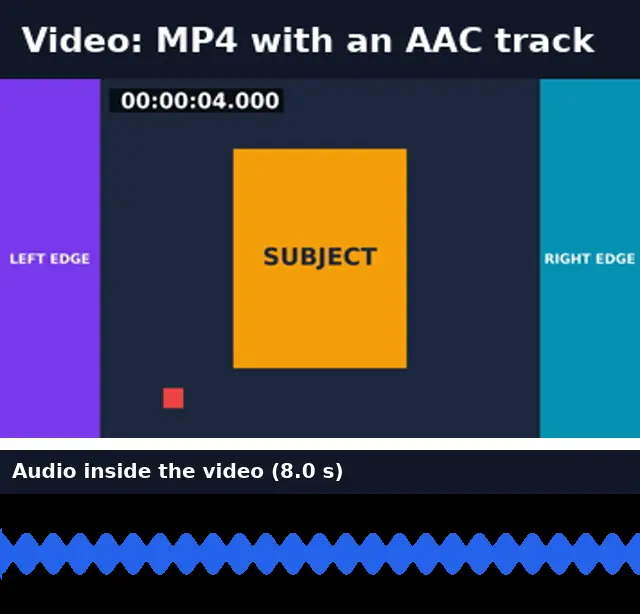
Before and after: the original track, bit for bit
Original mode copied the AAC track out of an MP4. We compared checksums of the source track and the extracted file: they match.
Before
After

Real run of this tool in Chrome on an 8-second 1920×1080 test clip with a burned-in timecode, measured with ffprobe. No mock-ups.
Original vs WAV vs MP3
All three come from the same track; they differ in whether it is re-encoded.
| Original | WAV | MP3 | |
|---|---|---|---|
| Re-encoded? | No | Decoded to uncompressed PCM | Yes |
| Quality vs the video | Identical | Identical sound, much larger file | Slightly lower |
| Typical size per minute | Same as in the video (~1 MB) | ~10 MB | ~1.4 MB at 192 kbps |
| Best for | Archiving, transcription | Editing in Audacity, Premiere, a DAW | Sharing and playback |
Which format for podcasts, interviews, and meetings
Editing a podcast or interview: WAV, so every cut and fade is applied to uncompressed audio. Keeping a meeting recording: Original, which is small and loses nothing. Sending a voice clip: MP3. Making the conversation searchable: transcribe the video itself; extracting audio first isn’t required.
Extract Audio: troubleshooting
- The file is .mka, not .m4a
- The video’s audio uses a codec an M4A can’t hold (for example Opus or PCM), so it is kept in a Matroska audio file. Choose WAV or MP3 if your player can’t open it.
- The WAV file is huge
- WAV is uncompressed: about 10 MB per minute of stereo. Use Original for a small exact copy.
- “No audio track to extract”
- The video has no sound track at all.
Privacy and file limits
FFmpeg runs inside this browser tab, so your files are never uploaded. There is no account, watermark, or usage limit; the size limit is your device’s memory: about 750 MB on a laptop and 250 MB on a phone. Re-encoding long videos can take minutes, and the page shows an estimate first.
How to use Extract Audio
- 1
Choose a video
Any MP4, MOV, MKV, or WebM with sound.
- 2
Pick a format
Original for an exact copy, WAV for editing, MP3 for sharing.
- 3
Extract and download
Original takes seconds; WAV and MP3 are converted in your browser.
Frequently Asked Questions
- Can I extract audio without losing quality?
- Yes. Original mode copies the audio track as it is stored in the video; in our test the extracted file’s checksum matched the source track exactly.
- What format is the original audio track?
- Usually AAC in MP4 and MOV files, saved as .m4a. WebM and MKV often use Opus or Vorbis, saved as .mka.
- How is this different from Video to MP3?
- Video to MP3 always re-encodes to MP3. Extract Audio can copy the track untouched or give you uncompressed WAV.
- Which format should I use for editing?
- WAV. Editors handle it everywhere, and nothing is lost when you cut or apply effects.
- Can I get only part of the audio?
- Trim the video first with Trim Video’s fast mode, then extract the audio from the clip.
Need the words, not just the sound?
Turn the extracted audio into text
A searchable transcript with timestamps, from the audio or the original video.
- ✓A searchable transcript with timestamps
- ✓Speaker labels on Pro, so you can see who said what
- ✓Export TXT, DOCX, PDF, SRT, or VTT