Transcript and Subtitles From a Video File You Saved
VideoText editorial team · Published · Updated · 4 min read
Short answer: save the finished video as a file, upload it, and download two things if you need them: a transcript for reading and editing, and an SRT or VTT for captions. This page keeps its old address. The work is the file you have, not a link you paste.
Creators often search for a transcription tool aimed at online video. Once the edit is exported, the practical request is narrower. They have an MP4. They need words for a description or a blog, and a caption file a player can load. Those are local files. VideoText starts when the file is on disk.
Decide which file you are making
| Reader | File | Tool |
|---|---|---|
| A person editing prose | DOCX, PDF, or TXT | Video to Transcript |
| A player or a platform that accepts a track | SRT or VTT | The same job, or Video to SRT |
| Both | Document and subtitle file | Video to Transcript, then download both |
| A second language on screen | A translated SRT or VTT | Translate Subtitles |
Do not publish the transcript as if it were captions. Caption cues are one or two short lines. Transcript paragraphs are for reading. Generate SRT from video shows a valid cue. MP4 to text shows the document.
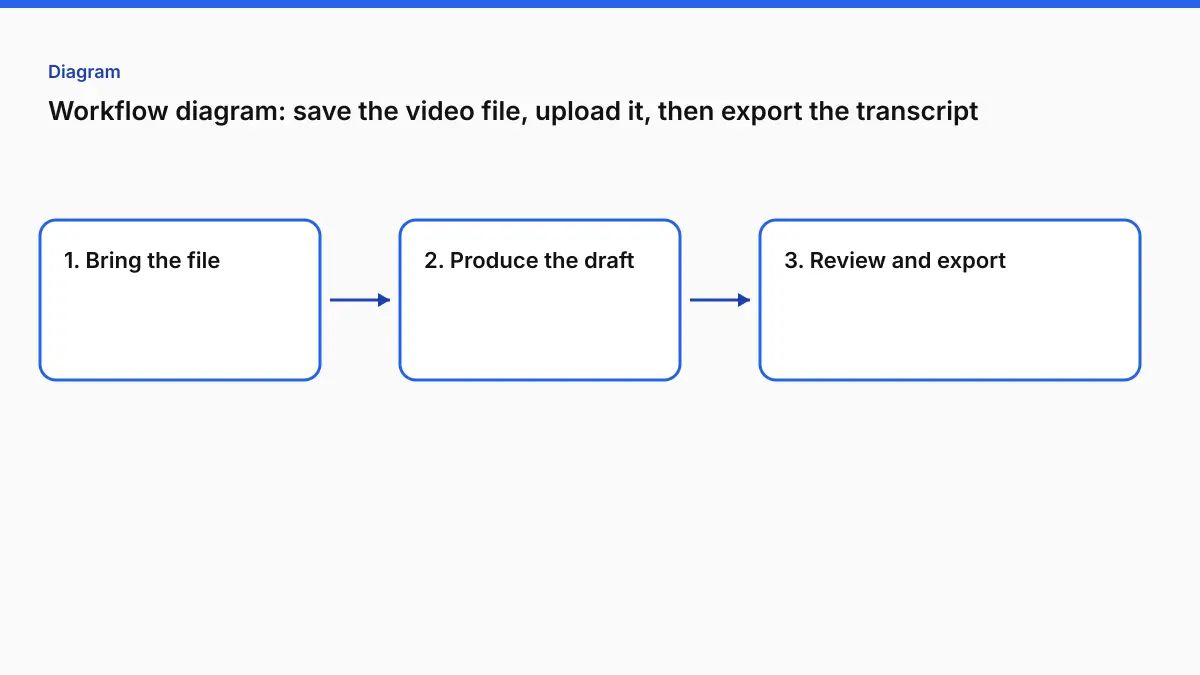
From the exported file to both downloads
- Export the locked edit from whatever you cut in. Captions made before the last trim will not match. Generate from the file you will actually upload to the host.
- Upload it. Formats include MP4, MOV, MKV, AVI, and WebM, plus audio.
- Set the spoken language if auto-detect would see a music opening and guess wrong.
- Add names and terms (up to 1,500 characters) so product names and people’s names are spelled the way you publish them.
- On Pro, enable Speaker labels (who said what) before generating if the transcript should show turns. Interviews want this. A single-narrator video often does not.
- Generate. Review the opening, a minute in the middle, and the close. On Pro, fix the text in place.
- Download the document. Download SRT for most hosts and VTT for a web player.
- Run Fix Subtitles before you deliver the caption file. It is free with an account. It separates overlaps, wraps to 42 characters, and flags reading speed over 20 characters per second. Then you still read the lines it left for a person.
- If you need another language, translate the subtitle file. Pro translates into 104 languages. Times stay. Recheck line length. The Spanish guide is the pattern for any target language.
| Plan | Per speech file | Size | Monthly speech | Caption download |
|---|---|---|---|---|
| Free | 30 minutes | 2 GB | Tool-specific allowance | Two short watermark cues |
| Pro | 4 hours | 10 GB | 30 hours | No watermark |
Pro is $14.99/month or $120/year. Burn-in, if the host will not take a sidecar, is a different cap: 30 minutes at 720p on Free, with VideoText branding retained, and up to 2 hours at original resolution on Pro with no watermark. Use Burn Subtitles only for that case. A separate SRT is the better default, because the words stay editable.
After the files exist
- The host rejects the SRT. SRT file not working: timing commas, UTF-8, cue numbers, overlaps. The Subtitle Validator points at the line.
- The client wants a style, not your default paragraphs. Guideline Format for Rev, GoTranscript, TranscribeMe, or Scribie. Then listen for names. Style rules do not know your cast list.
- The picture has a window burn the transcript must cite. Calculated SMPTE. You enter the first-frame timecode and the frame rate. You spot-check.
- The video is long. Pro holds a speech file up to 4 hours as one job, so labels and timestamps are not restarted at a split. Long video covers the cap. Over 4 hours, split first.
- You only wanted text and already have a transcript-only tool you like. Keep it. The TurboScribe note is for the moment captions or a style guide show up. Otter, Descript, and a file transcript are three different jobs.
What not to do with this page
Do not paste a video address and expect a transcript. The product uploads a file. Do not treat this article as a way around a platform’s download rules. If you cannot legally keep the file, you cannot upload it here.
Older wording on this slug talked about chapters and a written blurb as if they were part of the transcript job. They are not a step in the tool this article describes. Write the description yourself from the transcript you review. The transcript is the source. It is not the description.
A tight version for a finished export
- Export the video.
- Upload it to Video to Transcript.
- Add names. Turn on speaker labels on Pro if there is more than one voice.
- Download DOCX and SRT.
- Fix Subtitles on the SRT.
- Upload the video and the SRT where they are going. Keep the DOCX for the write-up.
That is the whole tool choice. How to choose in 2026 is the longer version if you are also comparing a meeting app or an editor.
FAQ
Is this a tool that transcribes a video from its web address?
No. Upload a file you saved.
Why is the URL about online video?
The address is unchanged so old links still land. The article is the file workflow those searches were trying to finish: a transcript and captions from the export.
Can one upload produce both a document and captions?
Yes. Video to Transcript downloads TXT, DOCX, PDF, CSV, JSON, SRT, and VTT.
What are the limits?
Free files up to 30 minutes and 2 GB. Pro files up to 4 hours and 10 GB, 30 hours of speech a month, $14.99/month or $120/year. Speaker labels are Pro.
The caption file is valid and still hard to read. Then what?
Fix Subtitles, free with an account, then read what the report left open. Overlaps and line length are the usual reasons a “valid” file still fails a person.
Related tools and guides
- Video to Transcript
Upload a video or audio file and download a transcript you can edit.
- Guideline Format
Apply a client style guide to a transcript before review.
- Can subtitles be burned into a video without losing video quality?
- Can you batch process multiple video files for transcription at once?
- Can you export a video transcript directly to Word or PDF?
- MP4 to Text: Get a Timestamped Transcript From Video
- How to Transcribe a Long Video (2 to 4 Hours) Without Splitting It