MP4 to Text: Get a Timestamped Transcript From Video
VideoText editorial team · Published · Updated · 9 min read
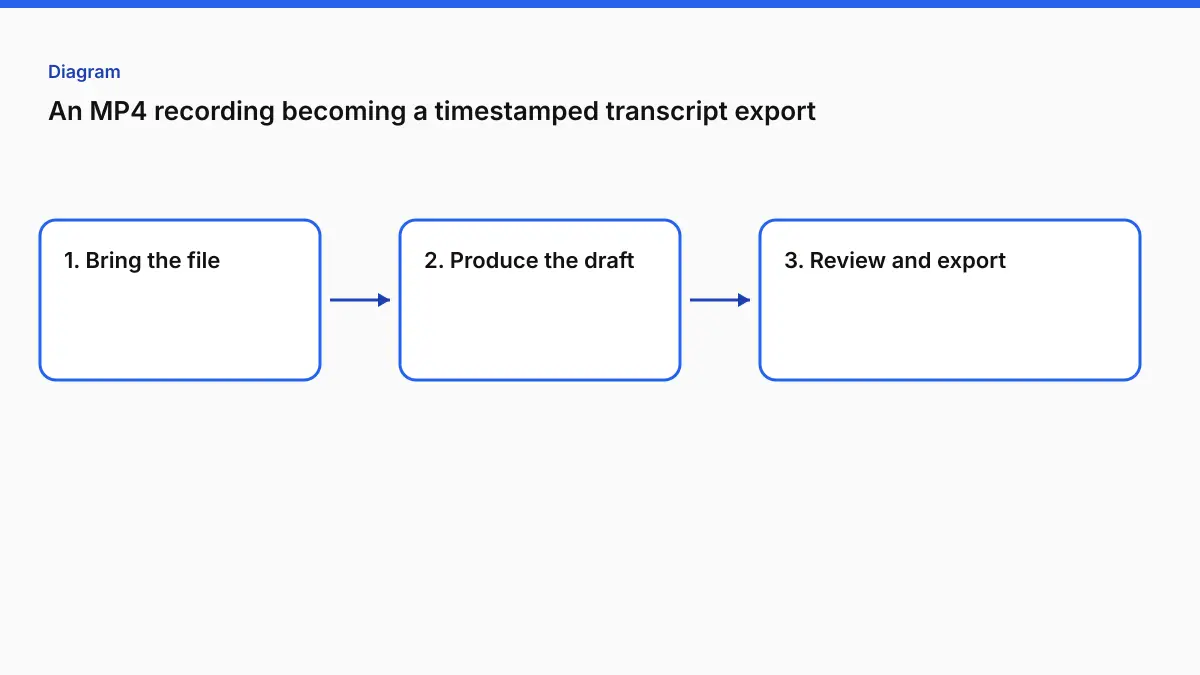
Short answer: upload the MP4 to Video to Transcript, choose the spoken language (or auto-detect), add any names and terms the recording uses, and generate. Review the text, pick a timestamp mode, and export TXT, DOCX, PDF, SRT, VTT, CSV or JSON. Free covers files up to 30 minutes. Pro covers 4 hours per file and adds speaker labels.
The rest of this guide is about the decisions that make a transcript usable rather than just present: which timestamp mode fits the job, how to handle names, which export to send, and how to tell whether the text is clean enough to deliver.
Transcript or subtitles? Pick the right output first
People searching "MP4 to text" want one of two things, and they're different files.
| You need… | Output | Tool |
|---|---|---|
| Something to read, quote, search, cite or hand to a client | A transcript (paragraphs, optional timestamps and speakers) | Video to Transcript |
| Text that appears on screen in time with the video | A subtitle file (short timed cues, SRT/VTT) | MP4 to SRT |
A subtitle file chops speech into 1–7 second cues of no more than two lines. That's terrible for reading. A transcript keeps sentences whole. If you need both, one upload covers both: Video to Transcript also exports SRT and VTT.
Step by step: MP4 to text in VideoText
The step names below match the four steps on the live Video to Transcript page.
1. Upload your video
MP4, MOV, MKV, AVI, WebM, plus MP3, WAV, M4A, FLAC and other audio files.
| Free | Pro | |
|---|---|---|
| File length | Up to 30 min | Up to 4 hours |
| File size | 2 GB | 10 GB |
| Monthly speech | Tool-specific allowance | 30 hours |
| Speaker labels | — | Included |
| Batch | — | Up to 20 files |
| Text exports | Short watermark notes | Clean |
If the MP4 is huge because it's 4K, the file size is the limit you'll hit, not the duration. The speech is all that matters for a transcript, so you can pull the audio out first with the free browser tool Extract Audio and upload that instead.
2. Choose language and options
- Language: auto-detect, or pick it yourself when the opening isn't representative (music intro, a foreign-language clip, silence).
- Names & terms (optional): open Advanced options and type the proper nouns, product names and acronyms the speakers use (the field takes up to 1,500 characters). This is the single most useful thing you can do for accuracy on interviews, demos and lectures. Any recognizer struggles most with words it can't predict.
- Speaker labels (Pro): opt-in, in the same Advanced options panel. Tick it before you transcribe if you want speaker turns. Leave it off and the transcript has no speaker turns.
- Translation: you can choose a target language here too. Pro translates into 104 languages.
From our test. We transcribed a 15-minute NASA press briefing (a 96 MB MP4) and entered Zakrzewski, Mayumi Matsuura, JAXA, McGregor, Crew-11 in Names & terms. Every term came out spelled the way we typed it: Zakrzewski (1 mention), Mayumi Matsuura (1), JAXA (2), McGregor (1) and Crew-11 (15). The transcript ran to 2,726 words in 116 segments, and the TXT, DOCX and PDF exports from our Pro account had no watermark.
3. Review the transcript
Search the text, play any line from its timestamp, and switch the timestamp mode. On Pro, correct text inline. Exports always include your latest edits.
4. Export
TXT, DOCX, PDF, SRT, VTT, 3-column PDF or DOCX, JSON, CSV, or Notion. The guide Can you export a video transcript to Word or PDF? covers layout differences between them.
Timestamp modes: which one to use
This is where most transcripts go wrong. Too many timestamps make a document unreadable. Too few make it impossible to find a quote.
| Mode | What you get | Use it for |
|---|---|---|
| Per interval (30 s default) | A marker like [0:36] at the start of each block, roughly every interval |
Long recordings you'll skim: lectures, webinars, meetings |
| Per segment | A timestamp on each spoken segment | Pulling quotes, paper edits, finding a soundbite |
| Per speaker | A timestamp at every change of speaker (turn speaker labels on before you transcribe) | Interviews, research, depositions-style reading |
| None | Clean prose | Blog drafts, show notes, articles |
A note for editors matching a transcript to a timeline. Editors log in HH:MM:SS:FF (frames), not milliseconds. At 25 fps, 00:12:30:12 is 12 frames, or 0.48 s, past 12:30. At 29.97 fps drop-frame, the separator becomes a semicolon (00:12:30;12), and two frame numbers are skipped at the start of each minute, except every tenth minute, so the timecode stays in step with the clock. If your timeline starts at 01:00:00:00 (a common broadcast convention), add that hour when you match transcript times to the edit. The drop-frame timecode and frame rate glossary entries explain the math.
The same opening in two modes, from our test file. Per interval (the default), exactly as exported to TXT:
[0:02]
Good morning, and welcome to NASA's Johnson Space Center in Houston, Texas. I'm Joseph Zakrzewski with NASA Communications, and this morning we're here to discuss the next crew rotational mission to the International Space Station, Crew-11. We have leaders from NASA, SpaceX, and JAXA to join today's discussion, […]

[0:36]
Joining us today are Ken Bowersox, […]
Per segment, as shown in the transcript view:
(0:02) Good morning, and welcome to NASA's Johnson Space Center in Houston, Texas. I'm Joseph Zakrzewski with NASA Communications, and this morning we're here to discuss the next crew rotational mission to the International Space Station, Crew-11. (0:14) We have leaders from NASA, SpaceX, and JAXA to join today's discussion, […] (0:23) For those that are tied in online, […]
Interval blocks are for skimming. Segment markers let you find a quote to the second. We ran this file with speaker labels off, so Per speaker and None both gave plain paragraphs. If you want per-speaker times, turn labels on before you transcribe.
Which export format to send
| Recipient | Format | Why |
|---|---|---|
| Client or editor who'll mark up the text | DOCX | Track changes and comments |
| Legal-style or archival reading | PDF or 3-column PDF | Fixed layout. The 3-column layout separates time, speaker and text |
| Spreadsheet analysis, research coding | CSV | One row per segment |
| A developer or a pipeline | JSON | Machine-readable segments and times |
| A note-taking workspace | Notion | Sends the transcript straight to your workspace |
| A video player | SRT or VTT | Timed cues, not prose |
Is the transcript clean enough to deliver?
Automatic transcripts fail in predictable places. Before you send one out, check these spots rather than rereading everything:
- Proper nouns: names, brands, places. Search for each one you entered as a term.
- Numbers and units: "fifteen" vs "fifty," "$1.5M" vs "1.5 million."
- Crosstalk: where two people speak at once, words get dropped or given to the wrong speaker.
- Repeats and restarts: recognizers sometimes repeat a phrase at a segment boundary. VideoText's own published example on the Video to Transcript page shows one ("lab testing. a laboratory study"), left in so you can see what to look for.
- The first and last 30 seconds: intros with music and outros with overlapping goodbyes are the weakest stretches.
If the words are right but punctuation and capitals are a mess (common with transcripts pasted from other tools), Fix Transcript restores punctuation and capitals without changing a spoken word. If a client has a house style (Rev, GoTranscript, TranscribeMe, Scribie or their own), Guideline Format formats the transcript to it and keeps timestamps and speaker labels. Free includes 3 style-guide formats a day (the count resets at midnight UTC), and Pro includes the Rev, GoTranscript, TranscribeMe and Scribie formats.
Worked example: settings for three common recordings
The same tool, set up three ways, gives three very different documents:
| Recording | Language | Names and terms | Speaker labels | Timestamps | Verbatim | Export |
|---|---|---|---|---|---|---|
| 45-min customer interview for research | Pick it (accented speakers) | Interviewee name, company, product names | On (Pro) | Per speaker | Full | CSV for coding + DOCX |
| 20-min product demo for a help article | Auto-detect | Feature names, UI labels, acronyms | Off (one presenter) | None | Clean | DOCX |
| 2-hour panel for quotes | Pick it | All panelist names, moderator, event name | On (Pro) | Per segment | Clean | PDF for review, DOCX for pull quotes |
Three patterns are worth copying. Research wants per-speaker times and full verbatim, because analysts cite who said what and how. Help content wants no timestamps at all. They just get deleted. Quote hunting wants per-segment times so an editor can jump straight to the moment in the video.
Speaker labels: switch them on first
Speaker labels are a Pro option, and they're off until you tick Speaker labels (who said what) under Advanced options. Do that before you transcribe. With it off, the Speakers tab puts everything under SPEAKER 1 and reminds you to enable labels before transcribing. Whatever the recording, read the speaker turns yourself before a transcript goes to a client. The speaker labels glossary entry explains the terms.
Clean verbatim or full verbatim?
Choose before you export.
- Clean verbatim removes ums, false starts and stutters. It's right for articles, show notes and most business use.
- Full verbatim keeps everything. It's right for research where hesitation is data, and for legal-style work.
Mixing them in one deliverable is a classic client complaint, so pick one and state it in the file name, e.g. interview-03_clean-verbatim.docx.
Long MP4s and batches
On Pro, one MP4 of up to 4 hours goes in as a single upload with continuous timing, with no splitting and no stitched timestamps. For a stack of files (a course, a season of interviews), batch up to 20 files and download the finished transcripts together. For recordings over an hour, see transcribing a video longer than an hour.
When VideoText isn't the right fit
- You need a certified or court-ready transcript. Use a human service that signs off on accuracy. VideoText doesn't print an accuracy percentage, because accuracy depends on the recording.
- You want a live transcript of a call while it happens. VideoText works on files you already have. It doesn't join meetings.
- You only need text from on-screen slides, not speech. That's OCR, a different job.
Related reading in this batch
- MP4 to SRT: when you need a subtitle file instead.
- How to add captions to course videos: turning lecture MP4s into captions and handouts.
- SRT file not working?: if the SRT export won't import somewhere.
FAQ
Can I convert MP4 to text for free?
Yes. The Free plan takes MP4 files up to 30 minutes and 2 GB. Free text exports include short VideoText watermark notes, and Pro exports are clean.
Can I get the transcript with timestamps?
Yes. Choose per interval (every 30 seconds by default), per segment, per speaker, or no timestamps.
Does it label who is speaking?
Speaker labels are a Pro feature, and they're opt-in. Tick Speaker labels under Advanced options before you transcribe.
Which formats can I export?
TXT, DOCX, PDF, SRT, VTT, a 3-column PDF or DOCX, JSON, CSV, or Notion.
What's the longest MP4 I can transcribe?
30 minutes on Free. Pro takes files up to 4 hours and 10 GB each, with 30 hours of speech a month and batches of up to 20 files.
How do I stop names and jargon coming out wrong?
Type them into Names & terms (optional), under Advanced options, before you generate. On Pro you can also correct text inline before export, and every export includes your edits.
Related tools and guides
- Video to Transcript
Upload a video or audio file and download a transcript you can edit.
- Guideline Format
Apply a client style guide to a transcript before review.
- Can you batch process multiple video files for transcription at once?
- Can you export a video transcript directly to Word or PDF?
- Can you search a video transcript for a specific word?
- How to Transcribe a Long Video (2 to 4 Hours) Without Splitting It
- Best Transcription Tools in 2026: Match the Tool to the File