Otter vs Descript vs TurboScribe: Pick the Job, Not a Winner
VideoText editorial team · Published · Updated · 4 min read
Short answer: these three are not substitutes. Otter is used for meetings. Descript is used to edit video by editing text. TurboScribe is used to turn a file into a transcript. Pick the one whose job you actually have. Pick a file workflow like VideoText when what you have is a recording on disk and what you owe is a document, an SRT, or both.
Plans and features change. At the time of writing, check each company’s site before you treat a price or a checkbox as current. Nothing below is a scored matrix, and nothing here is a claim about what they charge.
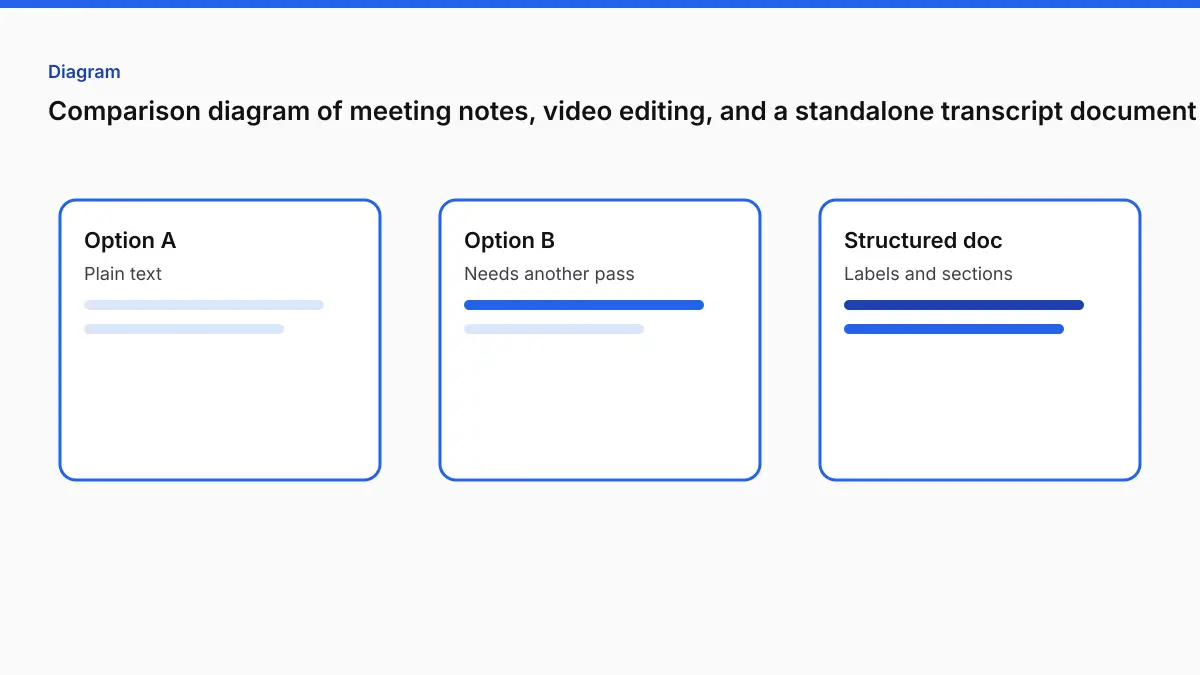
Three jobs
| Job | What you are holding | A tool built around that |
|---|---|---|
| Notes while a meeting is happening | A calendar invite, not a finished file | A meeting product such as Otter |
| A cut of the video | A timeline | An editor such as Descript |
| The words of a file, as text | An audio or video file | A transcript tool such as TurboScribe |
| The words, plus captions or a client style | The same file, and a second deliverable | A transcript and subtitle workflow |
If you force one job into another product, the complaint is predictable. The meeting app feels wrong for a film interview. The editor feels heavy when nobody is cutting picture. The text file feels unfinished when a platform asked for captions.
Otter: the meeting
Use Otter when the point is the meeting you are in: notes for the people on the call, in a meeting workspace. That is a different artifact from a transcript of a file someone sent you later.
If the meeting was recorded and you now have the file, you can transcribe that file anywhere that accepts it. You do not need the meeting product to do the second step. You also should not expect a meeting product to be the captioning department. Confirm on Otter’s site what a file upload downloads today.
VideoText’s version of “a meeting I already recorded” is: export or download the recording the meeting tool gives you, then upload that file to Video to Transcript. Speaker labels, if you need them, are Pro and have to be turned on before the job.
Descript: the edit
Use Descript when you will change the video by editing the transcript. The transcript is the timeline. That is valuable, and it is a lot of product if the client asked for a DOCX and an SRT and you are not cutting anything.
Stay in the editor for the cut. When the cut is locked, you can still export the picture and make a clean caption file from that export, the same way the CapCut note describes. Captions made before the cut will not match the cut.
VideoText will not edit your picture. It will give you the document and the subtitle file from the exported video.
TurboScribe: the text file
Use TurboScribe, or any transcript-focused uploader, when the delivery is the words. The TurboScribe alternative page is the case where that is not enough: you also need SRT or VTT, a style guide, or a translation.
Confirm their current exports on their site. Do not take a blog’s word for a competitor’s checkbox.
VideoText: the file you already have
Upload the recording.
- Transcript: TXT, DOCX, PDF, 3-column PDF or DOCX, CSV, JSON. On Pro, inline edits are what the export uses.
- Subtitles: SRT and VTT from the same cues, or from Video to SRT if you only want captions.
- Names: up to 1,500 characters before you generate.
- Speakers: Pro, opt-in, Speaker labels (who said what).
- Verbatim: full, or clean. Clean removes explicit standalone hesitations only.
- Clock: per interval, per segment, per speaker, none, or Calculated SMPTE for a burned-in timecode. See BITC.
- Afterward: Fix Subtitles is free with an account. Guideline Format applies Rev, GoTranscript, TranscribeMe, or Scribie. Translate Subtitles covers 104 languages and keeps cue times. Pro is required for that translation allowance as sold on the pricing page.
| Free | Pro | |
|---|---|---|
| Length | 30 minutes | 4 hours for transcript, subtitles, and voice |
| Size | 2 GB | 10 GB |
| Monthly speech | Tool-specific allowance | 30 hours |
| Price | Free account | $14.99/month or $120/year |
Burn and compress stop at 2 hours. Free subtitle downloads include two short watermark cues. Pro removes them.
A choice that does not need a winner
| You are trying to… | Start with |
|---|---|
| Take notes in a live meeting | Otter, or whichever meeting product you already pay for. Check their site |
| Edit the video by editing text | Descript, or the editor you already know |
| Get a text transcript of a file | A file transcript tool. TurboScribe is one. Check their site |
| Get that transcript and an SRT, then check the cues | VideoText |
| Type it yourself with a pedal | A player. See Express Scribe |
| Match a burned-in clock | Calculated SMPTE, after you have the file |
The 2026 choosing guide is the same idea without the product names in the title: match the file and the deliverable.
What this comparison refuses to do
It does not list their prices. It does not say they lack a feature, except to tell you to look at their current page. It does not quote a speed. It does not quote an accuracy percentage. Difficult audio is still a review problem, whoever wrote the draft. Read accuracy on difficult audio for the conditions, and transcript QA for the pass.
FAQ
Which is more accurate, Otter, Descript, or TurboScribe?
This page does not answer that. Accuracy depends on the audio. Run the file you care about and listen to names, numbers, and overlap.
Can VideoText do what all three do?
No. It does not sit in your meeting, and it does not edit the picture. It transcribes a file and can export a transcript and subtitles.
I only want a text file. Do I need VideoText?
Not necessarily. A transcript-only tool is a valid choice. Use VideoText when you also need the document formats, the SRT, the style guide, or a translation.
What does Pro cost, and how long is a file?
Pro is $14.99/month or $120/year. It includes 30 hours of speech a month and uploads up to 4 hours for speech tools. Free is 30 minutes per speech file.
Can I transcribe from a web address?
No. Upload the file you have.
Related tools and guides
- Video to Transcript
Upload a video or audio file and download a transcript you can edit.
- Guideline Format
Apply a client style guide to a transcript before review.
- Best 8 Descript alternatives in 2026
- Best AI transcription software for podcasters in 2026
- Best batch transcription software in 2026
- MP4 to Text: Get a Timestamped Transcript From Video
- How to Transcribe a Long Video (2 to 4 Hours) Without Splitting It