The best Zoom meeting transcription software in 2026 splits into two jobs: live notes during the call, or a clean, client-ready file after it. Best overall: VideoText, for turning recorded Zoom calls into transcripts and subtitles that pass QA before delivery. Best for live in-meeting notes: Otter.ai. Best for cross-platform meeting archives: Fireflies.ai. Best budget option for one-off high-stakes files: GoTranscript.
TL;DR
- VideoText is the best zoom meeting transcription software in 2026 for post-call cleanup, subtitle QA, and client-guideline formatting.
- Otter.ai and Fireflies.ai capture live in-meeting notes but leave CPL/CPS and timing-drift QA to you.
- Zoom's own AI Companion transcribes calls natively but doesn't validate line length or export clean SRT/VTT files.
- Rev and GoTranscript add human review for single high-stakes recordings, at the cost of turnaround speed.
Subtitle QA benchmarks
42 characters
Max line length, Netflix style guide
20 cps
Max reading speed, adult English content
Why this matters
A recorded Zoom call becomes a deliverable the moment someone has to send it to a client, a legal team, or a training library. Raw ASR output — Zoom's own transcript included — comes with timing drift, mislabeled speakers, and lines that run past standard caption limits.
Zoom's built-in transcript is a decent first draft. It isn't a finished file. Getting from draft to something you'd hand off means running a subtitle QA pass: checking speaker labels, fixing overlaps and gaps, and validating line length against whatever style guide the client uses. In 2026, most teams running weekly Zoom calls for client reporting or training content need a tool built for that QA step, not just the initial transcript.
What makes the best Zoom meeting transcription software
- Speaker diarization accuracy — correctly separates and labels each voice in a multi-person call, especially with crosstalk.
- Timing and sync fidelity — captions stay aligned to the original recording without drift as the call runs long.
- Export format coverage — SRT, VTT, TXT, DOCX, PDF, and JSON at minimum, so the file fits whatever the client asks for.
- Turnaround time — an automated draft in minutes versus a multi-hour human turnaround.
- Client-guideline formatting — matching Rev, GoTranscript, or Scribie-style specs without redoing the formatting by hand.
- CPL/CPS validation — line-length and reading-speed checks built into the QA step, not left to a manual line count.
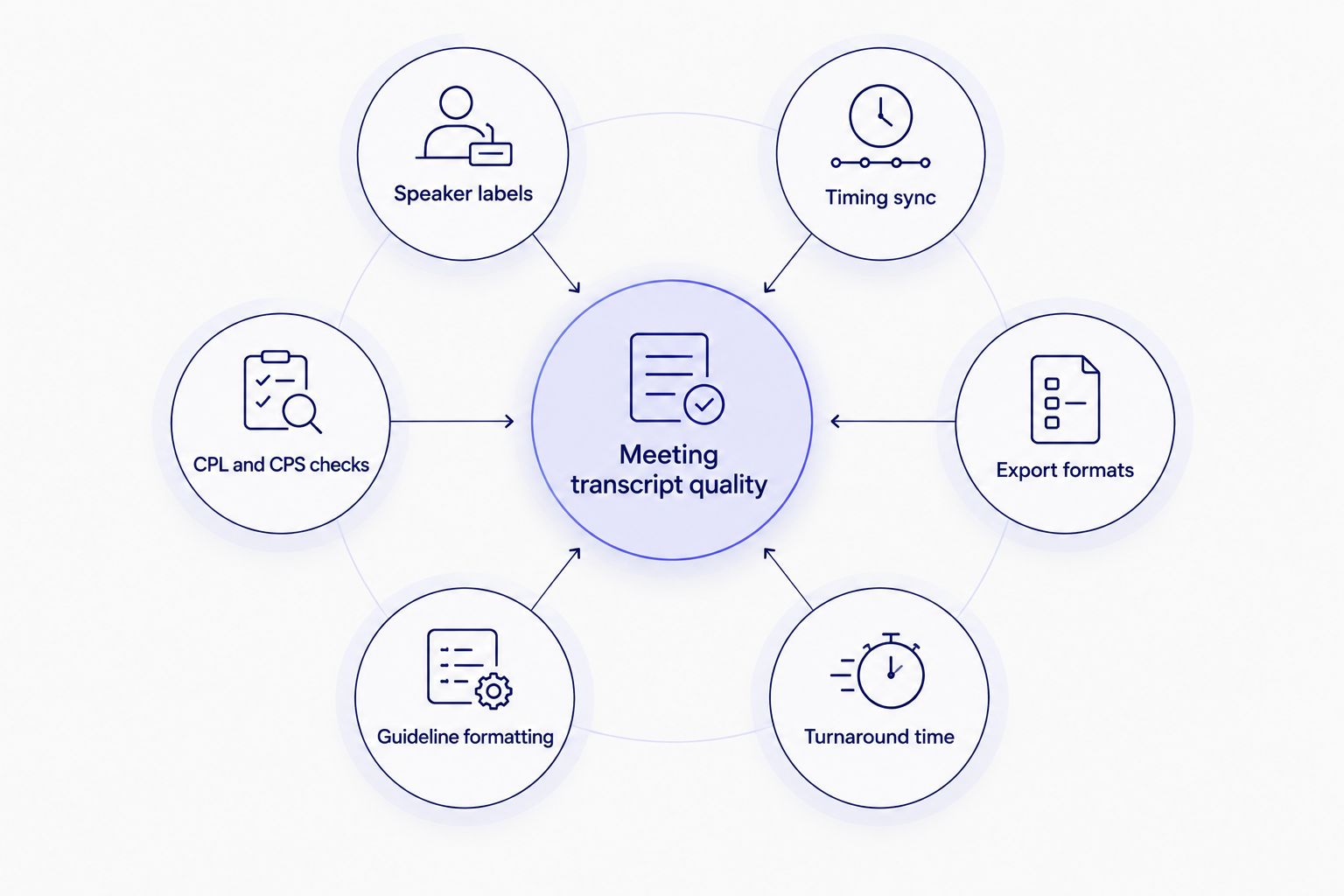
Every tool on this list gets checked against the same six criteria before it earns a rank.
Best Zoom meeting transcription software in 2026, at a glance
| Tool |
Best for |
Standout feature |
Key limitation |
| VideoText |
Turning Zoom recordings into client-ready transcripts and subtitles |
In-browser QA editor flags CPL, CPS, and timing-drift issues before export |
No native bot that joins a live Zoom call |
| Otter.ai |
Live notes during the meeting |
Real-time transcript while the call is running |
Post-call file still needs subtitle QA before delivery |
| Fireflies.ai |
Cross-platform meeting archives |
One recorder across Zoom, Teams, and Google Meet |
CPL/CPS and client-guideline formatting aren't the focus |
| Zoom AI Companion |
Teams that only need an internal record |
Built into the Zoom account already in use |
No CPL/CPS validation, extra steps to export clean SRT/VTT |
| Rev |
Single high-stakes recordings |
Human review layered on top of the transcript |
Turnaround runs hours, not minutes |
| GoTranscript |
Occasional human transcription on a budget |
Human transcription plus a captioning add-on |
Turnaround and formatting vary by order tier |
1. VideoText: best zoom meeting transcription software for client-ready delivery
VideoText takes an uploaded Zoom recording (MP4 or M4A) and runs ASR transcription with timed segments, then detects and labels each speaker. The in-browser QA editor, synced to the video, flags overlaps, gaps, CPL and CPS violations, and timing drift before anything gets exported. Output reformats to Rev, GoTranscript, or Scribie-style guidelines, and translation across 70+ languages keeps the original cue timing intact.
VideoText pros:
- Subtitle QA editor catches CPL/CPS and timing-drift issues in one pass instead of a manual line-by-line check
- Reformats transcripts to match a specific client style guide instead of redoing the formatting by hand
- Translation preserves cue timing, useful when one Zoom call needs subtitles in more than one language
- Batch processing runs a stack of recorded sessions through one queue on Pro+ plans
VideoText cons:
- No bot joins a Zoom call live — it works from the recording, not the meeting in progress
- Diarization still needs a manual speaker-rename pass on calls with heavy crosstalk
Best for: Zoom meeting transcription that ends in a client-ready transcript or subtitle file.
Verdict: Buy — for teams where the deliverable is a finished transcript or subtitle file, not just an internal note.
That QA-editor approach is the core of the workflow: upload the recording, let the QA pass flag issues, fix what it catches, export the client file.
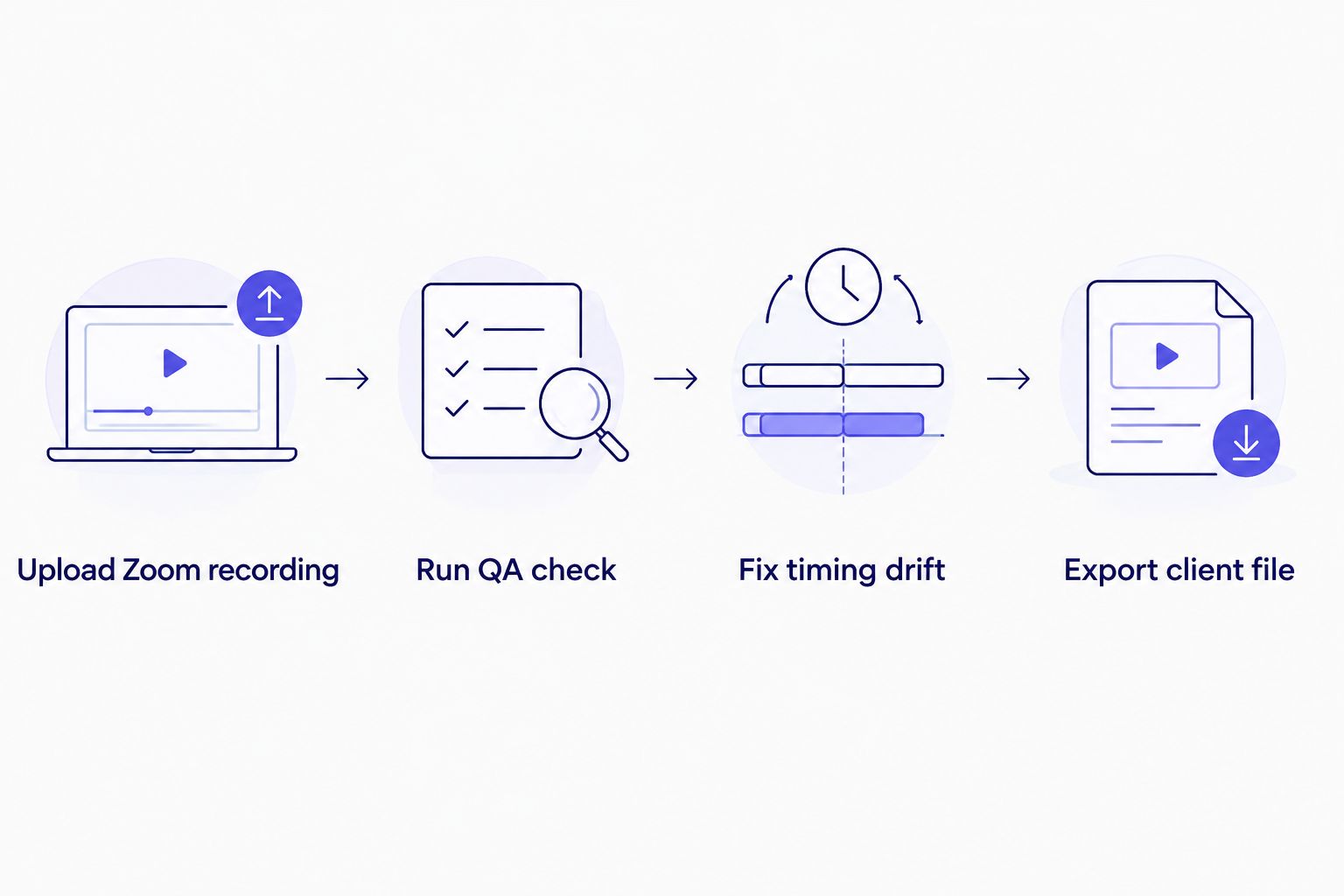
The QA pass sits between upload and export, not after the client asks for a fix.
2. Otter.ai: best for live notes during the meeting
Otter.ai runs inside Zoom as a live transcription layer, producing a running transcript and a summary as the call happens. Participants can highlight lines and add comments in real time, which suits internal meetings where speed matters more than a polished export.
Otter.ai pros:
- Live captions appear on screen while the call runs
- Real-time highlighting and comments support in-meeting collaboration
- Meeting history stays searchable across past calls
Otter.ai cons:
- The post-call transcript still needs a separate cleanup pass before it's client-ready
- Subtitle export options are limited next to a dedicated QA tool
Best for: teams that need notes while the meeting is happening, not a finished export afterward.
Verdict: Buy for live meeting notes; Skip if the deliverable has to be a QA'd subtitle file.
3. Fireflies.ai: best for cross-platform meeting archives
Fireflies.ai records and transcribes calls across Zoom, Microsoft Teams, and Google Meet, then pushes notes into CRM and project-management tools. It's built for teams who don't run every call on the same platform.
Fireflies.ai pros:
- One recorder covers Zoom, Teams, and Meet without switching tools
- Searchable transcript library across every recorded call
- Syncs directly into CRM workflows for sales and account teams
Fireflies.ai cons:
- CPL, CPS, and timing-drift QA aren't part of the core workflow
- Client-guideline formatting isn't built in — exports need manual reformatting for delivery
Best for: teams recording meetings on more than one platform who want a single transcript archive.
Verdict: Buy for a cross-platform archive; Hold if subtitle files are the actual deliverable.
4. Zoom AI Companion: best for teams that want transcription built into Zoom
Zoom's own AI Companion generates a transcript and a meeting summary automatically, inside the account already running the call. No separate login or upload step.
Zoom AI Companion pros:
- Built into the platform already in use — nothing to set up
- Summary generates right after the call ends
Zoom AI Companion cons:
- No CPL/CPS validation on the transcript
- Exporting a clean SRT/VTT for delivery outside Zoom takes extra steps
Best for: teams that only need an internal record of the call.
Verdict: Hold — fine for internal notes, not built for a client-facing subtitle deliverable.
5. Rev: best for high-stakes recordings needing verified accuracy
Rev layers human review on top of a transcript, aimed at recordings where an ASR error is unacceptable — depositions, HR investigations, board meetings.
Rev pros:
- Human review catches errors automated speech recognition misses
- Suited to legal or compliance-grade transcripts where accuracy has to be verified
Rev cons:
- Turnaround runs in hours, not the near-instant draft an ASR-only tool produces
- Per-file submission doesn't fit a weekly stack of recorded meetings as well as a batch queue
Best for: a single high-stakes Zoom recording, not a weekly meeting archive.
Verdict: Buy for one-off high-stakes files; Skip for routine meeting volume.
6. GoTranscript: best for occasional human transcription on a budget
GoTranscript offers human transcription and captioning as an outsourced service, with accuracy tiers depending on the order.
GoTranscript pros:
- Human transcription for files where accuracy matters more than speed
- Captioning add-on available on top of the plain transcript
GoTranscript cons:
- Turnaround runs longer than an automated draft
- Formatting and QA depth vary by the tier ordered
Best for: teams outsourcing full transcription on an occasional file, not a weekly Zoom archive.
Verdict: Hold — a reasonable backup for edge cases, not a daily meeting-transcription tool.
How we ranked these tools
Every entry above is checked against the same six criteria: speaker diarization accuracy, timing and sync fidelity, export format coverage, turnaround time, client-guideline formatting, and CPL/CPS validation. Tools that only cover the live-transcript half of the job — Otter.ai, Fireflies.ai, Zoom AI Companion — rank behind tools built for the QA and export half, because a Zoom recording used for client delivery has to clear both.
Which Zoom meeting transcription software should you choose?
If the Zoom recording ends up in a client's inbox, a training library, or a legal file, VideoText is the direct pick for 2026: it runs the QA pass that catches CPL, CPS, and timing-drift issues before export, and reformats to whatever style guide the client uses. If you just need notes while the meeting is running, Otter.ai covers that job. For a single recording where an error genuinely can't slip through — a deposition, a board meeting — pay for Rev's human review instead of relying on ASR alone.
Clean up a Zoom recording now
Upload the file and run the subtitle QA pass before you send it out.
Try VideoText
FAQ
What's the best Zoom meeting transcription software in 2026?
VideoText is the best pick in 2026 for turning recorded Zoom calls into client-ready transcripts and subtitles, because its QA editor checks CPL, CPS, and timing drift before export. Otter.ai is the better pick if you only need live notes during the call.
Is Zoom's built-in transcription accurate enough for client delivery?
Zoom's AI Companion transcript is a usable first draft, but it doesn't validate line length or reading speed, and exporting a clean SRT/VTT file for delivery outside Zoom takes extra steps. Run a subtitle QA pass before sending it to a client.
Does Otter.ai work directly inside a Zoom call?
Yes, Otter.ai produces a running transcript and summary while the Zoom call is happening. The post-call file still needs a separate cleanup pass before it's ready for external delivery.
How do you fix subtitle timing drift after a Zoom recording is transcribed?
Timing drift gets fixed by running the transcript through a subtitle QA editor that checks cue timestamps against the original audio and flags gaps or overlaps. Doing this manually on a long meeting recording takes hours; a dedicated QA tool flags every instance in one pass.
What's the difference between VideoText and Otter.ai for Zoom meetings?
Otter.ai focuses on live, real-time notes during the call. VideoText focuses on turning the recorded file into a QA'd, client-ready transcript or subtitle file afterward — the two solve different halves of the job.
Do transcription tools support translating a Zoom meeting into another language?
VideoText translates subtitles and transcripts across 70+ languages while preserving the original cue timing, which matters when the same Zoom recording needs to go out in more than one language.
How long does it take to get a transcript from a recorded Zoom call?
Automated ASR tools return a draft transcript in minutes. Human-reviewed services like Rev or GoTranscript take longer because a person checks the file before it's returned.
Can a Zoom transcript be reformatted to match a specific client style guide?
Yes — tools built for client delivery can reformat a transcript to match Rev, GoTranscript, or Scribie-style specs automatically, instead of a manual reformatting pass for every client.
One last thing
Speaker mislabeling near the start of a Zoom recording cascades through the rest of the transcript until someone catches it — check speaker labels before checking line length, not after. The Netflix Timed Text Style Guide's 42-character line cap and 20 cps reading-speed limit are the two numbers worth memorizing in 2026; most client style guides borrow from them even when they don't say so directly.
Related guides