Make burned-in captions easier to read by separating two problems. If the words are too long or too fast, change the cues. If the words are fine and they disappear into the picture, change the look: a caption box, an outline, size, and position. Subtitle Style Studio does the second job. It keeps your text and your cue timing.
A player setting on Netflix or a TV is a different problem. Those apps let the viewer restyle captions at playback. Burned-in captions are pixels in the video. Instagram, TikTok, and many embedded players never load a separate SRT, so the look has to be in the file you upload.
Fix the words before you restyle them
A beautiful caption that says too much is still hard to read. Before you open the studio, check the file:
- Lines longer than about 42 characters
- Reading speed over about 21 characters per second
- Two cues on screen at once
Those are the warnings Video to Subtitles shows after it generates a file, described in Edit subtitles after you generate them. An SRT you already have can go through Fix Subtitles. Platform numbers differ; the benchmark guide is subtitle CPL and CPS by style guide.
Style Studio will re-wrap a long line so it fits, and it will cut a cue that runs past the end of the video at the last frame. It will not rewrite a sentence to be shorter. Do that in the cue editor first.
What actually makes burned-in text easier to see
On a busy frame, white text with no box sits on white shirts, skies, and titles. Two looks in the free presets avoid that in different ways:
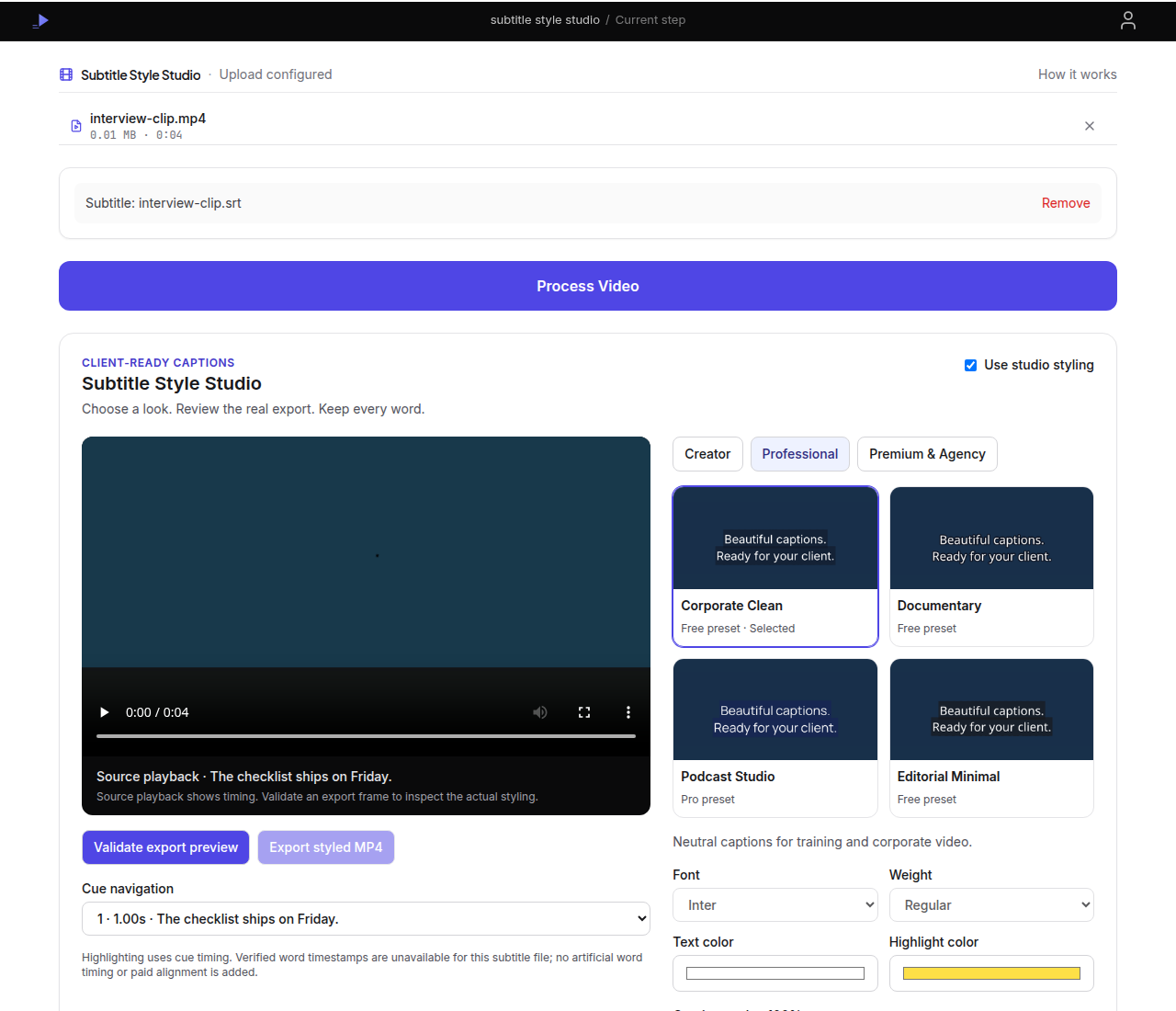
- Corporate Clean uses a dark caption box behind the text (neutral captions for training and corporate video).
- Documentary uses no box and a dark outline, which is quieter on interviews.
- Editorial Minimal uses a dark box and a smaller size.
- Global Studio keeps a box and is the free preset meant for Arabic, Indic, and CJK text as well as Latin.
Those four can be exported on the free plan as long as you do not change the font, colors, or other advanced settings. You can still move the caption to the top, center, or bottom, and you can scale it between 90% and 110%.
The other eight presets, including the heavier caption-box and outline looks in the Creator collection, are Pro. Custom fonts, text color, highlight color, background color, opacity, outline, shadow, margins, line limit, and saved presets are Pro. There are eight font families, including Noto fonts for Arabic, Devanagari, and CJK. You cannot upload your own font or a logo.
When the background is fairly solid (opacity 0.6 or higher), the studio refuses a combination whose text or highlight is too close to that background. The check is the familiar 4.5:1 contrast ratio used in the W3C’s contrast minimum guidance. The message you will see is practical: choose a darker box or brighter text. This is a guardrail in the product, not a claim that the finished video is WCAG-certified. Outlines on an unboxed caption are not the same test, because the “background” is the video frame, which changes.
Highlighting follows the whole cue. The studio does not invent word-by-word timing, even on presets whose description mentions emphasis. If the subtitle file has no trustworthy word times, you will not get a karaoke wipe.
Approve a real frame, then export
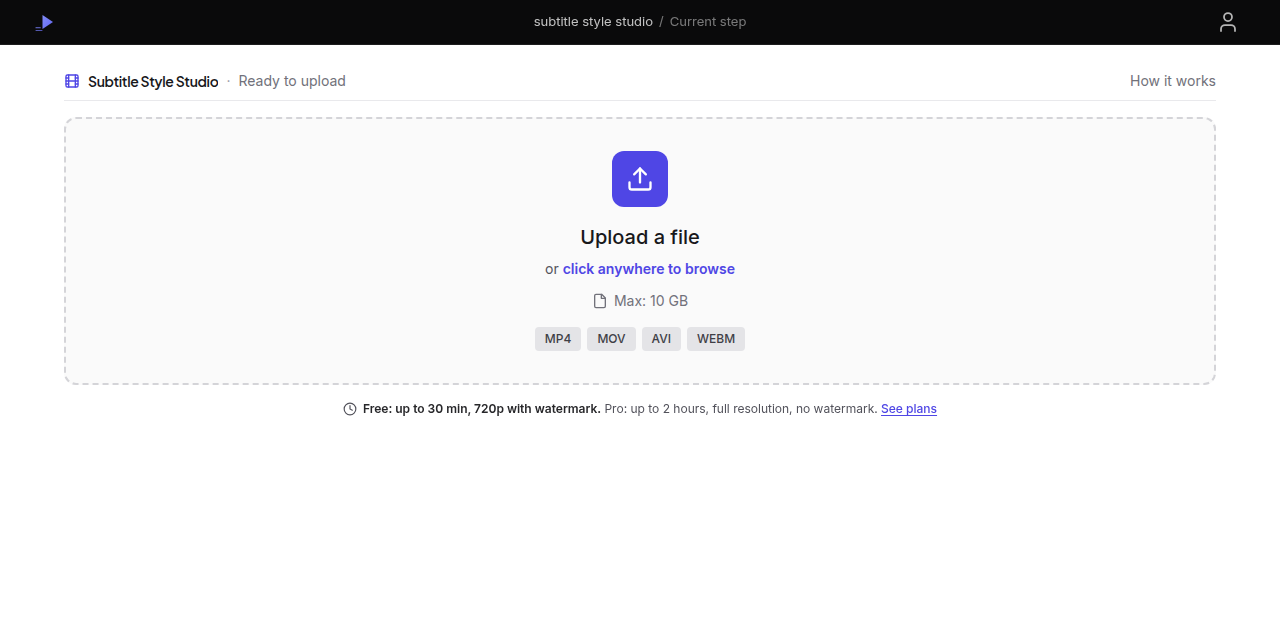
- Open Subtitle Style Studio.
- Add the video first, then the SRT or VTT. The studio does not transcribe. If you have no subtitle file, generate one first. From a finished Video to Subtitles job, Style and burn into video carries the cues over, and you add the video again.
- Leave Use studio styling on. Opening this page turns it on. Uncheck it only if you want the simpler burn controls instead.
- Pick a collection, then a preset. Free accounts can select a Pro preset and keep editing, but the preview and the styled export stay locked until you upgrade. The page says that.
- Pause on a frame where the caption is hard to see: a bright background, a lower-third that collides with your titles, a face the box would cover.
- Click Validate export preview. The image that comes back is a render of that frame, not a mockup. Read any “layout recovered” notes.
- Click Approve this layout. The styled MP4 is built from the approved style, so the export matches the frame you approved. If you change the style, approve again.
- Export the styled MP4. The Process Video button above the studio uses that same approved style. Until you validate and approve, it stops and asks you to approve the preview first.
You can also download the original SRT or VTT. That download does not contain the font, the box, or the position. ASS export is available after you approve, and it needs the same fonts installed wherever you play it. If the player might not have those fonts, the MP4 is the file that keeps the look.
Source playback on the page is only for checking timing. The styled look is the rendered frame, not the text drawn by the browser on top of the video.
The studio uses the full video. It does not trim. Standard burn controls on Burn Subtitles are the place for a simpler size, position, and background pass, including a trimmed export. Preview frames are limited to 4K; larger sources are told to use those standard burn controls.
Personal saved presets (up to 20 per account) are Pro. Agency brand kits are not something you can buy today. The page says they are planned and not available.
Free burn jobs, like the other tools, are one per UTC day. File length follows the same plan limits as the other video tools: 30 minutes and 2 GB on Free, 2 hours and 10 GB on Pro.
Choose the look for the frame, not for a trend
For a training video on a messy screen recording, Corporate Clean’s box is the free option that stays readable. For a talking-head interview on a dark set, Documentary’s outline is enough and covers less of the face. Move the caption to the top when a lower-third, a progress bar, or a platform’s own UI sits in the bottom of the frame.
Scale between 90% and 110% is a small change. If the viewer still cannot read the line, the line is too long. Shorten the cue. Do not expect scale alone to fix a 70-character sentence.
Animation can be a short “pop” on Pro presets that use it. If someone asked for static captions, set animation to none. The control’s label includes reduced motion for that reason.
What this will not fix
It will not correct a wrong word. The words in the SRT are the words in the video.
It will not resync a file that drifts. Timing is kept. Repair drift first; this guide covers constant offset versus a stretch.
It will not make a caption easy to read in every language by translating it. Translation is Translate Subtitles, and the times stay put. After that, Global Studio or a Noto font on Pro is the styling step, not a substitute for the translation.
Frequently asked questions
How do I make burned-in captions easier to read?
Shorten long cues first, then open Subtitle Style Studio with your video and SRT/VTT. Pick a preset with a caption box or outline, validate a real export frame, approve it, and export the styled MP4.
Which caption styles are free?
Corporate Clean, Documentary, Editorial Minimal, and Global Studio export on Free when you do not change fonts, colors, or other Pro controls. Vertical position and 90–110% scale stay available on Free.
Will styling fix wrong words or bad timing?
No. Styling keeps the words and cue times from your subtitle file. Fix text in Video to Subtitles or Fix Subtitles before you burn captions in.