Generate the captions, then fix the words before you publish—the step creators describe as tedious after auto captions. On Video to Subtitles the review workspace (Subtitle Studio) shows the video preview, the cue list, and checks that run before download.
Many editors complain that fixing caption text in another app breaks sync or animation (common in CapCut-style workflows). Here, timing stays locked by default while you edit spelling on Pro, so a wording fix does not move the cue’s start and end. That is not the same as repairing word-by-word kinetic captions in a non-linear editor; it is subtitle cue timing in SRT/VTT.
Before you upload: editing cue text and unlocking timing is Pro. On Free you can still generate subtitles, play the video against each cue, see every warning (overlaps, long lines, fast reading), and download SRT or VTT when overlaps are resolved—but you cannot type into the cue fields or turn off the timing lock in this workspace. If you only need to repair an SRT you already have, use Fix Subtitles instead; this guide starts from a video.
What “edit after generating” includes
A generated file is a first draft of both the words and the breaks. A cue can be the right sentence and still be a bad caption: one line longer than 42 characters, or more than 21 characters per second, or an end time that overlaps the next cue. Subtitle Studio flags those. It does not silently publish them.
The checks, in the product’s own words:
- A line longer than 42 characters is “too long for the screen.”
- More than 21 characters per second is “hard to read at this speed.”
- A cue shorter than 0.8 seconds “might feel rushed.”
- An end time that is not after the start is broken.
- Overlapping cues are called out because some players show both lines at once.
- A gap longer than 4 seconds is noted, not treated as an error by itself.
- Leftovers such as
[inaudible], [laughter], or a word repeated three times are marked as something to look at.
Platform style guides use their own numbers. Netflix’s published guidance is often stricter on reading speed than the 21-character warning used here. VideoText is not certifying a file for Netflix or YouTube. The numbers above are the checks this workspace actually runs. A wider comparison is in subtitle CPL and CPS benchmarks.
Review the cues
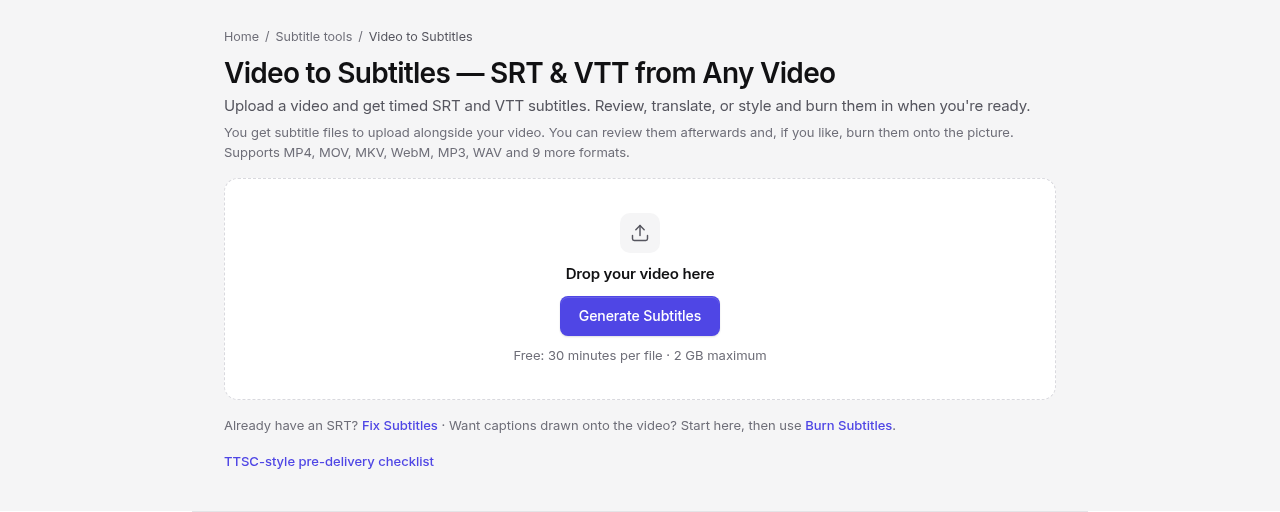
- Upload the video on Video to Subtitles. Free files can be up to 30 minutes and 2 GB. Pro files can be up to 4 hours and 10 GB. One free subtitle job is included per UTC day.
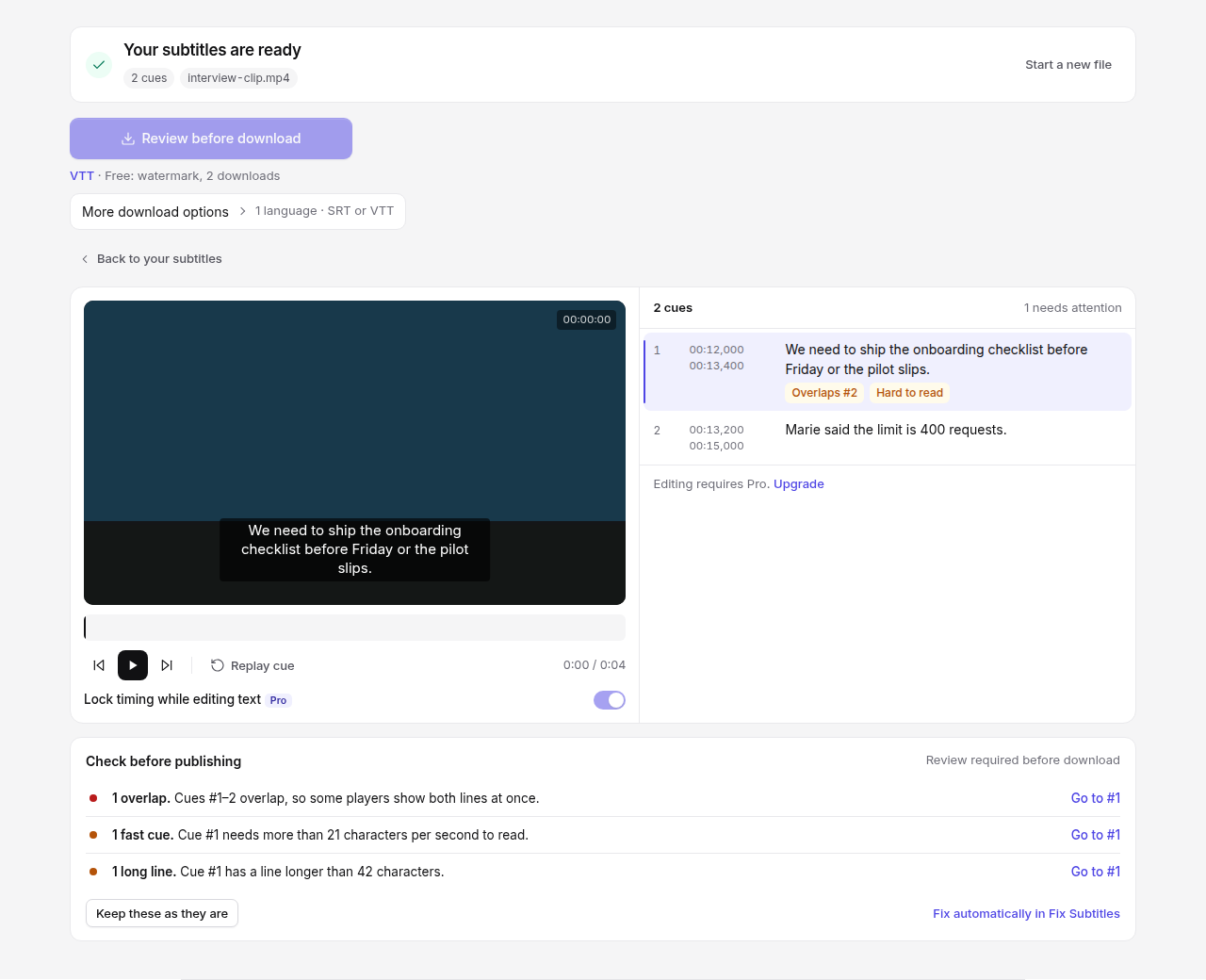
- When the job finishes, open Review subtitles. If cues were flagged, the card says how many may need attention.
- Play the video. The active cue is highlighted, and the current line is drawn on the picture. Click a cue or its time to seek there. Enter moves to the next cue when you are in the text field.
- On Pro, edit the text in the cue. Timing stays locked so a spelling fix cannot shove the cue. Turn off Lock timing while editing text when a start or end is actually wrong, edit those fields, then lock it again.
- Read the chips on a cue: Hard to read, Needs review, or an overlap with the next cue number.
Free accounts see the same list as text, not as editable fields, and a note that editing requires Pro. The lock switch is marked Pro and cannot be turned off.
Splitting one cue into two, or merging two cues into one, is not supported here. You cannot add or remove cue rows—only edit the text and times on the cues that already exist. If you need a different cue structure, fix any overlap blocks first (see below), download when the file is allowed to export, and continue in an external subtitle editor that supports splitting, or run a new generation pass on the video.
What has to be true before the file downloads
Download stays off while any cue overlaps the next one. The message is “Resolve overlapping cues before downloading.”
Pro: Unlock timing and move the end of the earlier cue so it finishes before the next one starts (or adjust the next cue’s start).
Free: You cannot edit cue times in this workspace, and download stays disabled until overlaps are gone, so you do not get an SRT or VTT to upload elsewhere. Practical options:
- Upgrade to Pro for this job and fix the overlap in the review workspace (same path as above).
- Try another generation on a later free subtitle job if you suspect a one-off glitch—there is no guarantee the overlaps disappear.
- Use Fix Subtitles only when you already have an SRT or VTT from another source. It is not a workaround for a blocked export from this screen.
Fix Subtitles can repair overlaps in a file you already hold. One free fix job is included per UTC day. Cue-by-cue editing there is also Pro; the automated repair path is the free tier on that tool.
Other warnings (long lines, fast reading, short cues, large gaps, AI leftovers) do not have to be cleared one by one. The check says review is required, and you can keep them as they are. Do that only if you have looked. A 42-character warning is a hint that a viewer may not finish the line. It is not a block.
Empty cues and cues whose end is not after the start are broken. Fix them before you treat the file as finished.
Free downloads add a VideoText watermark cue at the start and after the last cue, and they stop after two downloads. Pro downloads omit that watermark. Choose SRT or VTT for the original language, or for a translation if you added one. Translation keeps the original cue times and is a separate step on the same job (Translate), so you can translate SRT files without re-timing them. Share links require a login.
There is no global “shift every cue by 1.5 seconds” control in this review workspace. If the whole file is early or late by one offset, that repair belongs to Fix Subtitles and to How do you fix subtitle timing drift after transcription?. Nudging a single cue here is the Pro timing unlock, not a file-wide shift.
A concrete pass on a bad cue
Generated cue:
00:00:12,000 --> 00:00:13,400
We need to ship the onboarding checklist before Friday's review or the pilot slips.
That line is longer than 42 characters and it is on screen for 1.4 seconds, so it is also over 21 characters per second. It gets Hard to read.
A Pro edit that keeps the times and breaks the thought:
We need the checklist before Friday's review.
You cannot add a new cue row in this workspace. Shorten the line to what fits that window, or on Pro unlock timing and nudge this cue’s end and the next cue’s start while keeping the same number of cues. For a true two-cue split, export after overlaps are resolved and edit in an external subtitle tool that supports inserting cues.
After the text is right
Style and burn into video carries the cues to Subtitle Style Studio. You add the video again on that page. Styling does not rewrite the words. If a line is too long, fix it before you burn it. How the burned-in look works, including what is free, is in Make burned-in captions easier to read.
If you only needed a document, not captions, Video to Transcript is the other export from the same kind of media. Subtitle Studio does not replace that transcript.
Frequently asked questions
Can I edit subtitles after generating them on VideoText?
Yes on Pro: change cue text and, when needed, unlock timing to fix a start or end. On Free, review and download when overlaps and other hard blocks are clear; you cannot edit cues or timing in this workspace without Pro.
Why is download blocked?
Any overlap between cues blocks download until it is fixed. Pro users unlock timing and adjust the overlapping end or start. Free users cannot download until overlaps are resolved—Fix Subtitles needs a file you already have, not an export this screen refuses to give you. Upgrade to Pro for this job, or try a new generation on a later free job if appropriate.
Is there a button to shift every cue by one second?
No global shift lives in Subtitle Studio. Constant early/late offset is a Fix Subtitles or drift-repair job, not a single nudge here.
Can I edit subtitles without changing timing?
On Pro, yes—leave Lock timing while editing text on and change the cue text only. Unlock timing when a start or end time is actually wrong.
Can I split one long caption into two cues here?
No. Subtitle Studio cannot add, remove, split, or merge cue rows. You can edit existing cue text and, on Pro, adjust existing cue times. To split a cue, export the subtitle file once all blocking errors are resolved and use an external editor that supports inserting cues.