How to Add Captions to Course Videos (VTT Workflow)
VideoText editorial team · Published · Updated · 8 min read
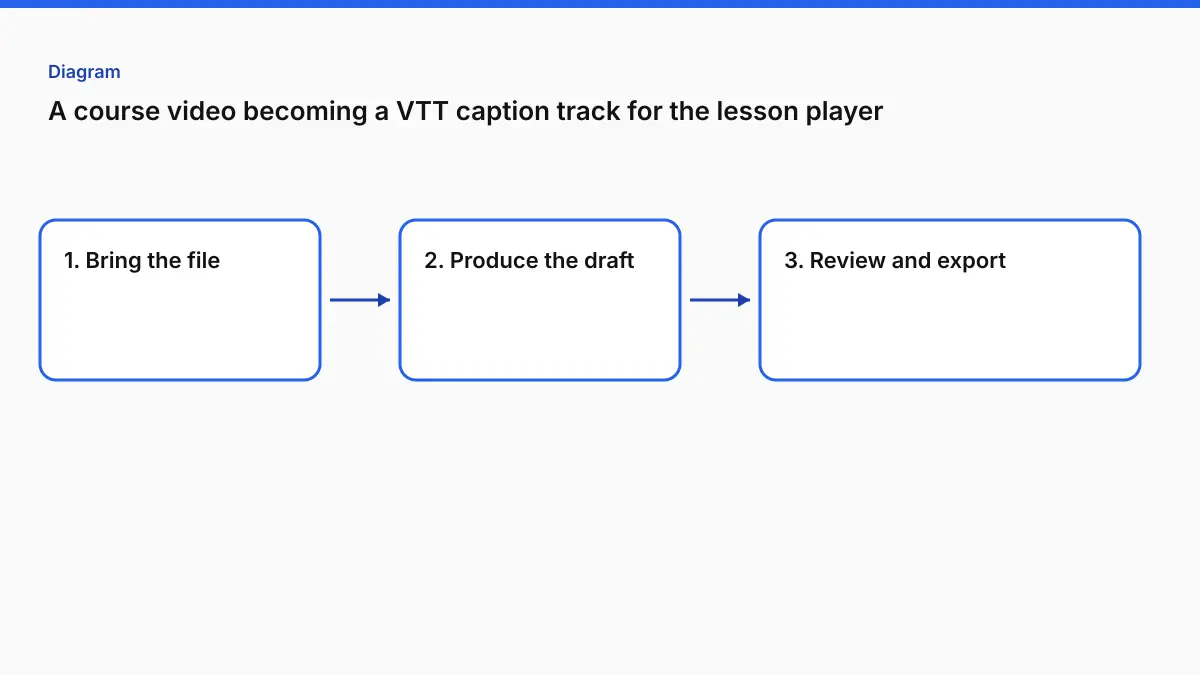
Short answer: generate a caption file from each lesson with Video to Subtitles, or with Video to Transcript when you need to enter your course's technical terms first. Download VTT for web players and most learning platforms (SRT if the platform asks for it), check the terms and reading speed, then upload the file as the lesson's captions, or attach it with an HTML <track> element if you host the player yourself. Export a transcript from the same recording as a downloadable handout.
Below is the workflow course teams actually use, plus the three course-specific problems generic caption guides ignore: jargon, captions covering on-screen content, and scale.
Captions, subtitles and transcripts: what a course needs
| Asset | What it is | Why a course needs it |
|---|---|---|
| Captions (closed) | Timed text file the learner can switch on, including relevant non-speech audio | Deaf and hard-of-hearing learners, muted viewing, non-native speakers |
| Subtitles (translated) | Timed text in another language | International cohorts |
| Transcript | The full text as a document | Study notes, search, review, screen readers |
On the accessibility side, WCAG 2.1 Success Criterion 1.2.2 (Level A) calls for captions for all prerecorded audio content in synchronized media, and SC 1.2.1 covers alternatives for audio-only content such as a transcript. Which rules apply to you depends on your organization and jurisdiction. VideoText produces the files and doesn't certify compliance. For the institutional view, see the higher-education captioning guide.
SRT or VTT for course platforms?
Use what your platform's caption upload asks for. Most hosted course platforms and video hosts document a captions or subtitles upload per lesson. Check their help page for the accepted format and the language code they expect.
If you host the player yourself, use WebVTT. The HTML <track> element expects VTT (MDN):
<video controls preload="metadata">
  <source src="lesson-03.mp4" type="video/mp4">
  <track kind="captions" src="lesson-03.en.vtt" srclang="en" label="English" default>
  <track kind="subtitles" src="lesson-03.es.vtt" srclang="es" label="Español">
</video>
Three details that break this in practice:
- The VTT must be served as
text/vtt. Some servers send.vttastext/plainor download it, and the browser then silently shows nothing. - Cross-origin files need CORS. If the VTT lives on a CDN or another domain, the server has to allow it and the
<video>element needs acrossoriginattribute. - The first line must be
WEBVTT. A renamed SRT fails. Convert with SRT to VTT.
We checked this setup with the VTT VideoText generated for our test lecture. Loaded through <track> in a plain <video> element, it showed up as captions, with no changes to the file.
The workflow
1. Prepare a terms list for the course
Every course has vocabulary a general recognizer won't predict: product names, framework names, acronyms, instructor and guest names. Write the list once per course and reuse it twice. First, paste it into Video to Transcript's Names & terms field before generating. Second, use it as your search list when you review captions from either tool. Video to Subtitles has no terms field, so on that route the list is only for review and correction.
2. Generate captions per lesson
For jargon-heavy lessons, start in Video to Transcript. Open Advanced options and paste your list into Names & terms (optional). The same job exports SRT and VTT alongside the transcript. For lessons with plain vocabulary, Video to Subtitles is the direct route. Its only setting is the spoken language (or auto-detect), so generate, download VTT and SRT, and fix any misspelled names in the file afterward.
| Free | Pro | |
|---|---|---|
| Lesson length | Up to 30 min | Up to 4 hours |
| File size | 2 GB | 10 GB |
| Monthly speech | Tool-specific allowance | 30 hours |
| Batch | — | Up to 20 files (Video to Transcript) |
| Caption downloads | Two short watermark cues | Clean |
| Edit cues before export | — | ✓ |
For a paid course, Pro is effectively required: Free's watermark cues would show to learners. Pro is $14.99 a month or $120 a year.
From our test. We captioned a 20-minute TensorFlow lecture both ways. Video to Subtitles, with no terms entered, gave 446 cues in SRT and VTT, with "TensorFlow" spelled correctly all 26 times. For the transcript we entered Jeff Dean, TensorFlow, MILA, Google Brain, neural networks. The result ran to 3,224 words in 212 segments. TensorFlow again appeared correctly 26 times in both the DOCX and the PDF, and "neural net" twice. Jeff Dean, MILA and Google Brain don't appear in the transcript at all. They may simply not be spoken in this excerpt, which we didn't verify, so we're not counting them as hits or misses. There were no misspellings to correct on this run. When there are, on Pro you click the pencil icon to edit a segment in place, and edits save automatically. Clicking a line plays the audio from that point, so you can check it by ear.
3. Review where course captions fail
Don't reread every cue. Check:
- Every term on your list. Search the cue text for each one.
- Code and commands read aloud. "Run npm install dash dash save" should be captioned the way learners will type it. Decide on a convention and apply it across the course.
- Numbers, versions and units ("version three point two", "fifteen milliseconds").
- Instructor asides and student questions recorded off-mic. Mark inaudible passages honestly rather than guessing.
- Relevant non-speech audio. Captions should note sounds that matter, like
[alert sound]in a software demo.
4. Check readability
Lecture speech is fast and dense. Run the file through Fix Subtitles: overlaps are separated, lines re-wrapped to 42 characters, and cues above 20 CPS get more time where the next cue allows. Those defaults match Netflix's adult English numbers (Netflix TTSG). They're a sensible bar for adult learners, but they're not a certification. If your audience includes children, Netflix's children's limit is 17 CPS.
5. Keep captions off your code and slide content
This is the course-specific problem. Screen recordings and slide decks put the important content at the bottom of the frame, exactly where captions go. Options, best first:
- Design for it: keep the bottom 20% of slides free of essential content, and scroll code so the active line sits mid-screen.
- Move cues in VTT: WebVTT cue settings can place a cue near the top for the stretches where the bottom is busy (W3C WebVTT):
WEBVTT

00:04:12.300 --> 00:04:15.800 line:10%
Now run the migration and watch the output.

00:04:16.000 --> 00:04:19.400
That's the pattern for every model we add.
Support for cue settings varies between players and platforms. Some ignore positioning. Test in your actual player.
- Burn in only for specific outputs (a trailer or a feed clip), with Burn Subtitles and a top position. For lessons, keep closed captions so learners can turn them off.
6. Add the transcript as a handout
From the same upload, Video to Transcript exports DOCX, PDF, TXT, CSV, JSON or Notion, with timestamps per interval, segment or speaker, or none. A clean-verbatim PDF with interval timestamps makes a good study aid, and it gives learners using screen readers the whole lesson as text. The MP4 to text post covers timestamp modes in detail.
7. Translate for international cohorts
Upload the reviewed VTT or SRT to Translate Subtitles. It covers 104 target languages, one language per run, and every cue keeps its time. Then run Fix Subtitles on each translation, since translated lines often run longer. The Spanish example shows why that check matters.
Caption conventions for instructional video
A few conventions keep a course's captions consistent across instructors and modules:
- Name guests on first appearance when it isn't obvious who's speaking:
DR. OKAFOR: The trade-off is latency. - Caption meaningful sounds in software demos:
[error chime],[notification]. - Don't caption on-screen text the instructor reads aloud word for word, or the viewer reads it twice. If they paraphrase, caption what they say.
- Keep code as typed.
npm install --savein a caption is clearer than "npm install dash dash save". Pick one convention for symbols and apply it to the whole course. - One style for numbers, either "3.2" or "three point two", across every lesson.
A sampling plan for review
Reviewing every cue of a 30-hour course is unrealistic. Sample instead: for each lesson, check the first and last two minutes, every passage where a term from your list appears, and one random two-minute stretch. If a lesson's random stretch has more than a couple of errors, review that lesson in full. Lessons recorded in a different room or with a guest tend to need it.
Scaling to a full course
For a 40-lesson course, the bottleneck is review, not generation. A system that works:
| Step | Who | Unit |
|---|---|---|
| Terms list | Instructor | Once per course |
| Batch generate (Pro, up to 20 files at a time) | Producer | Per module |
| Term and code review | Subject expert | Per lesson, terms only |
| Fix Subtitles QC | Producer | Per file |
| Upload + spot check in the real player | Producer | Per lesson |
Name files so they sort and carry the language code: m02-l03-intro-to-routing.en.vtt. When you re-record a lesson, regenerate its captions. Re-timing an old file to a new take is slower and drifts.
When VideoText isn't the right fit
- Live classes. VideoText captions recorded files. It doesn't caption a live session.
- Contractual accuracy guarantees (some institutions require a stated accuracy rate). Use a human captioning vendor. VideoText doesn't publish an accuracy percentage, because accuracy depends on the recording.
- Formats beyond SRT and VTT (for example SCC for broadcast). Convert elsewhere.
If an exported file won't load in your platform, see SRT file not working?. Comparing tools for a whole program? Our guide to transcription software for course creators covers the options.
FAQ
Should I use SRT or VTT for course videos?
Use whatever your course platform's caption upload asks for. If you host video in your own HTML5 player, use WebVTT, because the track element expects VTT. VideoText gives you both from the same cues.
Are captions required for online courses?
Often, depending on who you serve and where. WCAG 2.1 Success Criterion 1.2.2 (Level A) calls for captions on prerecorded audio in synchronized media. Check the rules that apply to your organization. VideoText makes caption files and doesn't certify compliance.
How do I get technical terms right in captions?
Generate through Video to Transcript and enter them in Names & terms, under Advanced options, then export SRT or VTT from the same job. Video to Subtitles has no terms field. Review the terms that matter most. On Pro you can edit before export.
My captions cover code or slides at the bottom of the screen. What can I do?
In WebVTT you can move a cue with a cue setting such as line:10% to place it near the top. Or keep the bottom of your slides clear of important content.
Can I caption a whole course at once?
On Pro you can batch up to 20 files and download the results together. Pro takes files up to 4 hours each, with 30 hours of speech a month.
Related tools and guides
- Video to Subtitles
Upload a video and download timed SRT or VTT subtitles.
- Fix Subtitles
Repair timing, overlap, and line breaks in an SRT or VTT you already have.
- Vimeo videos to translated subtitles: complete 2026 workflow
- CapCut projects to client-ready captions: complete 2026 workflow
- Loom videos to searchable transcripts: complete 2026 workflow
- Aegisub Alternative: When to Switch and When to Stay
- Canva Captions Alternative for Vertical Video & SRT