Rename the labels in the file you already have. If a line says Speaker 1:, you can change that label to a name, and every other line with the same label changes with it. Upload the TXT, DOCX, SRT, or VTT in Fix Transcript, use the Speakers tab, and export. The rename does not listen to the audio and does not decide who spoke.
That limit matters. A lot of “fix the speakers” requests are actually two jobs mixed together: the labels are placeholders (Speaker 1, Speaker 2), and some lines are on the wrong placeholder. Renaming only solves the first job.
What people are stuck on
In August 2026, a Plaud user described renaming speakers and then regenerating the transcript, only to find the old name still in the file (r/PlaudNoteUsers). Related threads in the same community describe automated exports firing before corrections stick—the fix is to edit the exported document (or pause automation until the file is corrected), not to rerun transcription and hope labels update. In another thread, a Voicenotes user said meeting summaries stayed on “Speaker 1” and “Speaker 2,” and that a long meeting meant scrolling to replace each one because there was no single replace (r/Voicenotesai). A later comment on that thread is the useful warning: when three people have been bundled into one label, asking a model to “just fix the names” from context is guesswork.
VideoText’s own editor, after it has transcribed a file, is described in Can speaker labels be edited after automatic detection?. This guide is the other case: the transcript already left the tool that created it, and you have the document.
How a label is recognized
Fix Transcript treats a line as labeled when it looks like Name: the words they said. The name is up to 80 characters, it is not a timestamp, and it is not a URL. This is read as a speaker plus text:
Jordan Lee: We can send the cut on Friday.
This is not. It stays one block of text, with no speaker:
00:01:12 Jordan Lee We can send the cut on Friday.
If your export uses brackets, tabs, or “Speaker 1 -” without a colon, the labels will not come in as speakers. Do a quick find-and-replace in a text editor so each turn is Name: text, with a blank line between turns, and then upload. Or paste that cleaned text into Fix Transcript.
SRT and VTT cues that contain Name: text keep the cue’s start and end as well as the speaker. Plain TXT and DOCX have no times unless you add them later.
Rename every line that shares a label
- Open Fix Transcript and upload or paste the file.
- Open the workspace, then the Speakers tab. The page states that imported text has no speaker detection. You are editing labels, not running diarization.
- Each imported name has a rename field. Change
Speaker 1 to Alex and leave the field. Every segment whose speaker was Speaker 1 becomes Alex.
- Add a name that is not in the file yet if you need it, then assign individual lines with the dropdown on each line.
- Return to the Transcript tab and read the lines that were easy to mix up: short replies (“yeah”, “right”), two people talking at once, and anyone who spoke quietly. Those are the lines automatic diarization usually gets wrong. Assign them by hand.
- Export TXT, DOCX, or PDF. If every line has subtitle or manual timing, SRT and VTT are available too, and the speaker names you set are in the export.
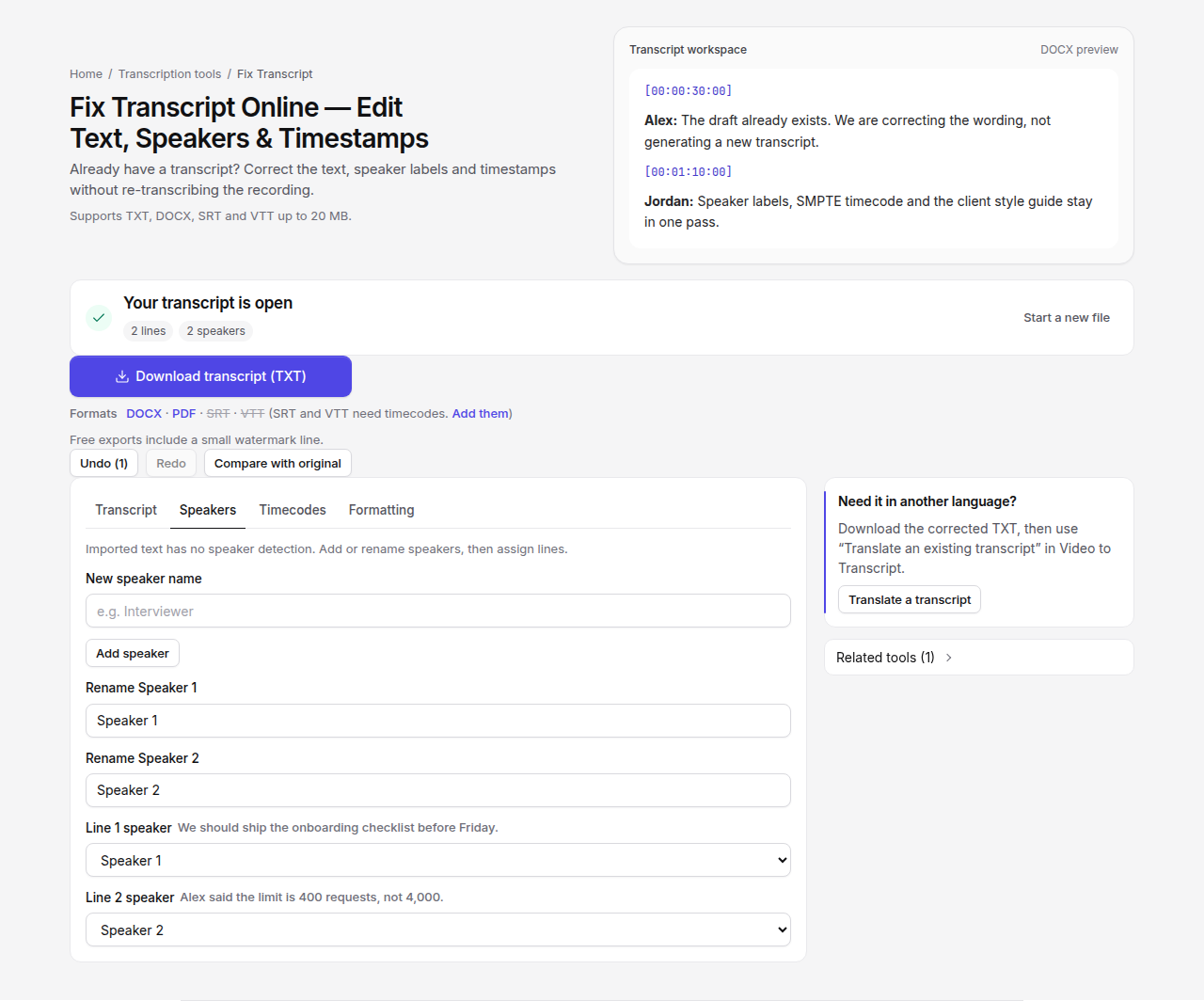
Free accounts: one Fix Transcript job per UTC day, and a watermark line on the export. Pro removes that line and is not metered on this daily bucket.
Renaming is one undo step. If you rename Speaker 1 to Alex and then realize half of those lines were Blake, undo, or assign the Blake lines one by one. There is no “split this speaker using the audio” button on this page.
When a rename is the wrong fix
Do not rename your way through a file where one label contains three people. You would be painting a name onto lines that are not that person. Either assign line by line, which is honest and slow, or transcribe the recording again.
On Video to Transcript, speaker labels are a Pro option, and the product only labels turns when the audio has them. It does not invent a speaker who is not there. After that job, you can still correct names before export. Details are in the guide linked above.
Do not expect a caption file to pick up speaker colors just because the transcript now says Alex:. Burned-in speaker colors in Subtitle Style Studio look for a Speaker: label at the start of a cue, and they are a Pro control. They color the cue. They do not identify voices. Premiere users have run into the same gap: speaker names in a transcript do not automatically become different caption styles (r/premiere).
Check the export, not the memory of the edit
Before you send the file, search the download for Speaker 1 and Speaker 2. A label you never renamed will still be there. Search for the old name too, in case it was written in the sentence (“as Speaker 1 said”) rather than as the label. The rename updates the label field. It does not rewrite the sentence.
If the client’s style guide wants a specific speaker format, preview that in the Formatting tab or in Format to Client Guidelines after the names are right. Formatting will not discover the names for you.
Frequently asked questions
How do I rename Speaker 1 and Speaker 2 in a transcript?
Upload the file to Fix Transcript, open the Speakers tab, type a new name in the rename field, and every line that used that label updates together.
Will renaming figure out who spoke from the audio?
No. Imported text has no speaker detection on this page. You rename and assign labels yourself. For labels from a new transcription, see Can speaker labels be edited after automatic detection?.
What if one person was split into Speaker 1 and Speaker 2?
Rename alone will not merge them. Assign the wrong lines with the per-line dropdown, or transcribe again if the file is too scrambled to fix honestly by hand.