Yes. Speaker labels created by automatic diarization can be renamed, reassigned, merged, or split after detection — in VideoText and in any transcription tool that separates diarization from labeling. Automatic detection only flags where a different voice starts; it never knows the speaker's actual name, so every diarization pass ships with placeholder labels (Speaker 1, Speaker 2, Speaker A) that you correct by hand before delivery.
TL;DR
- Speaker labels from automatic detection are placeholders — you can rename, merge, or split them anytime before export.
- VideoText lets you rename speakers directly in the transcript editor without re-running diarization.
- Misattributed lines cluster at cross-talk, short interjections, and low-volume speakers — check those first.
- Editing a speaker label never moves the cue timestamps; timing stays locked to the audio track.
Why this matters
Freelance transcriptionists and subtitle editors get raw diarization output constantly, and clients never want to see "Speaker 1" in a delivered transcript. As of 2026, ASR-based diarization is good at detecting that a voice changed, weak at knowing who is speaking. That gap is exactly why editable speaker labels exist as a feature, not an afterthought.
A transcript with unedited speaker tags fails QA the same way a subtitle file with timing drift fails QA — it looks unfinished. Renaming, merging, and reassigning speaker labels in VideoText happens in the same transcript editor you use to fix filler words and line breaks, so the correction step doesn't require a separate tool or a re-upload.
Can speaker labels be edited after automatic detection?
Yes, and the edit is manual regardless of which platform ran the diarization. The workflow looks like this:
- Run diarization. Upload the video or audio file; the ASR pipeline transcribes the speech and groups segments by voice into Speaker 1, Speaker 2, and so on.
- Review the transcript. Read through segment by segment, watching for a label attached to the wrong voice — most errors show up at the start of a new speaker turn.
- Rename the speaker tag. Click the label and type the real name ("Speaker 1" becomes "Maria Chen"); the change applies to every line tagged with that speaker, not just the one you clicked.
- Reassign a misattributed line. If one cue got tagged to the wrong speaker, move that single line to the correct label without touching the rest of the transcript.
- Merge or split labels. If the same person got split into "Speaker 1" and "Speaker 3" because their voice changed pitch mid-recording, merge those into one label. If two people got lumped into one label, split it.
- Export. Push the corrected transcript to TXT, SRT, VTT, PDF, DOCX, JSON, or CSV — the speaker names you set carry into every format that supports a speaker field.
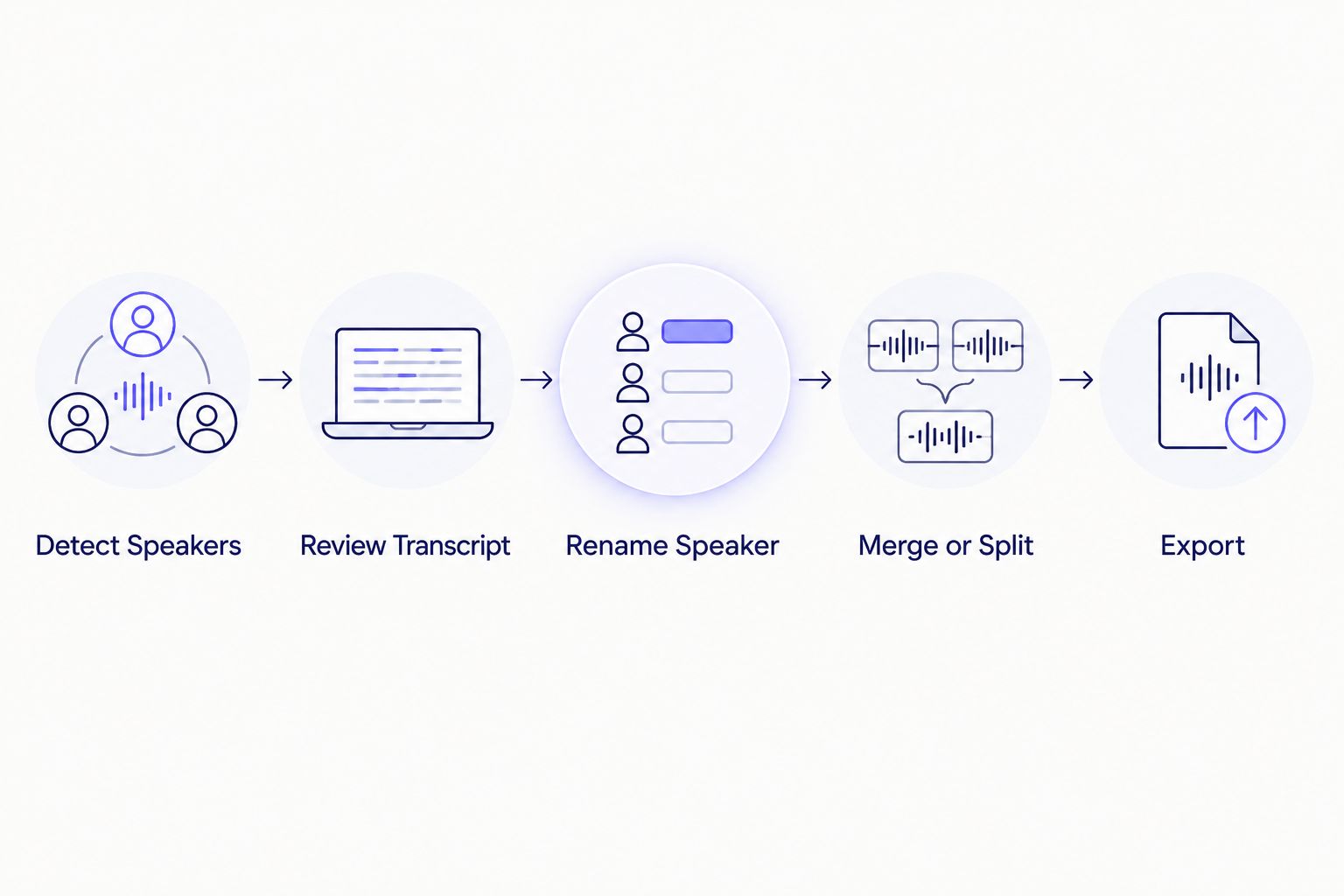
Renaming and merging happen during review, before export — never during detection itself.
None of these steps require re-running the ASR model. Diarization runs once, on the raw audio; label edits are a layer on top of that output, which is why they're instant compared to re-transcribing.
Edit speaker labels in your transcript
Upload audio or video and rename speakers directly in the editor.
Start transcribing
Why speaker labels get misdetected
Diarization models compare voice signatures across the audio track, and several conditions push that comparison off track. As of 2026, these are the recurring causes across ASR-based diarization tools, including speaker diarization software:
- Cross-talk. When two speakers talk over each other, the model has to guess which voice dominates the segment.
- Similar vocal pitch. Two speakers with close pitch and cadence get merged into one label more often than speakers with distinct voices.
- Background noise or music. Anything masking the voice boundary makes the model less confident about where one speaker's turn ends.
- Short interjections. A one-word "yeah" or "right" is often too brief for the model to attribute with confidence, so it can inherit the wrong label from the surrounding segment.
- Scene cuts and edit points. A hard cut in the recording right where a speaker changes can confuse the segment boundary the model relies on.
- Compressed or remote audio. Phone calls and low-bitrate remote recordings introduce artifacts that blur the voice signature diarization depends on.
None of these are things you fix by re-running detection with different settings — you fix them by reviewing the transcript and correcting the label by hand.
Does editing speaker labels change the transcript timestamps?
No — timestamps stay locked to the audio regardless of what you do to the speaker name. Renaming, merging, or reassigning a label only changes the text metadata attached to a cue; the start and end time of that cue never move.
Do I need to re-run diarization after renaming a speaker?
No. Diarization detects voice segments once, from the raw audio; renaming, merging, or splitting a label is a manual edit layered on top of that detection pass. You'd only re-run diarization if you uploaded a different or corrected audio file.
Do edited speaker names carry into exported files?
Yes — a corrected speaker label exports with the transcript in every format that supports a speaker field, including TXT, SRT, VTT, PDF, DOCX, JSON, and CSV. If a client's guideline requires a specific speaker layout, that formatting step happens after the labels are corrected, not before.
FAQ
Can speaker labels be edited after automatic detection?
Yes. Automatic detection assigns placeholder labels like Speaker 1 or Speaker 2, and those labels can be renamed, reassigned, merged, or split by hand in the transcript editor before export.
Does renaming a speaker change the transcript timestamps?
No. Renaming, merging, or reassigning a speaker label only changes the text tag on a cue, not the start or end time of that cue.
What causes speaker labels to be assigned incorrectly?
Cross-talk, similar vocal pitch between speakers, background noise, short interjections, and scene cuts are the main causes of misattributed speaker labels in 2026 ASR pipelines.
Do edited speaker names appear in exported SRT and VTT files?
Yes, corrected speaker labels carry into any export format that supports a speaker field, including SRT, VTT, TXT, DOCX, JSON, and CSV.
Can two merged speakers be split back into separate labels?
Yes. If diarization grouped two different voices under one label, that label can be split into two separate speaker tags without re-running detection.
Is manual speaker labeling required, or is automatic detection enough for delivery?
Automatic detection alone is rarely enough for client-ready delivery in 2026 — a manual review pass to rename and correct labels is the standard step before export.
How long does it take to correct speaker labels after diarization?
Correction time depends on transcript length and how many misattributions the recording produced, but the fix itself is a rename or reassign action on each affected line, not a re-transcription.
One last thing
The most-missed correction isn't a wrong name — it's a speaker split across two labels because their tone shifted mid-recording (a cough, a laugh, moving closer to the mic). Scan for a speaker who only appears in a handful of short segments; that's usually the same person as a longer label nearby, waiting to be merged.
Related guides