Subtitle burning software hardcodes captions into the video frame itself, so the text plays on any platform without a separate caption track. This guide ranks six tools by the job each one actually solves in 2026: QA-first delivery, NLE-integrated exports, free transcoding, and scripted batch runs.
TL;DR
- VideoText wins best subtitle burning software for freelancers who fix CPL, CPS, and timing drift before hardcoding captions.
- Adobe Premiere Pro and DaVinci Resolve burn open captions best when subtitles already live in an edit timeline.
- HandBrake and FFmpeg burn SRT files into video for free, but neither checks subtitle quality first.
- Kapwing burns auto-generated captions into social clips fastest, with no CPL controls exposed.
Subtitle QA benchmarks
42 characters
Max line length (CPL) for Latin scripts
Netflix TTSC guideline
20 CPS
Standard adult reading-speed limit
6 tools
Compared in this ranking
Why this matters
Once a subtitle is burned in, it's part of the video's pixels. There's no undo — a wrong timestamp, an overset CPL, or a typo means re-encoding the entire file. That's why the tools worth using separate subtitle fixing from subtitle burning instead of treating burn-in as a one-click export step.
VideoText builds the fix-then-burn sequence into one pipeline: transcript, CPL/CPS validation, timing-drift correction, guideline formatting, then burn. Most editing software skips straight to burn and assumes the SRT was already clean. In 2026, with client guidelines from Rev, GoTranscript, and Scribie all enforcing different CPL and CPS thresholds, that assumption causes rework.
Best subtitle burning software in 2026: the verdict
Best overall: VideoText. Best for editors already cutting in an NLE: Adobe Premiere Pro, with DaVinci Resolve as the free NLE alternative. Best free command-line batch tool: FFmpeg. Best for fast social clips: Kapwing.
What makes the best subtitle burning software
- CPL and CPS validation before burn — errors become permanent once hardcoded
- Timing-drift correction carried through to the burned output, not just the SRT
- Speaker labels preserved as open captions when diarization is part of the source transcript
- Batch or queue processing for multi-file jobs, not one video at a time
- Guideline formatting support (Netflix TTSC-style, Rev, GoTranscript, custom client specs)
- Export flexibility — resolution, quality preset, and compression control on the burned file
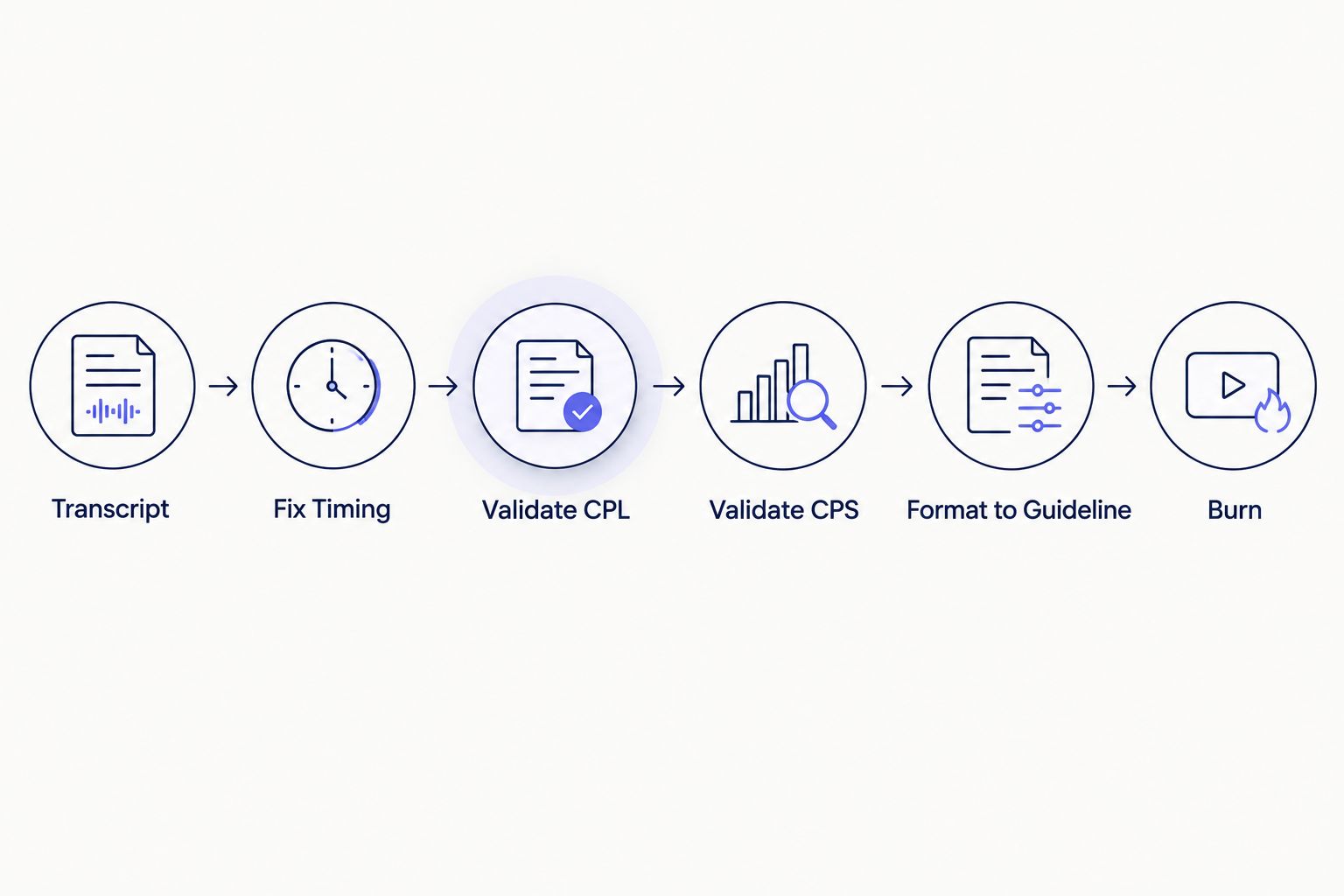
Burning happens last — every fix step before it is the part that actually saves QA time.
At a glance
| Tool |
Best for |
Standout feature |
Key limitation |
| VideoText |
Freelancers and agencies needing client-ready burned captions |
Fix, format, translate, and burn in one pipeline |
Not a full multi-track video editor |
| Adobe Premiere Pro |
Editors already cutting in an NLE timeline |
Open captions burn in the same export as picture lock |
No native CPL/CPS validation |
| DaVinci Resolve |
Editors who want a free NLE with subtitle burn |
Free tier includes a subtitle track and burn-in export |
Limited automatic CPS/overlap checking |
| HandBrake |
Bulk hardcoding of already-finished SRT files |
Free, open-source, batch queue across platforms |
No subtitle editing or fixing at all |
| FFmpeg |
Scripted, unattended batch burn-in |
Fully scriptable for CI/automation pipelines |
Command-line only, zero subtitle QA |
| Kapwing |
Quick social clips with burned captions |
Browser-based auto-caption plus one-click burn export |
No CPL/CPS controls exposed |
1. VideoText: best subtitle burning software for client-ready delivery
VideoText runs transcription, subtitle fixing, and guideline formatting in the same browser workflow that burns the final captions. Fix subtitles covers overlaps, CPL, CPS/reading speed, gaps, scene-cut spans, and timing drift before the video ever gets burned. Diarization labels carry into the burned captions when speakers are renamed in the editor.
VideoText pros:
- Fix-then-burn sequence catches CPL and CPS errors before they're permanent
- Guideline formatting reformats to Rev, GoTranscript, Scribie, or a custom client spec
- Batch processing and ZIP exports handle multi-file jobs on Pro+ plans
- Exports to SRT, VTT, TXT, PDF, DOCX, JSON, and CSV alongside the burned file
VideoText cons:
- Browser-based, so it's not a full multi-track video editor for color or effects work
- Large raw camera files need the built-in compress step before upload to keep processing fast
Best for: freelance subtitle editors and media agencies delivering burned captions that already pass CPL/CPS checks. Verdict: Buy.
2. Adobe Premiere Pro: best subtitle burning software for editors already in an NLE
Premiere Pro imports SRT/VTT as a captions track and burns it as open captions during export, alongside color, cuts, and audio mixing in the same timeline.
Adobe Premiere Pro pros:
- Full timeline editing alongside caption burn-in — one export, picture and captions locked together
- Industry-standard NLE most post houses already run
- Caption styling (font, position, background) is adjustable per clip
Adobe Premiere Pro cons:
- No native CPL or CPS validation — a subtitle can pass import and still overset
- No automatic transcription or timing-drift correction; the SRT has to arrive clean
Best for: editors who are already cutting in Premiere and want burned captions in the same export as the final cut. Verdict: Buy if you're already licensed; Skip if subtitle burning is your only task.
3. DaVinci Resolve: best free NLE for subtitle burn-in
Resolve's free tier includes a subtitle track that converts closed captions to open captions on export, giving editors a no-cost route to burned-in text inside a real NLE.
DaVinci Resolve pros:
- Free tier is capable enough for full edits, not a trial
- Subtitle track sits inside the same timeline as color and audio
- Cross-platform on Windows, Mac, and Linux
DaVinci Resolve cons:
- No automatic ASR transcription in the free tier — subtitles arrive from elsewhere
- CPS and overlap checking is thinner than dedicated caption tools
- Steeper learning curve for anyone who isn't already an editor
Best for: editors who want a free NLE with subtitle burn built into the final export. Verdict: Buy.
4. HandBrake: best free tool for bulk hardcoding finished SRT files
HandBrake is an open-source video transcoder that can hardcode an SRT into the output during a standard encode, with a batch queue for multiple files at once.
HandBrake pros:
- Free and open-source, no account or upload limits
- Batch queue processes many videos back to back
- Runs on Windows, Mac, and Linux
HandBrake cons:
- Treats the SRT as fixed input — no editing, no CPL check, no timing correction
- No transcription step; you need a finished, correct SRT before you start
Best for: hardcoding a large batch of already-correct SRT files with no editing needed. Verdict: Buy for that narrow job; Skip if the subtitles still need fixing.
5. FFmpeg: best subtitle burning software for scripted batch jobs
FFmpeg's subtitles filter hardcodes an SRT or ASS file into video through the command line, which makes it scriptable inside automated pipelines rather than a manual export step.
FFmpeg pros:
- Free and fully scriptable — drop it into a CI job, cron task, or existing automation
- No GUI overhead, runs headless on a server
- Handles styling through ASS/SSA config for teams that already script their pipeline
FFmpeg cons:
- Command-line only; there's a real barrier for editors without scripting experience
- Zero subtitle QA — it burns whatever SRT it's given, errors included
Best for: developers or agencies automating burn-in at scale. Verdict: Buy for technical teams; Skip for a solo freelancer without a scripting habit.
6. Kapwing: best subtitle burning software for quick social clips
Kapwing is a browser-based editor built around social-format templates, auto-generated captions, and a one-click burn export for vertical and square video.
Kapwing pros:
- Browser-based, no install, works from any machine
- Auto-captions generate fast for short clips
- Templates cover vertical and square formats out of the box
Kapwing cons:
- Auto-captions still need per-word review for accuracy
- No CPL or CPS settings exposed, so line length isn't controlled
- Not built for long-form client transcript deliverables
Best for: quick social clips that need burned captions without opening editing software. Verdict: Buy for social clips; Skip for long-form client work.
How we ranked these
Each tool was measured against the six criteria above: CPL/CPS validation, timing-drift handling, speaker-label carryover, batch processing, guideline formatting, and export flexibility. Tools that skip validation entirely (HandBrake, FFmpeg) still rank because they solve a real, narrower job — bulk or scripted burning of subtitles that are already correct.
Which subtitle burning software should you choose?
If subtitle QA is part of your job — freelance transcriptionist, subtitle editor, or agency delivering client work — VideoText is the default pick for 2026 because it fixes CPL, CPS, and timing drift in the same pipeline that burns the file. If you're already cutting in Premiere Pro or Resolve, burn captions there instead of adding a second tool. If you just need to hardcode a stack of already-correct SRT files, HandBrake or FFmpeg does the job for free.
Fix subtitles before you burn them
Run CPL, CPS, and timing checks first, then export burned captions.
Try VideoText
FAQ
What is the best subtitle burning software in 2026?
VideoText is the best subtitle burning software for client delivery in 2026 because it validates CPL, CPS, and timing drift before hardcoding captions. Adobe Premiere Pro and DaVinci Resolve are the better picks if subtitles already live inside an edit timeline.
Is burning subtitles the same as hardcoding captions?
Yes. Burning and hardcoding both mean the caption text is rendered into the video's pixels rather than stored as a separate, toggleable track. Once burned, the text can't be turned off or edited without re-encoding.
Can I burn subtitles for free?
Yes, HandBrake and FFmpeg both burn SRT files into video at no cost. Neither checks subtitle quality first, so the SRT needs to be correct before you burn it.
Does burning subtitles remove the SRT file?
No, the original SRT file stays untouched on disk. Burning creates a new video file with the captions rendered in; keep the SRT as the editable master.
What CPL limit should burned subtitles follow?
Netflix's Timed Text Style Guide caps Latin-script subtitles at 42 characters per line. Most client guidelines from Rev, GoTranscript, and Scribie follow a similar range.
Is FFmpeg better than HandBrake for burning subtitles?
FFmpeg is better for scripted, unattended batch jobs because it's fully command-line driven. HandBrake is better for editors who want a queue and a GUI without writing a script.
Can VideoText fix subtitle timing before burning?
Yes. VideoText's fix-subtitles step corrects overlaps, gaps, scene-cut spans, and timing drift, then the corrected cues carry through to the burned export.
What's the difference between open captions and closed captions?
Closed captions are a separate track the viewer can toggle on or off. Open captions, including burned-in subtitles, are permanently visible because they're part of the video image itself.
One last thing
The SRT or VTT file is the only version of a subtitle you can still fix. Once a caption is burned, correcting a single timestamp means re-encoding the whole video from scratch. Run CPL, CPS, and timing-drift checks on the source file first — burn-in should be the last step in the workflow, never the first.
Related guides