Instead of downloading every new podcast episode and uploading it for transcription by hand, connect your publishing source to Videotext through Zapier so each upload automatically produces a transcript, subtitle file, summary, and chapters.
TL;DR
- Auto transcribe podcast episodes automation connects a new-file trigger to Videotext through Zapier.
- Use the RSS enclosure or uploaded media file, not the public episode page, as the transcription source.
- Videotext is best for podcast teams that need transcripts, speaker labels, SRT files, summaries, and subtitle QA.
- Review speaker names, technical terms, CPL, CPS, and timing before publishing client-ready files in 2026.
Why this matters
A manual podcast workflow repeats the same work after every release: locate the final media file, upload it, choose the output formats, wait for transcription, download the results, and move them into the delivery folder. The sequence is easy to delay or apply inconsistently across shows.
Automation removes those transfer steps. It does not remove editorial review. In 2026, ASR still needs a person to check names, specialist vocabulary, speaker changes, punctuation, subtitle line breaks, and timing against the final media file.
Videotext is best for podcast teams, freelance transcriptionists, and media agencies that need automated transcription plus subtitle QA in one workflow. Its strengths are timed segments, speaker diarization, multiple export formats, summaries, chapters, guideline formatting, and subtitle correction. Its limit is the same as any ASR workflow: automatic output is a draft until someone verifies it.
Before you start
- Connect Zapier to the location where the final episode first appears. This can be an RSS feed, a podcast-host integration, or a cloud-storage folder.
- Confirm that your Videotext account has access to the Zapier or API workflow you plan to use.
- Decide which outputs the next step requires: TXT or DOCX for editing, SRT or VTT for captions, or JSON and CSV for structured processing.
- Identify the final media field before building the action. In an RSS item, the episode webpage and the audio enclosure are different fields. Sending the webpage to a transcription action does not provide the audio.
The non-obvious setup failure is mapping an episode page, embed player, or folder metadata record instead of the audio or video file. Test the mapped value outside the Zap. It must resolve to the media asset the transcription step will process.
Choose the trigger source
Use the source that receives the approved episode first. Triggering from an early edit creates transcripts that no longer match the published audio.
| Trigger source |
Best for |
Advantage |
Limitation |
| RSS feed |
Published podcast episodes |
Uses the release feed as the source of truth |
You must map the enclosure, not the episode link |
| Cloud-storage folder |
Editors working from approved masters |
Starts when the final file reaches a defined folder |
Drafts and masters need separate folders |
| Podcast-host app |
Teams publishing directly in a supported host |
Exposes episode metadata in the same trigger |
Available fields depend on the host integration |
For most published shows, the RSS feed is the cleanest trigger. For agency work, a dedicated approved-media folder gives the editor more control over when processing starts.
Configure the podcast trigger
- Create a Zap and select Trigger.
- Choose the app that receives the final episode. For an RSS workflow, select RSS by Zapier and use New Item in Feed. For a storage workflow, choose the connected storage app and its new-file trigger.
- Open Account and connect the account or feed required by the trigger.
- Set the feed URL, folder, or show identifier. Use a folder reserved for approved files if drafts pass through the same storage account.
- Select Test trigger. Inspect the sample record and locate the actual media value. An RSS record commonly separates the item link from its enclosure.
- Confirm that the sample also contains the episode title or filename. You will use that value to name the transcript and delivery files.
Expected result: the trigger test returns one completed episode, a usable media source, and a stable title or filename. Do not continue if the test returns only a webpage URL.
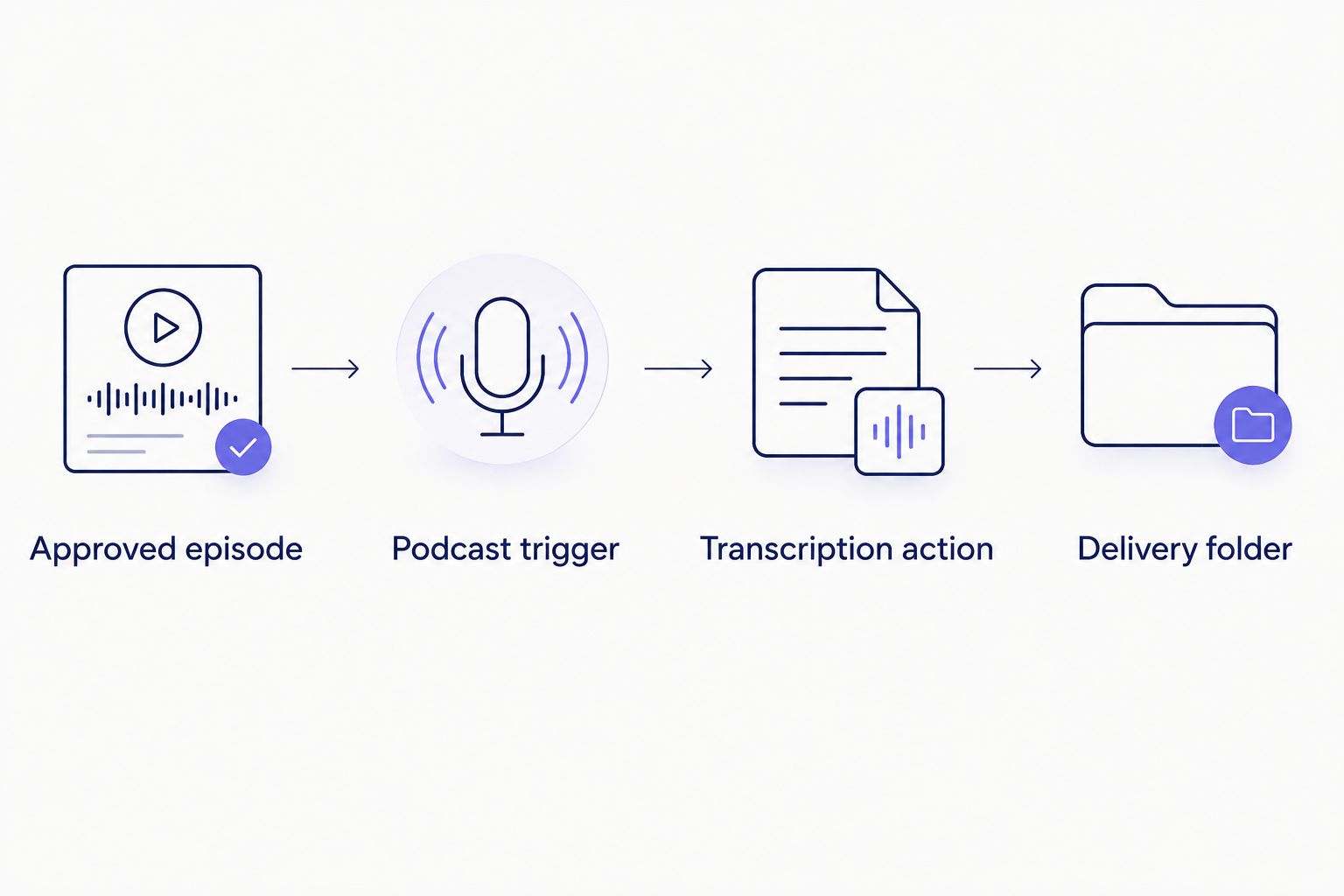
Trigger from the approved episode so every output matches the final media.
Configure the Videotext action
- Add an Action after the trigger and select Videotext.
- Choose the transcription action available in the connected account.
- Map the trigger's media file or direct media URL into the action's source field. Do not map the public episode URL.
- Map the episode title into the job name or filename field when that field is available. A consistent name makes later delivery and replacement easier.
- Set the spoken language. Use a fixed language when every episode uses the same primary language. Use automatic detection only when the source language changes between episodes.
- Enable speaker diarization for interviews, panels, and co-hosted shows. Diarization separates speech into speaker-labeled segments; it does not know each person's real name.
- Select the transcript, subtitle, summary, chapter, and keyword outputs required by downstream steps.
- Run Test and wait for the action to return a completed job or processing reference.
Expected result: the test creates a transcription job from the same media asset returned by the trigger. The output contains timed transcript segments and the selected export data.
Do not automate speaker-name replacement from position alone. The first detected speaker is not always the host. Cold opens, advertisements, and inserted clips can appear before the presenter and change the diarization order.
Configure output and subtitle QA
- Choose TXT or DOCX when a human editor needs a readable transcript. Choose JSON or CSV when another system needs timestamps, speakers, or segment-level data.
- Generate SRT for standard subtitle delivery or VTT for web-video workflows. Both formats pair text with time ranges, but their syntax and supported metadata differ.
- Enable the summary and timestamped chapter outputs if they feed show notes or an episode page. Review chapter titles before publication because automated summaries can miss the editorial emphasis of the conversation.
- Apply the required transcript format. Videotext supports Rev, GoTranscript, Scribie, and custom client-guideline formatting.
- Run subtitle correction before delivery when SRT or VTT is part of the job. Check overlaps, gaps, timing drift, grammar, filler cleanup, line breaks, characters per line, and reading speed.
CPL means characters per line. CPS means characters per second. They are separate checks: a cue can have acceptable line length but still display too quickly. As one documented example, the Netflix English Timed Text Style Guide accessed in 2026 sets a maximum of 42 characters per line and reading speeds of 17 characters per second for adult programs and 13 characters per second for children's programs. Use the client's own guideline when it differs.
Expected result: the action produces the correct file types and applies the same formatting rules to every episode. A subtitle editor can then review detected issues instead of rebuilding cue formatting manually.
Configure delivery
- Add another Action after transcription completes.
- Select the destination used by the editor or client. A storage folder works for files; a document system works for editable transcripts; a messaging app works for status notifications.
- Map the episode title into the destination filename or document title.
- Attach or map only the approved outputs. Keep raw ASR drafts separate from files that have completed QA.
- Include the source episode identifier in the destination record. This makes it possible to trace a transcript back to the exact upload.
- Test the complete Zap with a real approved episode, then select Publish.
Expected result: a new approved episode starts transcription and places the selected outputs in the delivery location without a manual download-and-upload cycle.
Re-transcribe whenever the final episode changes
Create a second workflow when episodes are replaced after the first upload. Use an updated-file or replacement trigger, map the revised media asset into the same transcription process, and route the new output to a review location.
Do not overwrite an approved transcript without review. A trimmed introduction, inserted advertisement, or replaced segment changes every later timestamp. The revised SRT can be grammatically correct and still be unusable because its cues match the earlier cut.
Use a filename or episode identifier that distinguishes the revised job from the first one. After QA, replace the previous transcript and subtitle files together so the published assets remain synchronized.
Review the automated result
Automation is complete only when the output reaches a repeatable QA checkpoint. Use this order in 2026:
- Confirm that the transcript belongs to the final media file.
- Rename diarized speakers after listening to each first appearance.
- Correct names, brands, acronyms, and technical terms.
- Compare omitted words and substitutions against the recording.
- Check subtitle overlaps, gaps, line breaks, CPL, CPS, and timing drift.
- Apply the client's clean-verbatim, full-verbatim, or custom formatting rules.
- Export the approved files and keep drafts out of the client-delivery folder.
This sequence catches source-file mistakes before an editor spends time correcting the text. It also prevents a clean transcript from being paired with an outdated SRT.
Troubleshooting
The trigger returns an episode page
Map the RSS enclosure or media-file field instead of the item link. Open the trigger test record and confirm which value resolves to the audio or video asset.
The Zap processes unfinished edits
Move the trigger to an approved-media folder or the published RSS feed. A general production folder is not a reliable trigger because drafts, review exports, and masters can share similar filenames.
Speakers are merged or split incorrectly
Review crosstalk, inserted clips, and voices with similar acoustic characteristics. Rename and merge speaker labels in the editor where needed. Diarization identifies voice clusters; it does not verify identities.
The transcript language is wrong
Set the language explicitly when the show's primary language is known. Intros, advertisements, music, and short clips in another language can reduce the value of automatic detection.
The SRT drifts after a video edit
Regenerate or retime the subtitles against the final video export. Do not repair text alone when the media duration or edit points changed. Use the subtitle-fixing workflow to check cue timing, overlaps, gaps, and scene-cut spans.
Customize your workflow
Once the core automation is stable in 2026, add only the steps the delivery process requires:
- Translate transcripts or subtitles into any of the 70+ supported languages while preserving subtitle cue timing.
- Burn approved subtitles into a video when open captions are the required deliverable.
- Create a public share link or embed after review.
- Add transcript summaries, bullets, action items, keywords, and timestamped chapters to the handoff.
- Use batch processing and ZIP exports for multi-file queues when the account supports those features.
- Send structured JSON or CSV into an editorial database or content system through the API.
Automate podcast transcription
Send new podcast media to Videotext for transcripts, subtitles, summaries, and chapters.
Open Videotext
FAQ
What is auto transcribe podcast episodes automation?
Auto transcribe podcast episodes automation sends each new media file into a transcription service without a manual upload. A trigger detects the approved episode, Videotext processes it, and later actions route the selected transcript and subtitle outputs.
Can Zapier automatically transcribe a new podcast episode?
Yes. Connect an RSS feed, podcast-host app, or cloud-storage trigger to the Videotext transcription action, then map the episode's media asset into the source field.
Should I trigger transcription from RSS or cloud storage?
Use RSS when the published episode is the source of truth, and use cloud storage when an editor approves a master before release. Keep drafts outside the watched folder to prevent premature jobs.
Can an automated podcast workflow identify speakers?
Yes, speaker diarization separates the transcript into speaker-labeled segments. An editor still needs to confirm each identity and rename the labels, especially when an inserted clip appears before the host.
Can the same automation create SRT subtitles?
Yes. Videotext can generate SRT or VTT with timed segments from the same media file used for transcription. Review line breaks, CPL, CPS, overlaps, gaps, and timing before delivery.
What happens when a published podcast episode is edited?
The transcript and subtitle timing must be regenerated or reviewed against the revised media. Use a separate updated-file workflow and keep the replacement output out of the approved folder until QA is complete.
Can podcast transcripts be translated automatically?
Yes. Videotext supports translation across 70+ languages and preserves timing on subtitle cues. Review names, specialist terms, and line length in each target language before publishing.
Does podcast transcription automation remove the need for QA?
No. Automation removes file transfer and setup work, but ASR output still requires checks for words, speakers, punctuation, formatting, subtitle timing, CPL, and CPS.
One last thing
The most expensive automation error in 2026 is processing the wrong file correctly. Name the approved media folder clearly, test the exact mapped asset, and keep raw ASR output separate from client-ready files. That control matters more than adding another action to the Zap.
Related guides