A guide from VideoText
Transkriptor Alternative for Subtitle Delivery
Start with the file your client needs. Check an existing subtitle export, format a transcript to a client guide, or turn a reviewed SRT into a captioned video.
Free account, no card needed
Transkriptor vs VideoText: the delivery workflow
A recorded meeting, a readable transcript and a deliverable subtitle file are different outputs. If you already have a transcript, identify the remaining task before buying another transcription plan. VideoText can work on a supported export from your current tool.
If your requirement is live meeting capture, a meeting bot or team approval management, evaluate that separately. This page demonstrates an exported-file workflow, not a replacement for every meeting or collaboration feature.
The questions below are checks to make in your current tool, not claims that a competitor lacks a feature. We have not run a shared-file comparison between the two products.
| Your next task | VideoText workflow | What to verify in Transkriptor |
|---|---|---|
| Check and repair subtitle files | Fix Subtitles Inspect SRT or VTT structure, overlaps, line length and reading rate, then review supported fixes. | Which structural and readability checks are available, and which fixes require manual editing? |
| Apply a client style guide | Guideline Format Upload a guide and transcript, review the extracted rules, and inspect the per-rule report and uncertain edits. | Can you supply your own guide, and review which rules were applied or need attention? |
| Translate an existing subtitle file | Translate Subtitles Translate timed subtitles, then review meaning, line length and reading rate in the target language. | Are your language and subtitle format supported, and how will you review the translated result? |
| Deliver a captioned video | Burn Subtitles Render the video and subtitle file into a captioned video. Review placement and the final video before delivery. | Does the plan produce the captioned video you need, at the required resolution and without unwanted branding? |
Work from an export you already have
- Export an SRT or VTT if your current plan supports it. Preserve the original file and confirm it matches the recording.
- Open Fix Subtitles to inspect structural and readability issues. Apply supported fixes and review the changed cue timing and line breaks.
- If you also need a document, send a supported transcript and the client guide to Guideline Format, then inspect its rule report.
- Review the subtitle file with the video before delivery. Burn it into the video only if the client requests a captioned video.
Real VideoText example: Broken SRT timing and line length, fixed
This is the existing VideoText demonstration, not Transkriptor output or a head-to-head test.
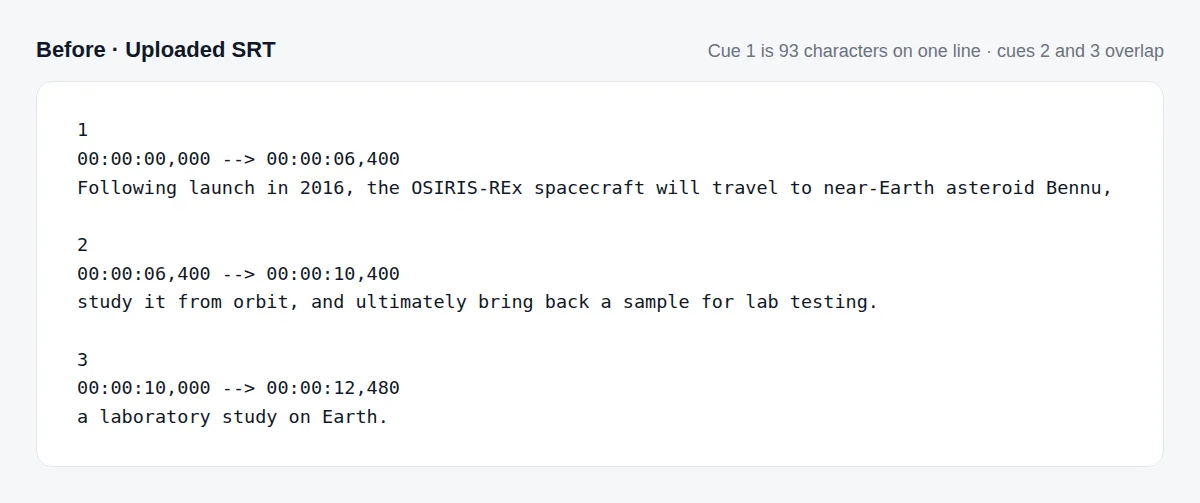
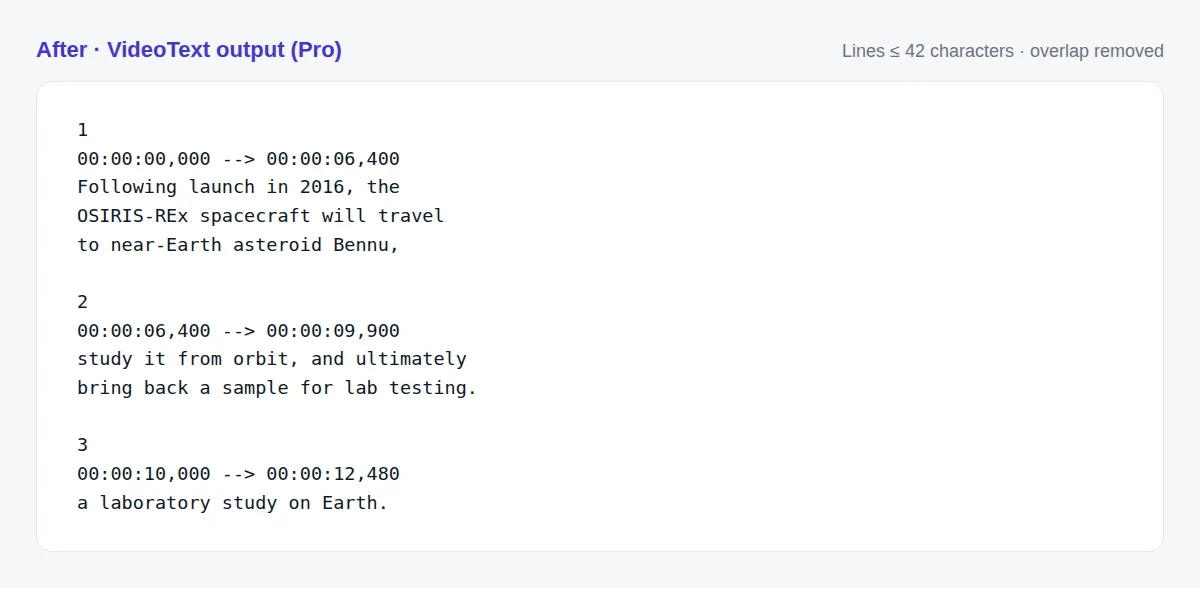
Cue 1 was a single 93-character line and cue 2 ran 0.4 s into cue 3. VideoText re-wrapped every line to 42 characters or fewer at word boundaries and ended cue 2 at 9.900 s so it no longer overlaps. The wording was not changed. The report listed 10 automatic fixes.
Source clip: NASA ScienceCasts, public domain. NASA does not endorse VideoText.
Compare price, limits and the work remaining
VideoText Pro: $14.99/month or $120/year, 30 hours of speech a month. Speech files can be up to 4 hours; burn and compress files up to 2 hours. Regional prices can differ.
Check VideoText plan details for tool-specific free allowances and exports. For Transkriptor, check the official site and current plan terms. We do not quote a current competitor price or claim a larger transcription allowance.
VideoText cancellation and refunds
Cancel any time under Manage subscription on the Pricing page, or email [email protected]. There are no cancellation fees. Your plan stays active until the end of the period you already paid for, and you won't be charged again.
First purchase: if you're not happy, ask for a full refund within 7 days of your first Pro payment by emailing [email protected].
After 7 days, and renewals: refunds are at our discretion.
Read the refund policyFrequently asked questions
- Can I fix subtitles exported from Transkriptor?
- Yes, if you can export SRT or VTT from your current plan. Open that file in Fix Subtitles, inspect the report and supported repairs, and review playback. The check does not verify every word against the recording.
- Do I have to transcribe the recording again?
- Not to check a supported subtitle file or format a supported transcript. Start with the export you already have. Transcribe again only if the current text or missing timing information makes that necessary.
- Does this comparison test meeting assistants?
- No. The demonstrated workflow starts with a recording or exported text/subtitle file. Evaluate live meeting capture, collaboration and approval requirements on their own terms.
- Is there a free plan?
- Yes. Free account, no card, files up to 30 minutes.
- What does Pro include?
- 30 hours of speech a month, files up to 4 hours, $14.99/mo or $120/yr. Regional prices can differ.
- Can I cancel?
- Cancel any time under Manage subscription on the Pricing page, or email [email protected]. There are no cancellation fees. Your plan stays active until the end of the period you already paid for, and you won't be charged again. First purchase: if you're not happy, ask for a full refund within 7 days of your first Pro payment by emailing [email protected]. After 7 days, and renewals: refunds are at our discretion.
Transkriptor is a trademark of its owner. VideoText is independent and is not affiliated with, endorsed by, or sponsored by Transkriptor.
The product examples and workflow descriptions concern VideoText. Consult the linked official source for current competitor capabilities; no recognition-quality, processing-time or savings comparison is claimed.