Trim Video Online Free — No Watermark, No Upload
Cut the start and end off an MP4, MOV, or WebM clip in your browser. Fast mode copies the original video, so quality doesn’t change; Precise mode cuts on the exact frame you choose. No upload, no watermark.
Trimming a clip for social? Add subtitles to it with AI →
Choose a video or drop it here
MP4, MOV, WebM, MKV, AVI — processed in your browser, never uploaded
Before and after: the same cut in Fast and Precise mode
We asked for 2.5 s to 5.5 s of an 8-second clip that has a keyframe every 2 seconds. The timecode burned into each frame shows where each mode actually starts.
Before

After
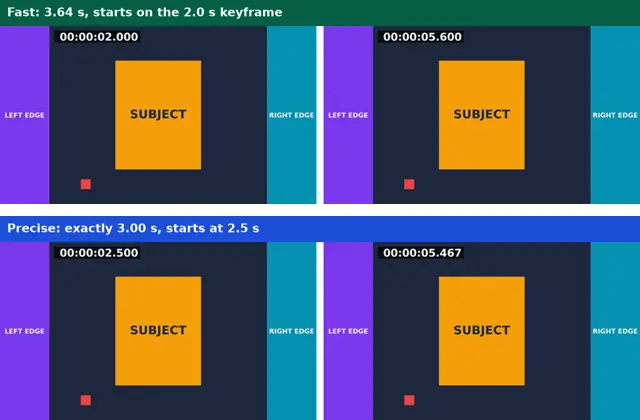
Real run of this tool in Chrome on an 8-second 1920×1080 test clip with a burned-in timecode, measured with ffprobe. No mock-ups.
Fast trim vs precise trim
Both modes keep full resolution and have no watermark. The difference is where the cut can land and whether the video is re-encoded.
| Fast (no re-encode) | Precise (re-encode) | |
|---|---|---|
| Where the cut starts | The nearest keyframe at or before your start | Exactly your start frame |
| Picture quality | Identical to the original | Very close; re-encoded with H.264 |
| Speed | Seconds, even for long videos | About real time or slower in the browser |
| File size | Proportional to the kept part | Can be larger or smaller than the original |
| Output format | Same as the input (MP4, MOV, WebM…) | MP4 (H.264 + AAC) |
| Best for | Removing dead air, long recordings | Social clips that must start on a beat |
In our test, Fast mode started 0.5 s early because the nearest earlier keyframe was at 2.0 s. Phone videos usually have a keyframe every 1–2 seconds.
How to choose good start and end points
Start on the frame where the action or sentence begins, not a second before: viewers decide in the first second whether to keep watching. For speech, end just after the last word, so the audio doesn’t cut mid-syllable. If the clip must start exactly on a beat or a word, use Precise mode; for trimming dead air off a long recording, Fast mode is enough and keeps the original quality.
Why cutting without re-encoding snaps to keyframes
Compressed video stores a full picture (a keyframe) only every second or two; the frames in between are stored as changes from the previous frame. A copy-only cut has to start on a full picture, so it begins at the keyframe before your start. Getting the exact frame means rebuilding those in-between frames, which is what re-encoding does.
Trim Video: troubleshooting
- The fast trim starts a little early
- That is the keyframe effect. Switch to Precise, or move your start just past the next keyframe.
- The audio is out of sync after a fast trim
- Some players mishandle the short audio lead-in a copy-only cut can leave. Use Precise mode, which rebuilds both streams together.
- The end time won’t go past a certain point
- The end can’t be later than the video’s duration. Check the length shown under the player.
- The preview doesn’t play
- Your browser can’t preview this format (common with HEVC or MKV). You can still type the times; the trim works.
Privacy and file limits
FFmpeg runs inside this browser tab, so your files are never uploaded. There is no account, watermark, or usage limit; the size limit is your device’s memory: about 750 MB on a laptop and 250 MB on a phone. Re-encoding long videos can take minutes, and the page shows an estimate first.
How to use Trim Video
- 1
Choose a video
MP4, MOV, WebM, or MKV. It opens in the player on this page; nothing is uploaded.
- 2
Find the start
Play or scrub to the first frame you want and press “Use current time” next to Start.
- 3
Find the end
Scrub to the last moment you want and press “Use current time” next to End. The page shows how long the clip will be.
- 4
Pick Fast or Precise
Fast keeps the original quality and is instant. Precise lands on the exact frame.
- 5
Trim and download
Download the clip, then add subtitles or burn captions if it’s going to social media.
Frequently Asked Questions
- Can I trim an MP4 without losing quality?
- Yes. Fast mode copies the original video and audio streams, so nothing is re-compressed. In our test the trimmed clip was the same 1920×1080 H.264 video at the same bitrate.
- Why is my fast-trimmed clip longer than I asked for?
- Because a cut without re-encoding must start on a keyframe. Asking for 2.5–5.5 s on a clip with keyframes every 2 s gave 2.0–5.64 s. Precise mode gives exactly 3.00 s.
- Does Precise mode lower quality?
- It re-encodes the clip with H.264 at a high-quality setting. The difference is hard to see, but it is not a bit-for-bit copy like Fast mode.
- Is there a watermark or a length limit?
- There is no watermark and no account. The limit is your device: files up to about 750 MB on a laptop and 250 MB on a phone.
- Can I cut out a part in the middle?
- Trim keeps one continuous part. To remove a middle section, trim the part before it and the part after it, then join them with Merge Videos.
- Will subtitles still line up after trimming?
- Existing subtitles keep the old timings, so they will be early by the amount you cut off the start. Generating subtitles for the trimmed clip gives timings that match it.
Most social video is watched on mute
Turn the trimmed clip into a captioned clip
Clips with captions are watched to the end more often. Generate subtitles from the clip’s speech, edit them, and burn them in.
- ✓Timed SRT and VTT subtitles from the speech in your video
- ✓Translate the subtitles into any of 104 languages
- ✓Burn styled captions in for TikTok, Reels, and Shorts