Resize Video for Reels, TikTok & YouTube
Make a video exactly 1080×1920 for TikTok, Reels, and Shorts, 1080×1350 or 1080×1080 for the feed, or 1920×1080 for YouTube. Fit keeps the whole picture with bars; Fill covers the frame with no bars.
Posting to Reels or Shorts? Add readable subtitles with AI →
Choose a video or drop it here
MP4, MOV, WebM, MKV, AVI — processed in your browser, never uploaded
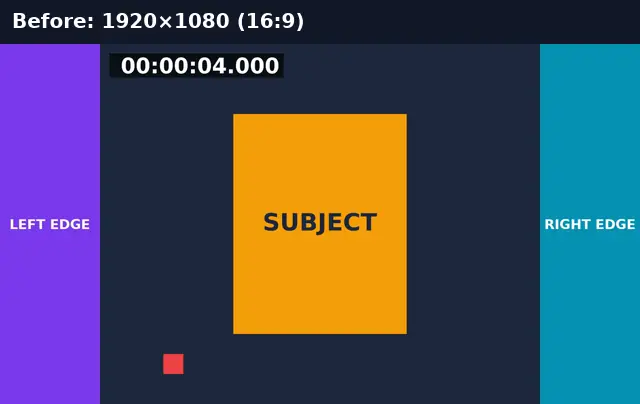
Before and after: 16:9 to 1080×1920, fit vs fill
The same landscape clip resized to the TikTok/Reels size twice: once with Fit, once with Fill.
Before
After
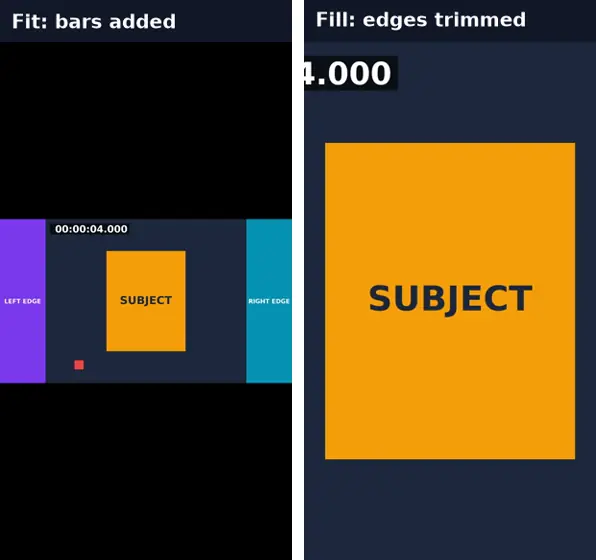
Real run of this tool in Chrome on an 8-second 1920×1080 test clip with a burned-in timecode, measured with ffprobe. No mock-ups.
Fit vs fill (and when to crop instead)
When the video’s shape differs from the platform’s, something has to give: either bars are added or edges are lost.
| Fit | Fill | Crop tool | |
|---|---|---|---|
| Black bars | Yes, where the shapes differ | No | No |
| Edges lost | None | Yes, evenly from both sides | Yes, you choose which |
| Output size | Exactly the preset | Exactly the preset | The cropped area |
| Subject off-centre | Fine | May be cut | Move the box to it |
| Best for | Slides, screen recordings, text that must stay | Centred talking heads | Off-centre subjects |
Video sizes by platform
TikTok, Instagram Reels, and YouTube Shorts: 1080×1920 (9:16). Instagram feed: 1080×1350 (4:5) or 1080×1080 (1:1). YouTube and most players: 1920×1080 (16:9). Uploading at the exact size avoids the platform cropping or padding the video again.
Resize Video: troubleshooting
- There are black bars I don’t want
- Switch to Fill, or use Crop Video to choose exactly which part to keep.
- The subject’s head is cut off with Fill
- Fill trims evenly from both sides. Use Crop Video to frame an off-centre subject, then resize.
- The video looks blurry
- Resizing can’t add detail. A 480p clip enlarged to 1080×1920 looks soft; start from the highest-resolution source you have.
- It says it will take many minutes
- Resizing re-encodes every frame. Trim to the part you need first (Trim Video’s fast mode takes seconds).
Privacy and file limits
FFmpeg runs inside this browser tab, so your files are never uploaded. There is no account, watermark, or usage limit; the size limit is your device’s memory: about 750 MB on a laptop and 250 MB on a phone. Re-encoding long videos can take minutes, and the page shows an estimate first.
How to use Resize Video
- 1
Choose a video
Any MP4, MOV, WebM, or MKV.
- 2
Pick the platform size
TikTok/Reels/Shorts 1080×1920, Instagram portrait 1080×1350, square 1080×1080, YouTube 1920×1080, 720p, 480p, or custom.
- 3
Choose Fit or Fill
Fit adds bars and keeps everything; Fill removes bars and trims the edges.
- 4
Resize and download
A time estimate shows first for long videos.
Frequently Asked Questions
- What size should a TikTok or Reels video be?
- 1080×1920 pixels (9:16). Choose the TikTok / Reels / Shorts preset.
- How do I convert a landscape video to vertical?
- Pick 1080×1920. Fit keeps the whole landscape picture with bars above and below; Fill zooms in so the vertical frame is covered and the sides are trimmed.
- Will resizing stretch my video?
- No. Both Fit and Fill keep the original proportions; Fit adds bars, Fill trims edges.
- Can I resize to a custom resolution?
- Yes, choose Custom and enter any width and height up to 4096. Odd numbers are rounded to even, which H.264 requires.
- Does Fill produce a bigger file than Fit?
- Often yes. In our test, Fill was 1.1 MB and Fit 0.5 MB for the same 8 seconds, because black bars compress to almost nothing.
Most social video is watched on mute
Sized for the platform — now caption it
Generate subtitles from the speech and burn them in, so the video works with the sound off.
- ✓Timed SRT and VTT subtitles from the speech in your video
- ✓Translate the subtitles into any of 104 languages
- ✓Burn styled captions in for TikTok, Reels, and Shorts