Merge Videos Online — Combine Clips Free
Join two or more video clips into one file, in the order you choose. Clips from the same camera are joined without re-encoding; clips from different phones or cameras are converted to one size and frame rate so they play smoothly.
Combining clips into one video? Get one subtitle file for the result →
Choose videos or drop them here
Pick two or more clips — MP4, MOV, WebM, MKV. Processed in your browser, never uploaded
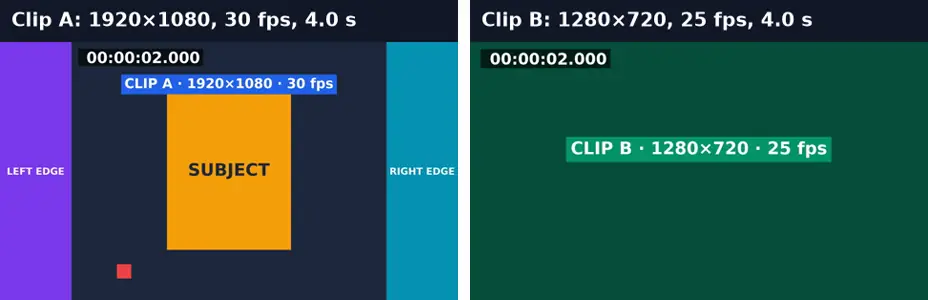
Before and after: two clips from different devices become one
Clip A is 1920×1080 at 30 fps; clip B is 1280×720 at 25 fps. They can’t be joined by copying, so the tool converts both to match clip A.
Before
After
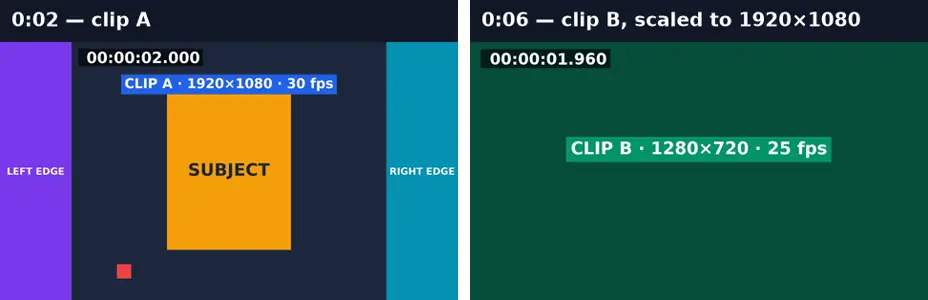
Real run of this tool in Chrome on two generated test clips, measured with ffprobe.
Same-format vs mixed-format merge
The tool checks every clip first and picks the method automatically.
| Same format (stream copy) | Mixed formats (re-encode) | |
|---|---|---|
| When it’s used | Same codec, resolution, frame rate, and audio on every clip | Anything differs, e.g. two phones |
| Quality | Identical to the originals | Re-encoded with H.264; very close |
| Speed | Seconds | About real time or slower |
| Resolution | Unchanged | Every clip is fitted to the first clip’s size, with bars if shapes differ |
| Frame rate | Unchanged | Converted to the first clip’s rate |
| Clip without sound | Must match the others | Gets silence of its own length, so audio stays in sync |
Ordering clips from different devices
The first clip sets the output’s resolution and frame rate when clips differ. Put your main camera’s clip first so the others are fitted to it, not the other way round. A vertical phone clip after a landscape clip gets bars at the sides; crop or resize it first if you want it to fill the frame.
Merge Videos: troubleshooting
- It says the clips must be converted and will take long
- Clips from different devices can’t be joined by copying. Trim each clip to the part you need first to shorten the conversion.
- A clip has black bars after merging
- Its shape differs from the first clip’s. Crop or resize it to the same shape before merging.
- A clip has no sound in the result
- It had no audio track to begin with; the tool fills that part with silence so the rest stays in sync.
- One file is refused
- It has no video track (for example an audio file). Use Add Audio to Video to put sound on a video instead.
Privacy and file limits
FFmpeg runs inside this browser tab, so your files are never uploaded. There is no account, watermark, or usage limit; the size limit is your device’s memory: about 750 MB on a laptop and 250 MB on a phone. Re-encoding long videos can take minutes, and the page shows an estimate first.
How to use Merge Videos
- 1
Add your clips
Choose two or more videos at once, or add more later.
- 2
Put them in order
Use the arrows; the top clip plays first. Put the clip with the size you want first: mixed clips are fitted to it.
- 3
Merge
The tool checks the clips and joins them by copying when it can, or converts them when it must.
- 4
Download
Then generate one subtitle file for the whole video, or compress it for sharing.
Frequently Asked Questions
- Can I merge videos without losing quality?
- Yes, when the clips share codec, resolution, frame rate, and audio format — typically clips from one camera. They are joined by copying, so nothing is re-compressed.
- Can I merge videos with different resolutions?
- Yes. Each clip is fitted to the first clip’s size, with black bars where the shapes differ. In our test a 1280×720 clip was scaled up to 1920×1080.
- What happens to different frame rates?
- They are converted to the first clip’s frame rate. Our 25 fps clip became 30 fps in the merged video.
- How many clips can I combine?
- As many as your device can hold in memory. Ten short phone clips are no problem on a typical laptop.
- Is this the same as merging subtitles?
- No. This joins video clips. To combine two SRT files use Merge SRT Files, and to put subtitles onto a video use Burn Subtitles.
- Is there a watermark?
- No watermark and no account.
Most social video is watched on mute
One video, one subtitle file
Generate subtitles for the merged video so the timings line up from the first second to the last.
- ✓Timed SRT and VTT subtitles from the speech in your video
- ✓Translate the subtitles into any of 104 languages
- ✓Burn styled captions in for TikTok, Reels, and Shorts