Video to MP3 Converter — MP4 to MP3 Online
Convert the sound in an MP4, MOV, WebM, or MKV video into an MP3 that plays anywhere. Choose 128, 192, or 320 kbps. The conversion runs in your browser; the video isn’t uploaded.
Want the words, not just the audio? Transcribe the video instead →
Choose a video or drop it here
MP4, MOV, WebM, MKV, AVI — processed in your browser, never uploaded
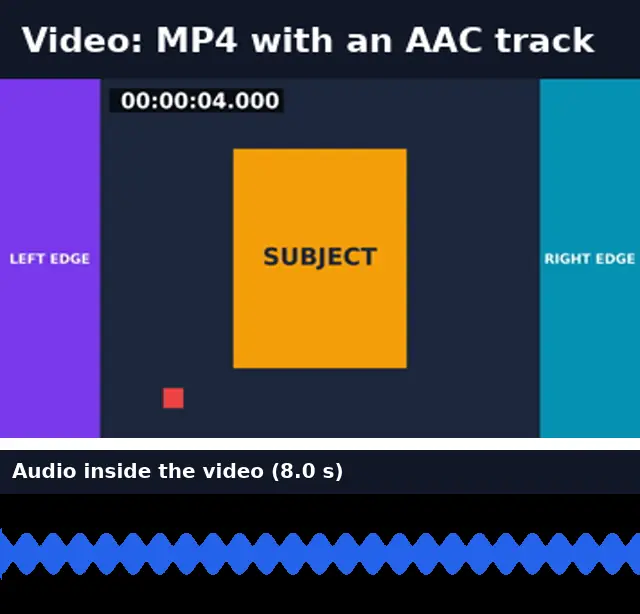
Before and after: an MP4 becomes an MP3
The audio track of an 8-second MP4 converted at the recommended 192 kbps.
Before
After

Real run of this tool in Chrome on an 8-second 1920×1080 test clip with a burned-in timecode, measured with ffprobe. No mock-ups.
MP3 conversion vs original audio extraction
Converting to MP3 and pulling out the original track are different jobs. Pick by what you’ll do with the file.
| Video to MP3 (this tool) | Extract original track | |
|---|---|---|
| Re-encoded? | Yes, to MP3 | No — copied bit for bit |
| Quality | Very close; set by the bitrate | Exactly the original |
| Plays everywhere | Yes | Usually (M4A/AAC), not always (MKA) |
| File size | Set by the bitrate you choose | Same as the track inside the video |
| Best for | Sharing, phones, podcast apps | Editing, archiving, transcription |
Raising the bitrate can’t restore quality the video’s audio never had: 320 kbps from a 128 kbps track is just a bigger file.
Podcasts, interviews, and meeting recordings
For a podcast or interview recorded on video, 128 kbps MP3 keeps voices clear at a third of the size of 320 kbps. For a meeting you want to search later, an MP3 is only half the job: the words are what you need, and a transcript makes them searchable.
Video to MP3: troubleshooting
- “This video has no audio track”
- The file was recorded or exported without sound. There is nothing to convert.
- The MP3 is quiet
- The converter keeps the original loudness. Raise the volume in your player or an audio editor.
- It takes a while on my phone
- MP3 encoding runs on your device. Long videos take longer on phones; a laptop is faster.
Privacy and file limits
FFmpeg runs inside this browser tab, so your files are never uploaded. There is no account, watermark, or usage limit; the size limit is your device’s memory: about 750 MB on a laptop and 250 MB on a phone. Re-encoding long videos can take minutes, and the page shows an estimate first.
How to use Video to MP3
- 1
Choose a video
MP4, MOV, WebM, MKV, or AVI.
- 2
Pick the quality
128 kbps for speech, 192 kbps for most uses, 320 kbps for music.
- 3
Convert and download
Your browser encodes the MP3.
Frequently Asked Questions
- Which MP3 bitrate should I pick?
- 128 kbps for speech, 192 kbps for most music and mixed audio, 320 kbps when you want the most detail MP3 can hold.
- Is an MP3 from a video lossless?
- No. MP3 is a compressed format, so the audio is re-encoded. For an exact copy of the track, use Extract Audio’s Original option.
- Can I convert MOV or WebM to MP3?
- Yes. Any video your browser’s FFmpeg can read works, including MOV, WebM, MKV, and AVI.
- Does this transcribe the MP3?
- No, it only converts audio. To turn the speech into text, use Video to Transcript; the MP3 can go there with one click.
- Can I convert a YouTube link?
- No. Download the video file you have the rights to, then convert it here.
Need the words, not just the sound?
Got the audio? Get the conversation as text
Turn the recording into a searchable transcript with timestamps.
- ✓A searchable transcript with timestamps
- ✓Speaker labels on Pro, so you can see who said what
- ✓Export TXT, DOCX, PDF, SRT, or VTT