Extract Frames from Video as JPG or PNG
Save stills from a video at full resolution: one frame at the exact time you choose, or one every 1–60 seconds. Download them one by one or as a ZIP.
Grabbing frames for notes or slides? Get the transcript to match →
Choose a video or drop it here
MP4, MOV, WebM, MKV, AVI — processed in your browser, never uploaded
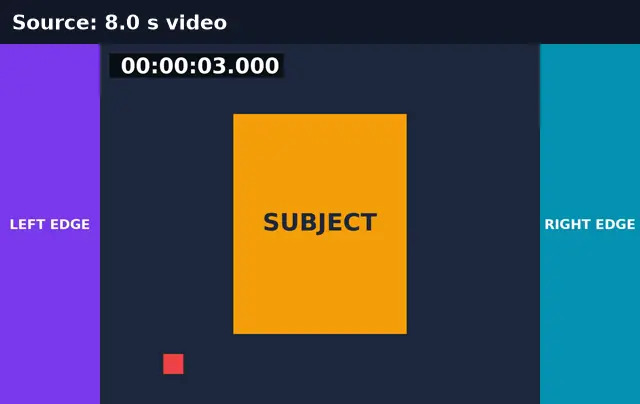
Before and after: one frame every 2 seconds
An 8-second 1080p video with “every 2 s” selected gave four full-resolution JPGs, named by their timestamp.
Before
After
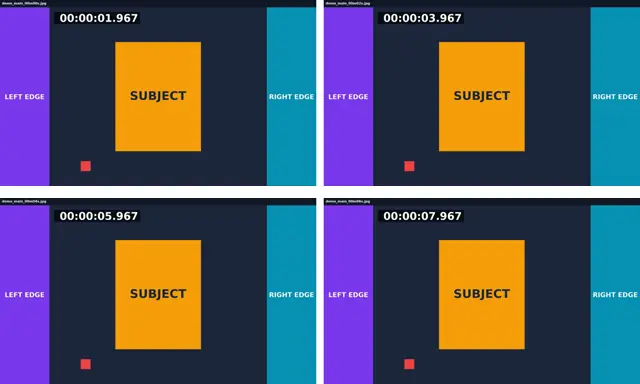
Real run of this tool in Chrome on an 8-second 1920×1080 test clip with a burned-in timecode, measured with ffprobe. No mock-ups.
Interval extraction vs a single frame
Pick by what you need the images for.
| Single frame | Every N seconds | |
|---|---|---|
| You choose | The exact time | The gap: 1, 2, 5, 10, 30, or 60 s |
| Output | One JPG or PNG | Up to 60 images in a ZIP |
| Resolution | Full video resolution | Full video resolution |
| Best for | Thumbnails, a specific moment | Contact sheets, storyboards, slides from a talk |
Choosing the interval
Every second gives a frame for each second of video, which suits short clips; a 10-minute talk at every 10 seconds gives 60 frames, one per slide change on most talks. Each run makes up to 60 frames so the browser stays responsive; for more, run it again on a trimmed section.
Extract Video Frames: troubleshooting
- Only 60 frames came out
- That is the per-run cap. Choose a longer interval, or trim the video into sections.
- Text in the frame looks blurry
- Choose PNG, which is lossless. Motion blur in the video itself can’t be removed.
- The frame is a moment off
- Play to the exact moment and press “Use current time” instead of typing.
Privacy and file limits
FFmpeg runs inside this browser tab, so your files are never uploaded. There is no account, watermark, or usage limit; the size limit is your device’s memory: about 750 MB on a laptop and 250 MB on a phone. Re-encoding long videos can take minutes, and the page shows an estimate first.
How to use Extract Video Frames
- 1
Choose a video
MP4, MOV, WebM, or MKV.
- 2
Single frame or interval
Type a time (or use the player’s current time), or pick an interval.
- 3
Pick JPG or PNG
JPG is small; PNG is lossless for text and further editing.
- 4
Extract and download
Preview the frames, download any one, or all of them as a ZIP.
Frequently Asked Questions
- How do I extract a frame every second?
- Choose “A frame every few seconds”, pick 1 s, and press Extract frames.
- What resolution are the frames?
- The video’s full resolution: 1920×1080 frames from a 1080p video.
- How do I get a thumbnail from a video?
- Choose “One frame”, play to the moment, press “Use current time”, and extract. Download the JPG.
- How are the files named?
- By timestamp, such as video_01m15.5s.jpg, so they sort in order.
- JPG or PNG?
- JPG for thumbnails and previews (small files); PNG when you’ll edit the image or need crisp on-screen text.
Need the words, not just the sound?
Frames plus a transcript make the write-up
Turn the talk or tutorial into timestamped text, then drop in the frames you extracted.
- ✓A searchable transcript with timestamps
- ✓Speaker labels on Pro, so you can see who said what
- ✓Export TXT, DOCX, PDF, SRT, or VTT