Add Audio to Video — Replace or Mix the Soundtrack
Put a music track or voiceover on a video. Replace the original sound, or mix the new audio underneath it. The picture is copied, not re-encoded, so it keeps its exact quality.
Adding a voiceover? Generate subtitles for it with AI →
Choose a video or drop it here
MP4, MOV, WebM, MKV, AVI — processed in your browser, never uploaded
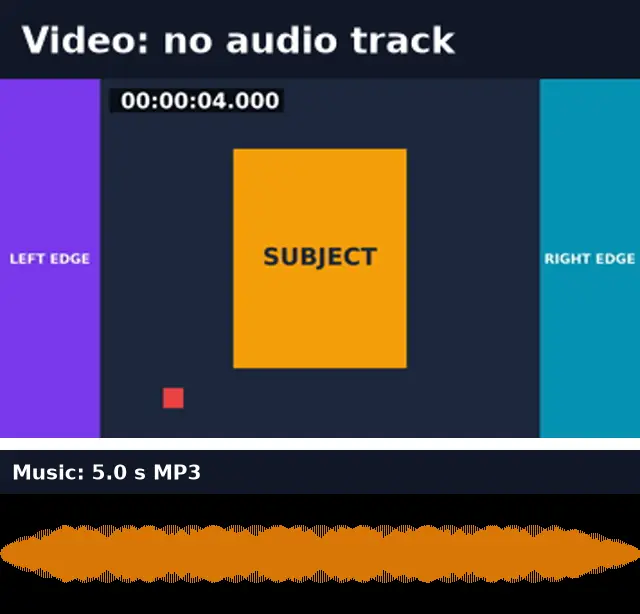
Before and after: a silent video gets a soundtrack
An 8-second video with no audio track plus a 5-second music file, with “Loop audio” on. The picture was compared by checksum: unchanged.
Before
After
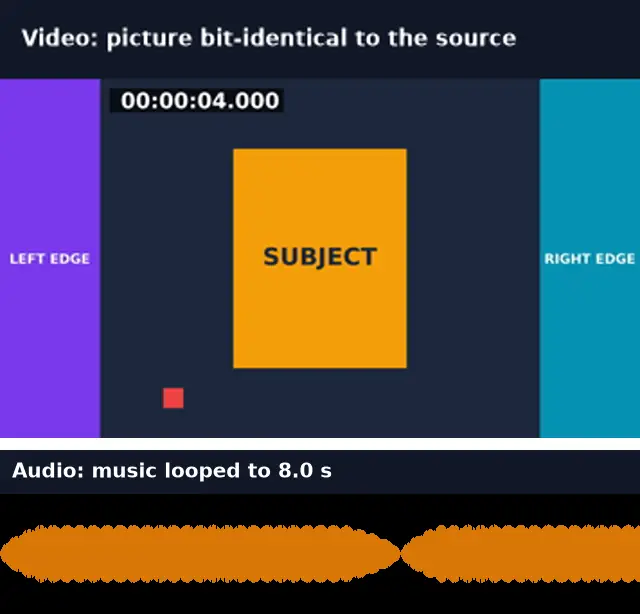
Real run of this tool in Chrome on generated test files, measured with ffprobe and checksums.
Add vs replace vs remove audio
Three ways to change a video’s sound. None of them re-encodes the picture of an MP4 or MOV.
| Replace | Mix (add under) | Remove | |
|---|---|---|---|
| Original sound | Gone | Kept | Gone |
| New sound | Your file | Your file, at the volume you set | None |
| Video length | Unchanged | Unchanged | Unchanged |
| Use it for | Music on b-roll, a new voiceover | Background music under speech | Silent clips, removing noise |
| Tool | This page | This page | Remove Audio |
Keeping audio in sync
The finished video is always exactly as long as the original video: longer audio is cut at the end, and shorter audio either stops or loops. A voiceover recorded separately starts at 0:00, so trim any silence at its start before adding it, or it will lag behind the picture.
Add Audio to Video: troubleshooting
- The voiceover lags behind the picture
- The audio file probably starts with silence. Trim it in an audio editor so speech starts where it should.
- The music drowns out the speech
- Choose Mix and lower the volume to 20–30%.
- Mix didn’t keep any original sound
- The video had no audio track, so the new audio was added on its own.
- The music stops before the video ends
- Tick “Loop audio to fill the video”.
Privacy and file limits
FFmpeg runs inside this browser tab, so your files are never uploaded. There is no account, watermark, or usage limit; the size limit is your device’s memory: about 750 MB on a laptop and 250 MB on a phone. Re-encoding long videos can take minutes, and the page shows an estimate first.
How to use Add Audio to Video
- 1
Choose the video
MP4 or MOV keep their picture untouched; other formats are converted to MP4.
- 2
Choose the audio
MP3, WAV, M4A, AAC, OGG, or FLAC.
- 3
Replace or mix
Mix keeps the original sound; set the new audio’s volume (around 30% sits well under speech).
- 4
Loop if it’s short
Tick “Loop audio” to repeat a short track until the video ends.
- 5
Add audio and download
The result is always as long as the video.
Frequently Asked Questions
- How do I replace the audio in an MP4?
- Choose the MP4 and the new audio, keep “Replace it”, and press Add audio. The picture is copied unchanged.
- Can I add music without removing the voice?
- Yes. Choose “Keep it and mix the new audio under it” and set the music volume.
- Does adding audio re-encode the video?
- Not for MP4, M4V, or MOV: the picture is copied, and our checksum test confirmed it unchanged. Other formats are converted to MP4.
- What if the audio is longer than the video?
- It is cut where the video ends. The video’s length never changes.
- Which audio formats work?
- MP3, WAV, M4A, AAC, OGG, Opus, and FLAC. The soundtrack is saved as AAC in the MP4.
Most social video is watched on mute
Caption the voiceover
Generate subtitles from the speech in the new soundtrack and burn them in, so the video works with the sound off.
- ✓Timed SRT and VTT subtitles from the speech in your video
- ✓Translate the subtitles into any of 104 languages
- ✓Burn styled captions in for TikTok, Reels, and Shorts